Table of Contents
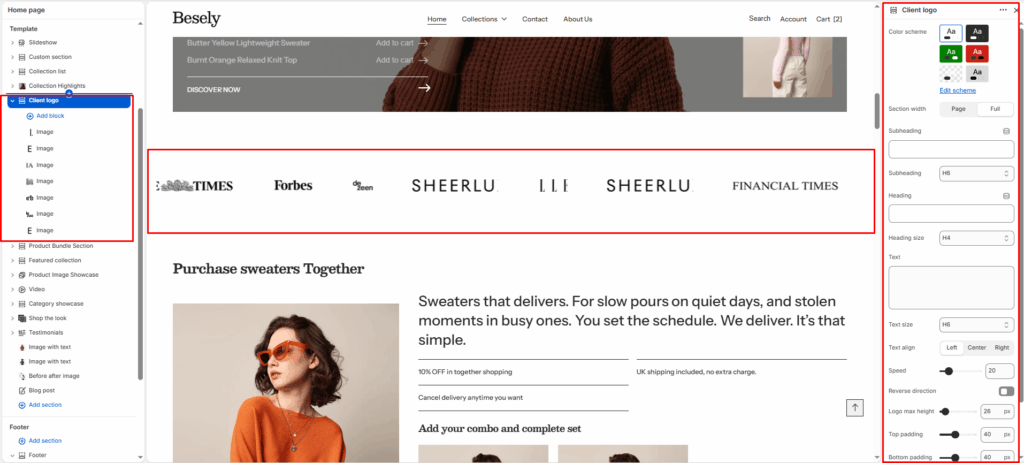
Displays a row or slider of client, brand, or “as seen in” logos to build trust and credibility.
Section settings #
- Color scheme: Choose which color scheme (defined in Theme settings → Colors) this element uses.
- Section width: Choose from: “Page”, “Full”.
- Subheading: Enter the text you want to display.
- Subheading: Choose from: “H1”, “H2”, “H3”, “H4”, “H5”, “H6”.
- Heading: Enter the text you want to display.
- Heading size: Choose from: “H1”, “H2”, “H3”, “H4”, “H5”, “H6”.
- Text: Enter a longer block of plain text.
- Text size: Choose from: “H1”, “H2”, “H3”, “H4”, “H5”, “H6”.
- Text align: Choose from: “Left”, “Center”, “Right”.
- Speed: Fine-tune this value with the slider (from 5 to 100).
- Reverse direction: Turns the “Reverse direction” option on or off.
- Logo max height: Fine-tune this value with the slider (from 20 to 120px).
- Top padding: Fine-tune this value with the slider (from 0 to 100px).
- Bottom padding: Fine-tune this value with the slider (from 0 to 100px).
Text block #
- Text: Enter a longer block of plain text.
- Text size: Choose from: “H1”, “H2”, “H3”, “H4”, “H5”, “H6”.
Image block #
- Image: Upload or select an image to display.
- Link: Link this element to a page, product, collection, blog, or external URL.