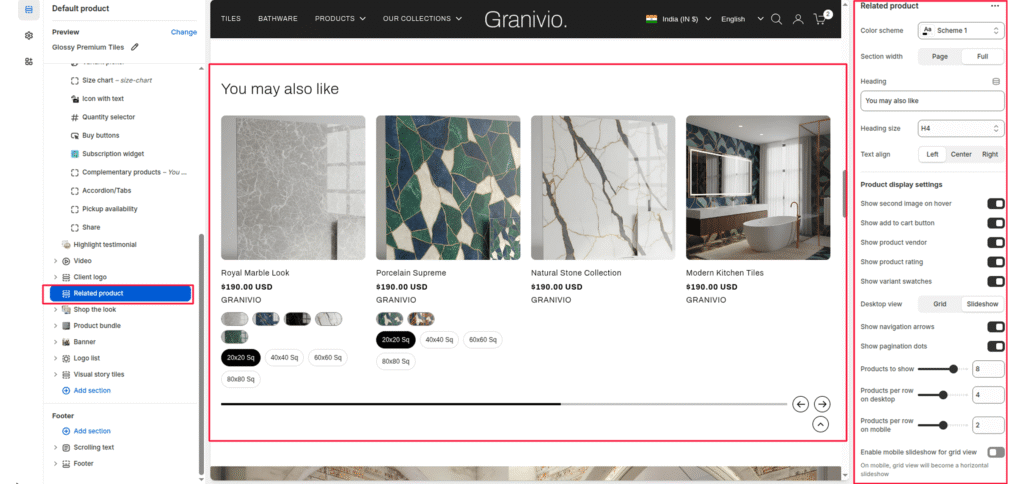
The Related Products section is designed to display a collection of suggested or complementary products on the product page. It helps increase cross-selling opportunities and improves customer browsing experience by showcasing similar or recommended items. The layout supports both grid and slider views, allowing full customization for desktop and mobile displays.
Section Settings #
Color Scheme #
Selects the overall visual theme for the section. Based on theme presets (e.g., Scheme 1, Scheme 2, etc.)
Section Width #
Choose how wide the section spans on the page:
- Page: Keeps the content aligned with the main page container.
- Full: Stretches the section across the full browser width.
Heading #
Sets the main title of the section.
Heading Size #
Select the size of the left-side heading (e.g., H1, H2, H3, H4, H5, H6).
Text Align #
Choose the alignment of the section heading (Left, Center, or Right).
Product Display Settings #
Show Second Image on Hover #
Displays the product’s secondary image when hovered over (if available).
Show Add to Cart Button #
Displays an Add to Cart button directly under each product card.
Show Product Vendor #
Displays the product vendor name (brand or supplier) below the product title.
Show Product Rating #
Shows the star rating or review snippet below the product name (if enabled through metafields or app).
Show variant swatches #
Shows available variants as swatches or buttons.
Desktop view mode #
Choose how products appear on desktop:
- Grid—static layout.
- Slider—scrollable carousel format.
Products to Show #
Controls how many total products appear in the section.
Products per Row on Desktop #
Sets the number of products displayed per row in desktop view.
Products per Row on Mobile #
Defines how many products are shown side-by-side on mobile devices.
Enable Mobile Slider for Grid View #
Turns the static grid into a slider layout only on mobile screens, improving usability and navigation.
Slider Controls #
(Available when slideshow is enabled)
- Show navigation arrows
- Show pagination dots
Layout Settings #
Top Padding #
Adds space above the section to separate it visually from other content.
Bottom Padding #
Adds space below the section.