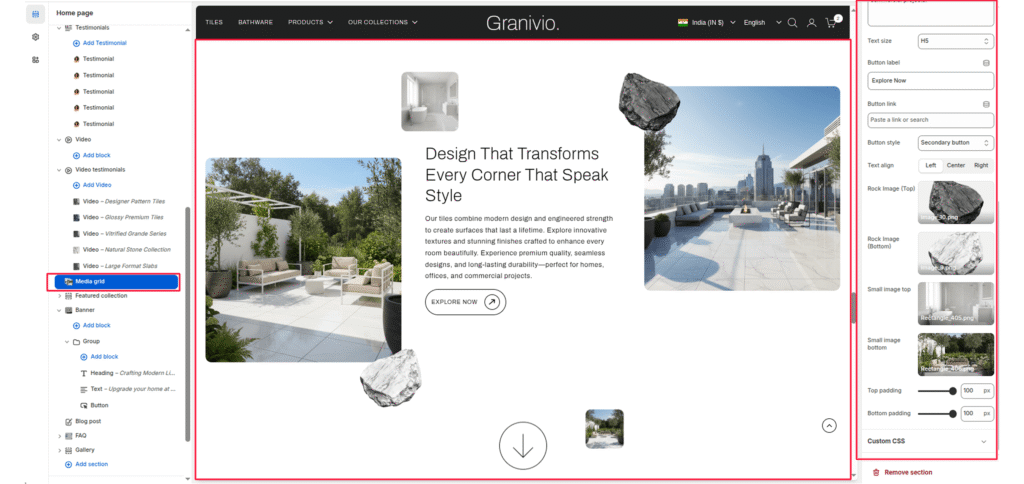
The Media Grid is a high-end storytelling section that uses an asymmetrical layout to showcase lifestyle imagery. It features two primary large images, two smaller supporting images, and two floating “rock” graphics to create a sense of depth and luxury.
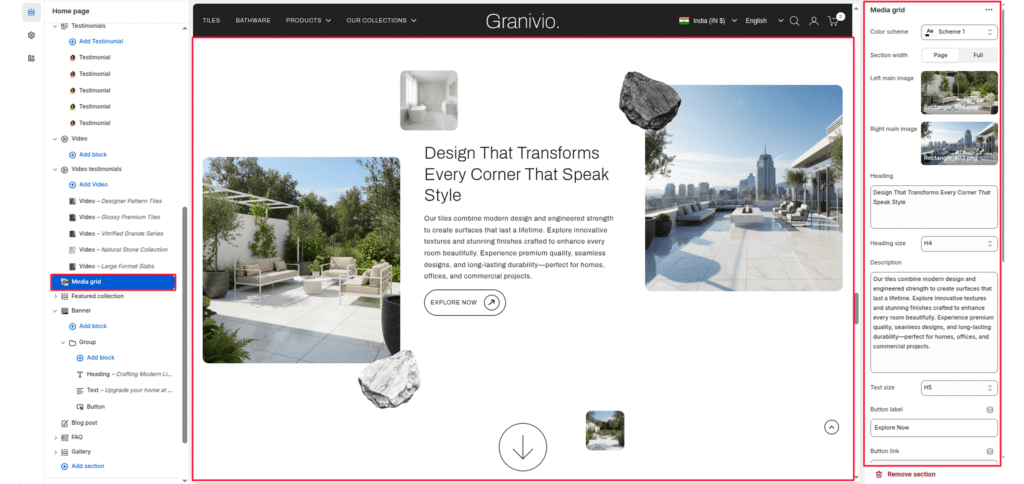
Color scheme #
Select your preferred color palette for the background and text.
Section Width #
- Page: Constrains the content to the theme’s maximum site width.
- Full: Stretches the section to the edges of the browser window.
Left main image #
The large, vertical image on the left side of the text.
Right main image #
The large, horizontal image on the right side of the text.
Heading #
Enter the main text for the section. This field supports multi-line text to create a bold statement.
Heading Size #
Choose from H1 (largest) to H6 (smallest) to manage visual hierarchy.
Description #
Add a secondary paragraph of text below the heading.
Text Size #
Controls the font size of the description text.
Button Label #
Enter text (e.g., “Shop Now”) to display a call-to-action button.
Button Link #
Paste a URL or select a page/product from the Shopify store.
Button Style #
Choose between available button styles. The styles depend on your theme’s design system.
- Button icon
- Primary button
- Secondary button
- Full button
- Link button
- Button with icon
Text Align #
Set the alignment of the text and button to left, center, or right.
Small image top #
A tiny thumbnail image that floats above the text area.
Small image bottom #
A tiny thumbnail image that floats at the bottom of the grid.
Rock Image (Top) #
A decorative floating element (like a dark stone) placed near the top-right.
Rock Image (Bottom) #
A decorative floating element (like a light stone) placed near the bottom-left.
Top/Bottom Padding #
Adjust the vertical spacing (in pixels) to give the section room to breathe.