

Before After Image
On this page
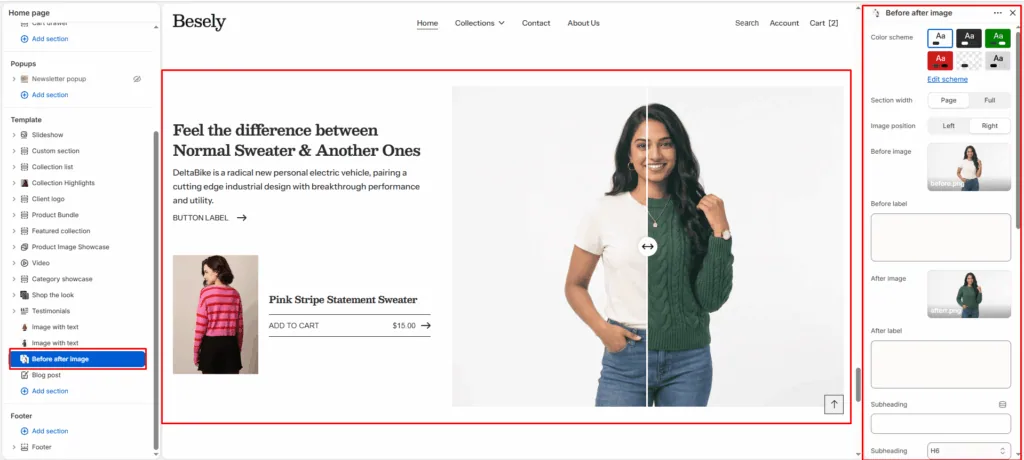
An interactive slider that lets customers drag to compare two images side by side — ideal for before/after transformations or product comparisons.
Section settings
- Color scheme: Choose which color scheme (defined in Theme settings → Colors) this element uses.
- Section width: Choose from: “Page”, “Full”.
- Image position: Choose from: “Left”, “Right”.
- Before image: Upload or select an image to display.
- Before label: Enter a longer block of plain text.
- After image: Upload or select an image to display.
- After label: Enter a longer block of plain text.
- Subheading: Enter the text you want to display.
- Subheading: Choose from: “H1”, “H2”, “H3”, “H4”, “H5”, “H6”.
- Heading: Enter a longer block of plain text.
- Heading size: Choose from: “H1”, “H2”, “H3”, “H4”, “H5”, “H6”.
- Text: Enter a longer block of plain text.
- Text size: Choose from: “H1”, “H2”, “H3”, “H4”, “H5”, “H6”.
- Link: Link this element to a page, product, collection, blog, or external URL.
- Button label: Enter the text you want to display.
- Button style: Choose from: “Primary button”, “Secondary button”, “Outline”, “Link”.
- Top padding: Fine-tune this value with the slider (from 0 to 100px).
- Bottom padding: Fine-tune this value with the slider (from 0 to 100px).
Product
- Show product overlay: Displays product overlay when this is switched on.
- Product: Select the product to feature.
Was this article helpful?
Thanks for the feedback.
Still need help?
Can't find what you're looking for? Send us a message and we'll help you out.