

Features with images
On this page
Features with images
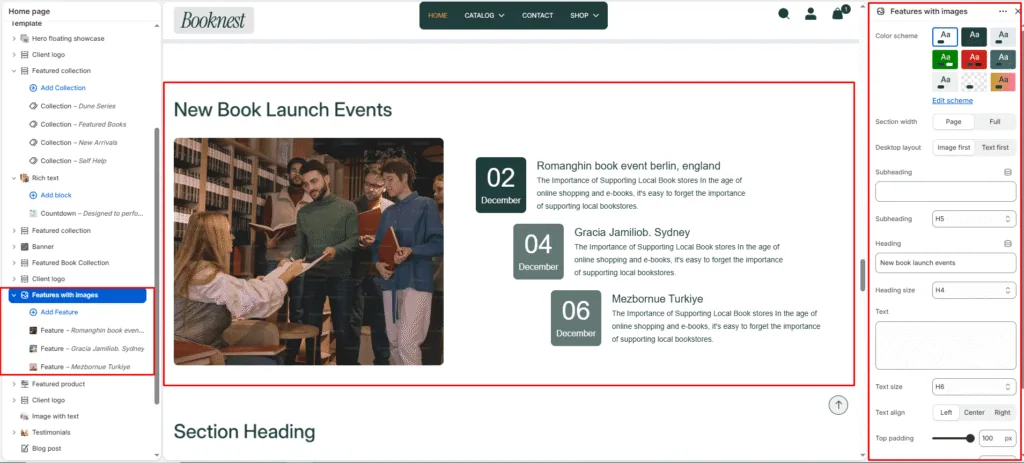
The Features with Images section creates an engaging editorial block that pairs a visual image gallery with a clickable feature list. It is ideal for promoting events, book launches, author spotlights, reading experiences, or key bookstore features with supporting imagery.
Section settings
Color scheme
Select a predefined color palette to ensure the blog section blends seamlessly with your store’s theme.
Section width
Choose how wide the section spans on the page.
Full: Stretches the section edge-to-edge across the browser window.
Page: Aligns section content with the page container.
Subheading
Enter a small introductory text displayed above the heading.
Subheading size
Choose the size of the subheading text (H1 to H6).
Heading
Enter the main heading for the section.
Heading size
Select the size of the heading text (H1 to H6).
Text
Add descriptive rich text content for storytelling or brand messaging.
Text size
Choose the size of the text content (H1 to H6).
Button label
Enter the call-to-action button text.
Button link
Select the destination page or URL for the button.
Button style
Choose between available button styles. The styles depend on your theme’s design system.
- Primary button
- Secondary button
Text alignment
Select the alignment of section content.
- Right
- Left
- Center
Top padding
Adds vertical space above the section content (value in pixels).
Bottom padding
Adds vertical space below the section content (value in pixels).
Block settings
Each feature block represents one image plus descriptive content. Blocks are rendered as a clickable feature list with a matching image stage.
Image
The visual media for this feature. Displayed in the image stage area. If no image is provided, a placeholder graphic appears.
Event day
A short text field intended for a day number or highlight date. Displayed inside the date card for each feature.
Event month
A short text field intended for a month name or label. Complements the day field in the date card.
Title
The feature headline. Appears on the feature button and is used as the image alt text when no alt exists.
Description
Short rich text or paragraph content. Displays below the feature title in the feature list.
Was this article helpful?
Thanks for the feedback.
Still need help?
Can't find what you're looking for? Send us a message and we'll help you out.