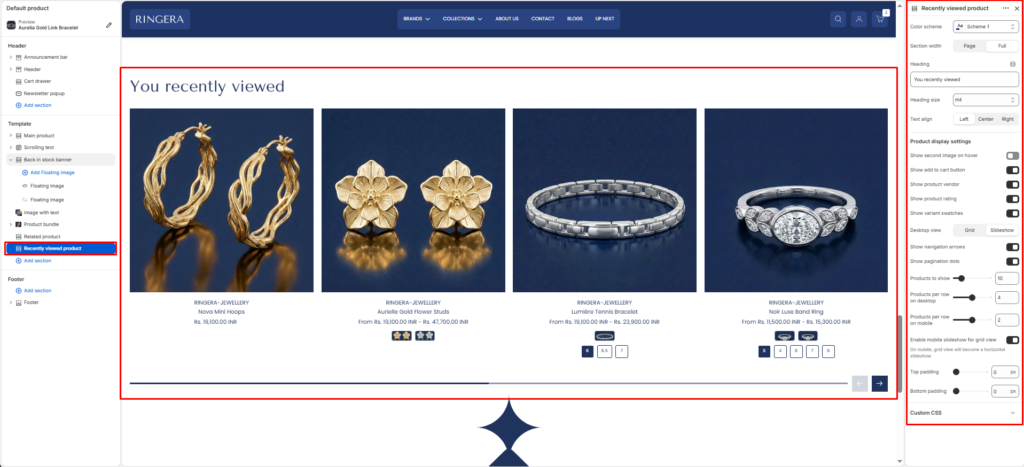
The Recently Viewed Products section remembers a customer’s browsing history on your store and displays the exact items they were looking at previously. This is a highly effective tool for re-engaging shoppers and reducing abandoned sessions.
Color scheme #
Choose a predefined color palette to match your store’s theme style.
Section width #
- Page: Constrains the section to the theme’s maximum site width.
- Full: Stretches the section to the edges of the browser window.
Heading #
Enter the title for this section.
Heading size #
Choose the size for the heading H1 To H6.
Text align #
Align the heading text to the Left, Center, or Right.
Product Display Settings #
Show second image on hover #
Toggle to replace the primary product image with the second image when a user’s mouse hovers over it.
Show product vendor #
Toggle to display the brand or vendor name above the product title.
Show product rating #
Toggle to display star ratings (requires a compatible product reviews app).
Show add to cart button #
Toggle to add a quick “Add to Cart” or “Select Options” button directly on the product card.
Show variant swatches #
Toggle to display color or material swatches directly on the product card.
Desktop view #
Choose between a standard Grid layout or an interactive Slideshow for desktop users.
Show navigation arrows #
Shows or hides previous and next controls when the section runs as a slideshow.
Show pagination dots #
Shows or hides the slideshow progress indicator.
Products to show #
Use the slider to set the maximum total number of recommended items to fetch and display (e.g., 8).
Products per row on desktop #
Choose how many product cards are displayed side-by-side on desktop screens (e.g., 4).
Products per row on mobile #
Choose how many product cards are displayed side-by-side on mobile screens (e.g., 2).
Enable mobile slideshow for grid view #
Toggle this on to convert the vertical mobile grid into a swipeable horizontal slideshow to save screen space.
Top padding #
Adjust the vertical spacing above the section (in pixels).
Bottom padding #
Adjust the vertical spacing below the section (in pixels).