

Rich Text
On this page
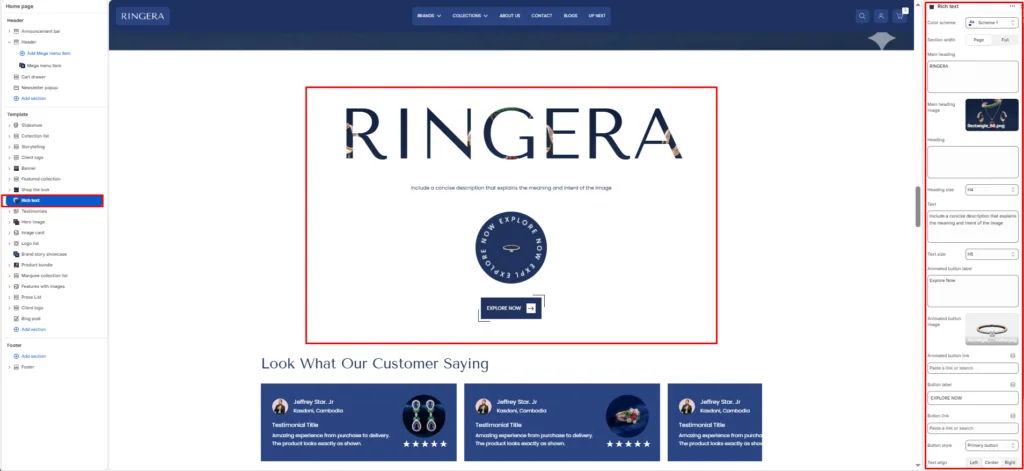
The Rich Text section is a versatile component ideal for storytelling, brand statements, or introducing a collection. It goes beyond standard text blocks by allowing you to mask images inside large typography and add engaging animated elements.
Color scheme
Choose a predefined color palette to match your store’s overall design.
Section width
- Page: Constrains the content to the theme’s maximum layout width.
- Full: Stretches the section horizontally to the very edges of the browser window.
Main heading
Enter the primary, oversized focal title.
Main heading Image
Upload an image layer that will serve as the background pattern or texture for your Main heading. The text acts as a transparent cut-out, allowing the image to show through the letters.
Heading
Enter an optional secondary title to appear above or below the main heading.
Heading size
Choose the size for the secondary heading H1 To H6.
Text
Enter a concise description or narrative paragraph to support the headings.
Text size
Control the font size of the description paragraph H1 To H6 for better readability.
Animated Circular Button
This unique feature creates a rotating, seal-like circular button.
- Animated button label: Enter the text that will wrap around the circle’s edge (e.g., “Explore Now”). This text typically rotates for a dynamic effect.
- Animated button image: Upload the central icon or image that will sit inside the circular text (e.g., a jewelry ring icon).
- Animated button link: Search for or paste the URL (page, product, or collection) you want this animated badge to link to.
Button label
Input text for a traditional call-to-action button (e.g., “EXPLORE NOW”).
Button link
Select the destination page you want to direct users to when they click the button.
Button style
Choose the design of the button.
- Primary Button
- Secondary Button
Button icon enable
Enable to display an icon inside the button.
Text align
Align all the content in this section (headings, text, and buttons) to the Left, Center, or Right.
Top padding
Adjust the vertical spacing above the section (in pixels).
Bottom padding
Adjust the vertical spacing below the section (in pixels).
Was this article helpful?
Thanks for the feedback.
Still need help?
Can't find what you're looking for? Send us a message and we'll help you out.