

Product Bundle
On this page
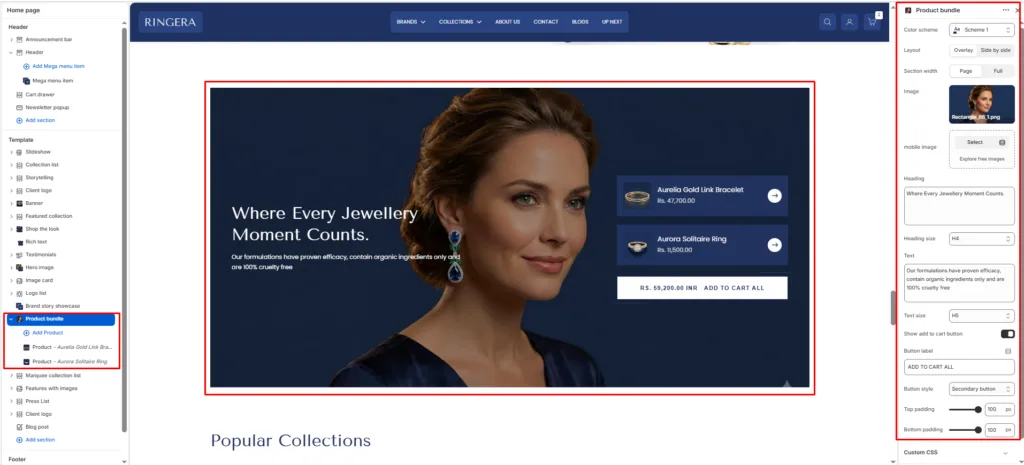
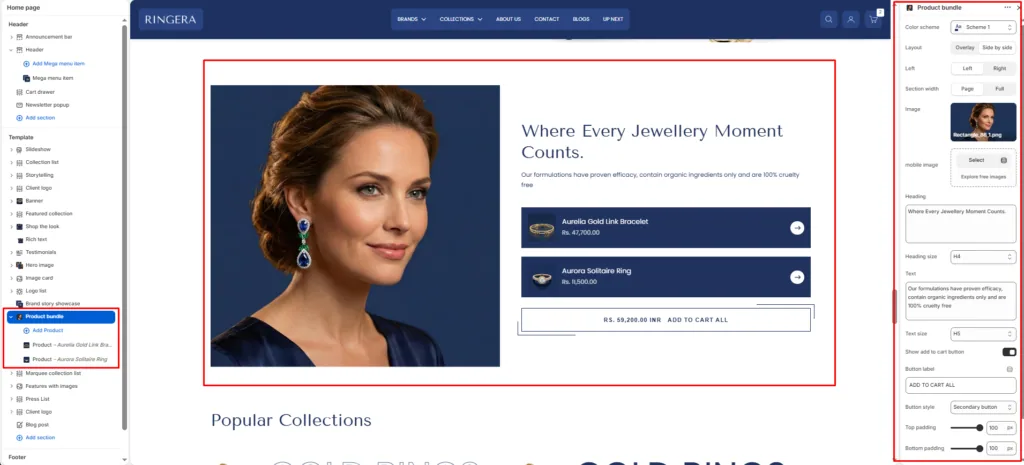
The Product bundle section displays a collection of complementary products alongside a focused hero image and a collective “Add to Cart” call-to-action. This layout is perfect for matched jewelry sets, curated collections, or “Frequently Bought Together” promotions.
Color scheme
Choose a predefined color palette to match the section with your store’s theme style.
Layout
Choose how the image and content interact:
- Overlay: Places the text and product bundle blocks directly over the banner image.
- Side by side: Places the image and the content side-by-side.
Desktop image alignment
(Visible only when Layout is set to “Side by side”) Choose whether the image sits on the Left or Right side of the bundle content.
Section width
- Page: Constrains the content to the theme’s maximum site width.
- Full: Stretches the section to the edges of the browser window.
Image
Upload the main visually engaging image that represents the bundle.
Mobile image
Optionally upload a differently sized/cropped image specifically tailored for mobile screens.
Heading
Add the main promotional title for the bundled offer (e.g., “Where Every Jewellery Moment Counts”).
Heading size
Adjust the scale of the heading (e.g., H4) to establish visual hierarchy.
Text
Enter a detailed paragraph to provide more context about the promotion or offer.
Text size
Control the font size of the description paragraph (e.g., H6) for better readability.
Show add to cart button
Toggle this on to display a master action button that adds all products in the bundle to the cart with one click.
Button label
Input the text for the action button (e.g., “ADD TO CART ALL”).
Button style
Choose between available button styles. The styles depend on your theme’s design system.
- Primary Button
- Secondary Button
Top padding
Adjust the vertical space above the section (in pixels) to give the section room to breathe.
Bottom padding
Adjust the vertical space below the section (in pixels).
Block Settings (Product)
To curate the items within the bundle, expand the Product bundle section on the left sidebar and add or click on a Product block.
Product
Select a specific product from your store catalog to include in the bundle. These display as individual cards with the product name, price, and a localized arrow/action icon.
Was this article helpful?
Thanks for the feedback.
Still need help?
Can't find what you're looking for? Send us a message and we'll help you out.