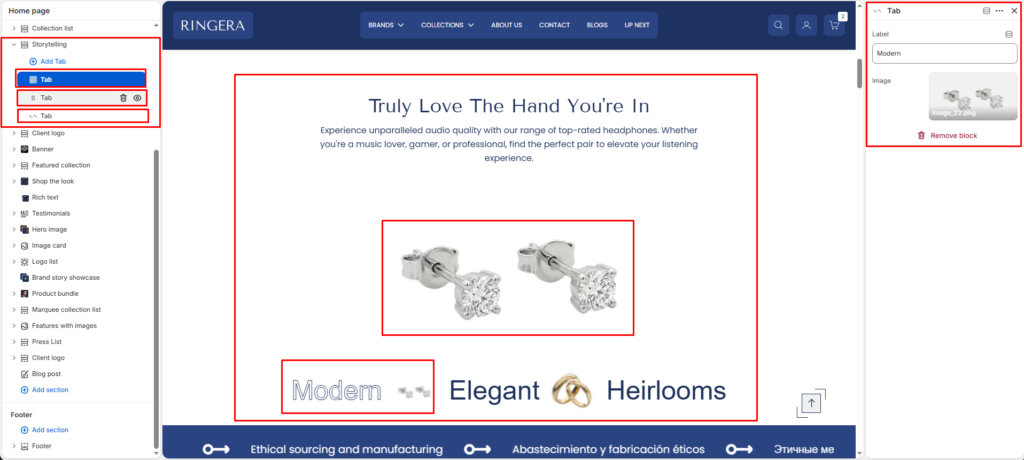
The Storytelling section is a highly interactive, tab-based component designed to highlight different aspects of a collection, brand values, or product features. It allows users to click through horizontal text labels (tabs) to reveal corresponding target images, creating a clean, engaging discovery experience.
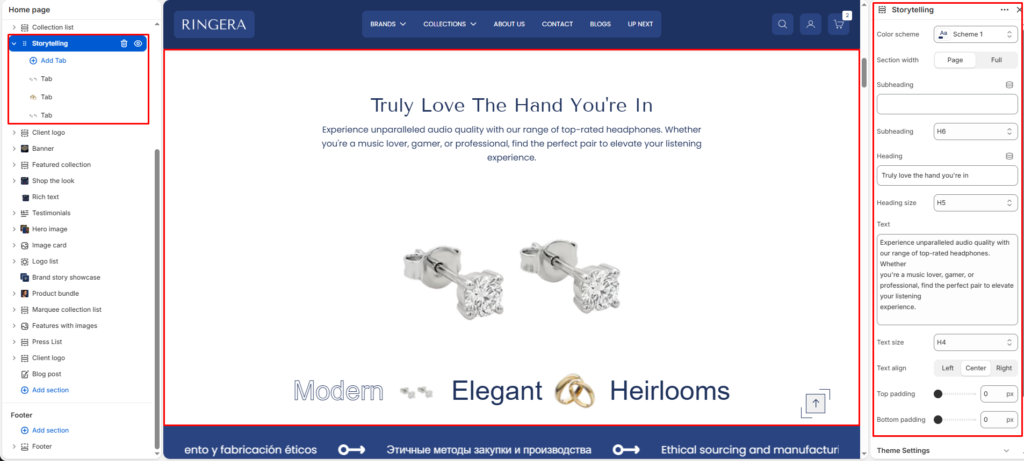
Color scheme #
Choose a predefined color palette for the background and text.
Section width #
- Page: Constrains the section strictly to the theme’s maximum layout width.
- Full: Stretches the section horizontally to the very edges of the browser window.
Subheading #
Enter an optional small subtitle to rest above the main heading.
Subheading size #
Set the size for the subheading H1 To H6.
Heading #
Enter the primary title for the section.
Heading size #
Set the size for the main heading H1 To H6.
Text #
Add a detailed description or narrative paragraph to build context for your storytelling.
Text size #
Control the visual scale of the description paragraph H1 To H6.
Text align #
Align all typography in this section to the Left, Center, or Right.
Top padding #
Adjust the vertical spacing above the storytelling component (in pixels).
Bottom padding #
Adjust the vertical spacing below the storytelling component (in pixels).
Block Settings (Tab) #
To build the interactive portion of this section, expand Storytelling on the left sidebar and click on a Tab block. You can add as many Tab blocks as you need.
Each Tab block represents an interactive “button” at the bottom of the section and the specific image that appears when that button is active.
Settings:
- Label: Enter the word or short phrase for the tab navigation (e.g., “Modern”, “Elegant”, “Heirlooms”). When a user selects this label, it typically highlights (like an outline effect).
- Image: Upload the specific image that should display in the central media area when this specific tab is selected by the user.