Table of Contents
Badges #
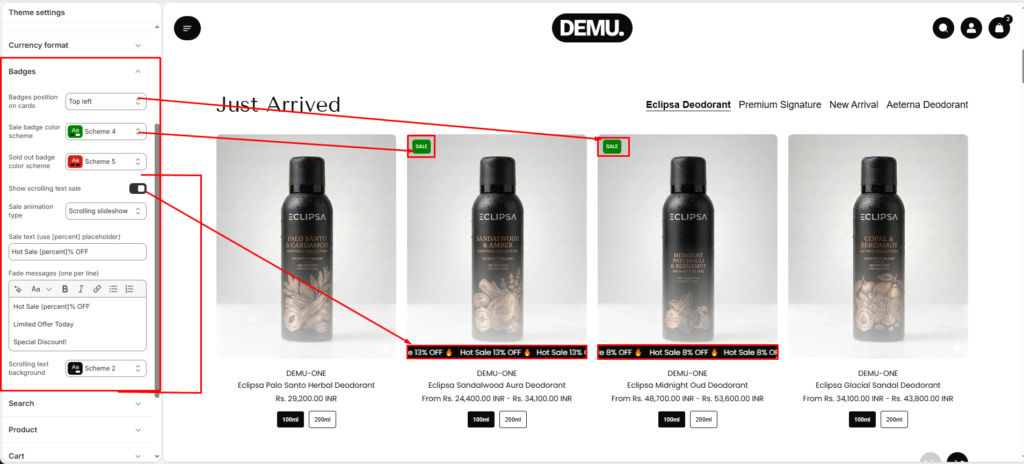
Badges’ position on cards #
You can set the badge position on cards, top left/top right, and bottom left/bottom right.
Sale badge color scheme #
Set the sale badges’ background color.
Sold-out badge color scheme #
Set the sold-out badges’ background color.
Show Scrolling Text Sale #
Enable this option to display animated promotional text (e.g., sale messages) on product cards.
- Helps highlight discounts and offers
- Attracts user attention with motion
Sale Animation Type #
Select the animation style for sale text.
- Example: Scrolling Slideshow
- Can display multiple promotional messages in rotation
Sale Text (Use [percent] Placeholder) #
Define the sale message format.
- Use
[percent]to dynamically display the discount percentage
Example:Hot Sale [percent]% OFF
Fade Messages (One per line) #
Add multiple promotional messages that will rotate in the animation.
- Enter each message on a new line
Scrolling Text Background #
Select the color scheme for the scrolling sale text background.
- Matches your theme’s color schemes
- Ensures proper contrast and readability
Best Practice Tips #
- Use consistent naming for swatches (e.g., always “Color”)
- Prefer image swatches for premium products
- Keep sale messages short and impactful
- Ensure sufficient color contrast for accessibility compliance