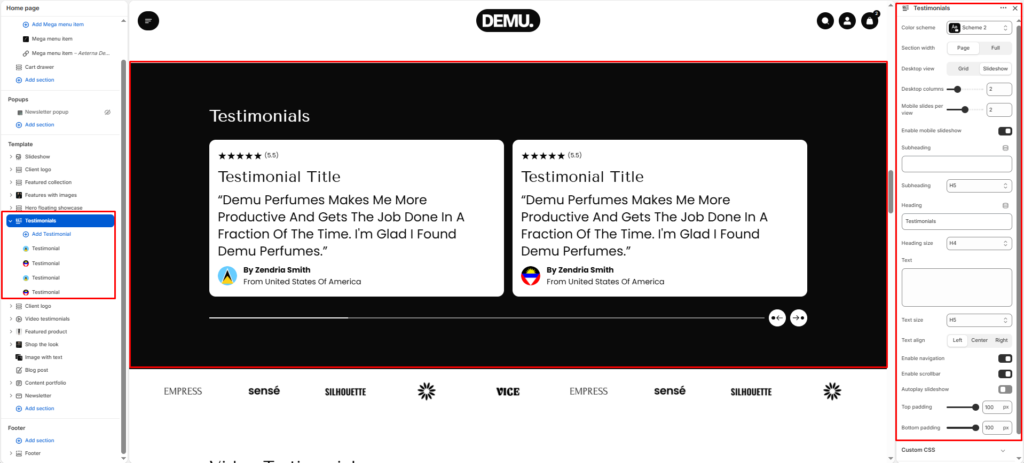
Testimonials #
The Testimonials section is a powerful social proof area that helps you build trust by displaying customer reviews, profile details, ratings, and related products. It supports both grid and slideshow presentation, so you can choose between a clean static layout or an interactive carousel experience across desktop and mobile.
Section settings #
Color scheme #
Choose the desired color palette for this section from the available theme schemes.
Section width #
Choose how wide the section spans on the page.
Page keeps content aligned with the main theme container.
Full stretches the section edge-to-edge across the browser window.
Subheading #
Enter a short introductory text displayed above the heading.
Subheading size #
Choose the size of the subheading text (H1 to H6).
Heading #
Enter the main heading for the section.
Heading size #
Select the size of the heading text (H1 to H6).
Text #
Add supporting descriptive content for the testimonial area.
Text size #
Choose the size of the text content (H1 to H6).
Text alignment #
Set content alignment to Left, Center, or Right.
Desktop view #
Choose how testimonials are displayed on desktop.
Grid shows static cards.
Slideshow shows an interactive horizontal carousel.
Desktop columns #
When using slideshow mode, control how many testimonial cards are visible at once. Decimal values such as 2.5 allow the next card to partially appear, encouraging interaction.
Mobile slides per view #
Set how many testimonial cards are visible simultaneously on mobile screens.
Enable mobile slideshow #
Turn this on to show testimonials as a swipeable carousel on mobile instead of a static grid.
Show navigation arrows #
Enable left and right arrows for manual slide navigation.
Show pagination dots #
Enable pagination dots at the bottom of the slider for quick slide position feedback.
Autoplay slideshow #
Enable automatic slide movement without user interaction.
Top padding #
Adjust vertical spacing above the section in pixels.
Bottom padding #
Adjust vertical spacing below the section in pixels.
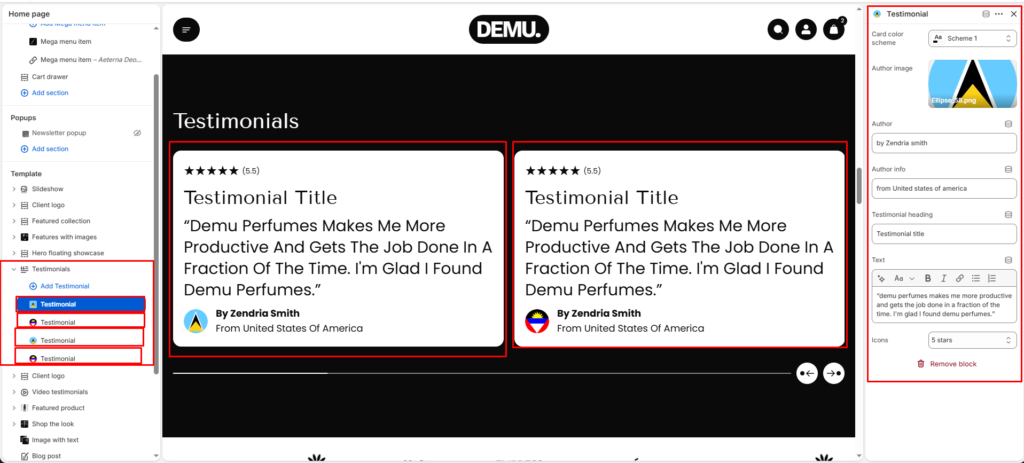
Block settings (Testimonial card) #
To add or edit individual customer reviews, open the Testimonials section in the theme editor sidebar and select a Testimonial block.
Card color scheme #
Choose a dedicated color scheme for this individual testimonial card to create contrast with the section background.
Author image #
Upload a profile image or avatar of the customer.
Author #
Enter the customer name.
Author info #
Enter secondary details such as location, role, or short identity text.
Testimonial heading #
Add a short headline for the review card.
Text #
Use the rich text editor to add the full customer quote. You can apply formatting such as bold and italic text.
Icons #
Choose a rating style (for example star count) from the dropdown.