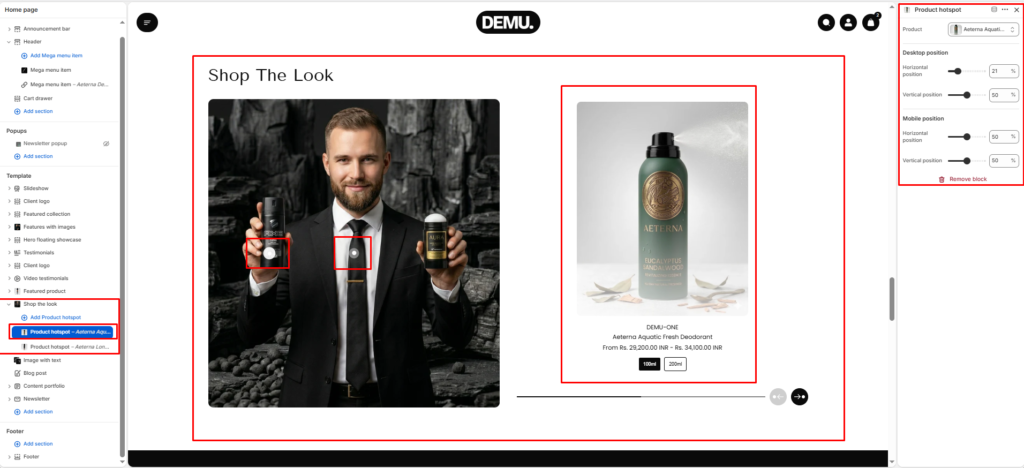
Shop The Look #
The Shop The Look section helps you create an interactive product discovery experience by combining a lifestyle image with clickable product hotspots. Customers can click the markers to preview linked products, view product details, and quickly move toward purchase. This section is ideal for showcasing complete looks, routines, or curated product combinations.
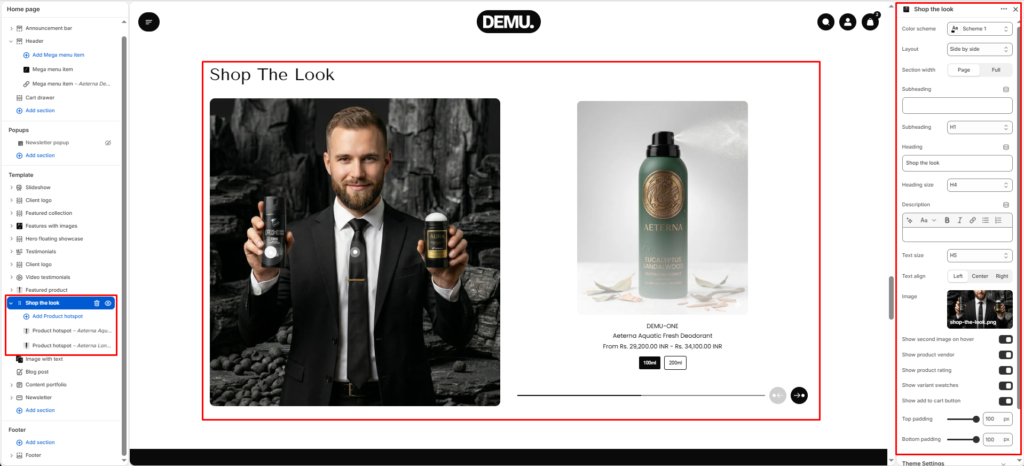
Section settings #
Color scheme #
Choose the color palette for this section from the available theme schemes.
Layout #
Select the layout style for how the image and product preview area are arranged (for example split-by-side style).
Section width #
- Page: Constrains the content to the theme’s maximum site width.
- Full: Stretches the section to the edges of the browser window.
Subheading #
Enter a short introductory text shown above the heading.
Subheading size #
Set the subheading typography size based on available heading scale options.
Heading #
Enter the main title for the section, such as “Shop The Look”.
Heading size #
Choose the heading text size.
Description #
Add supporting text to explain the featured look or product story.
Text size #
Control the size of description text.
Text alignment #
Set content alignment to Left, Center, or Right.
Image #
Select the main lifestyle image where hotspot markers will appear.
Show second image on hover #
Enable this option to show an alternate product image when customers hover product cards.
Show product vendor #
Enable or disable display of the product brand/vendor name.
Show product rating #
Enable or disable product rating display in the preview area.
Show variant swatches #
Enable this setting to show variant options (such as size or color) in product previews.
Show add to cart button #
Enable a direct add-to-cart action from the product preview card.
Top padding #
Adjust the vertical space above the section in pixels.
Bottom padding #
Adjust the vertical space below the section in pixels.
Block settings #
Product hotspot block #
Each Product hotspot block adds one clickable marker on the main image and links it to a selected product.
Product #
Choose the product that opens when the hotspot is clicked.
Desktop position #
Set the hotspot position on desktop using horizontal and vertical percentage controls.
Mobile position #
Set the hotspot position on mobile using horizontal and vertical percentage controls.