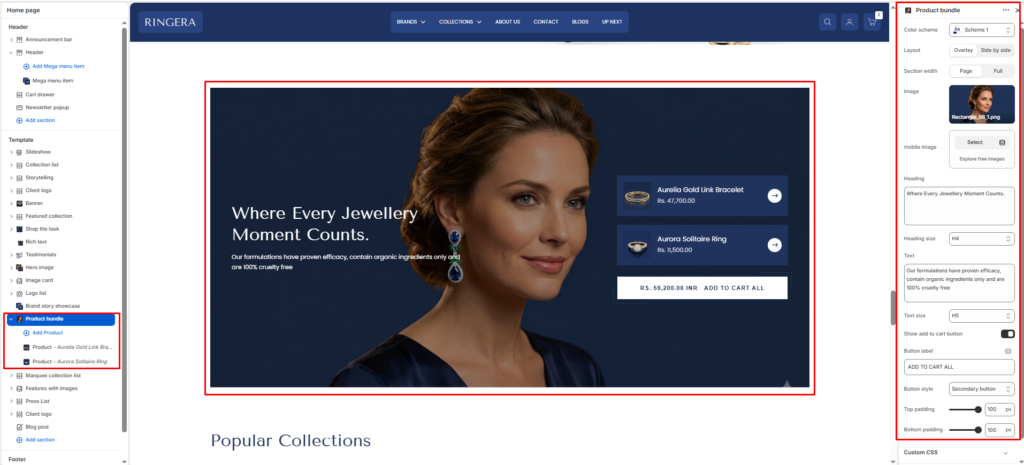
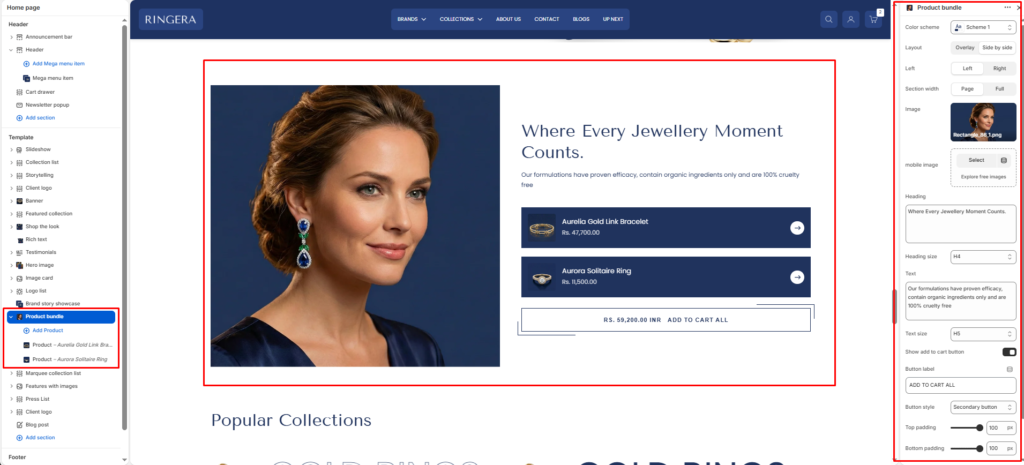
The Product bundle section displays a collection of complementary products alongside a focused hero image and a collective “Add to Cart” call-to-action. This layout is perfect for matched jewelry sets, curated collections, or “Frequently Bought Together” promotions.
Color scheme #
Choose a predefined color palette to match the section with your store’s theme style.
Layout #
Choose how the image and content interact:
- Overlay: Places the text and product bundle blocks directly over the banner image.
- Side by side: Places the image and the content side-by-side.
Desktop image alignment #
(Visible only when Layout is set to “Side by side”) Choose whether the image sits on the Left or Right side of the bundle content.
Section width #
- Page: Constrains the content to the theme’s maximum site width.
- Full: Stretches the section to the edges of the browser window.
Image #
Upload the main visually engaging image that represents the bundle.
Mobile image #
Optionally upload a differently sized/cropped image specifically tailored for mobile screens.
Heading #
Add the main promotional title for the bundled offer (e.g., “Where Every Jewellery Moment Counts”).
Heading size #
Adjust the scale of the heading (e.g., H4) to establish visual hierarchy.
Text #
Enter a detailed paragraph to provide more context about the promotion or offer.
Text size #
Control the font size of the description paragraph (e.g., H6) for better readability.
Show add to cart button #
Toggle this on to display a master action button that adds all products in the bundle to the cart with one click.
Button label #
Input the text for the action button (e.g., “ADD TO CART ALL”).
Button style #
Choose between available button styles. The styles depend on your theme’s design system.
- Primary Button
- Secondary Button
Top padding #
Adjust the vertical space above the section (in pixels) to give the section room to breathe.
Bottom padding #
Adjust the vertical space below the section (in pixels).
Block Settings (Product) #
To curate the items within the bundle, expand the Product bundle section on the left sidebar and add or click on a Product block.
Product #
Select a specific product from your store catalog to include in the bundle. These display as individual cards with the product name, price, and a localized arrow/action icon.