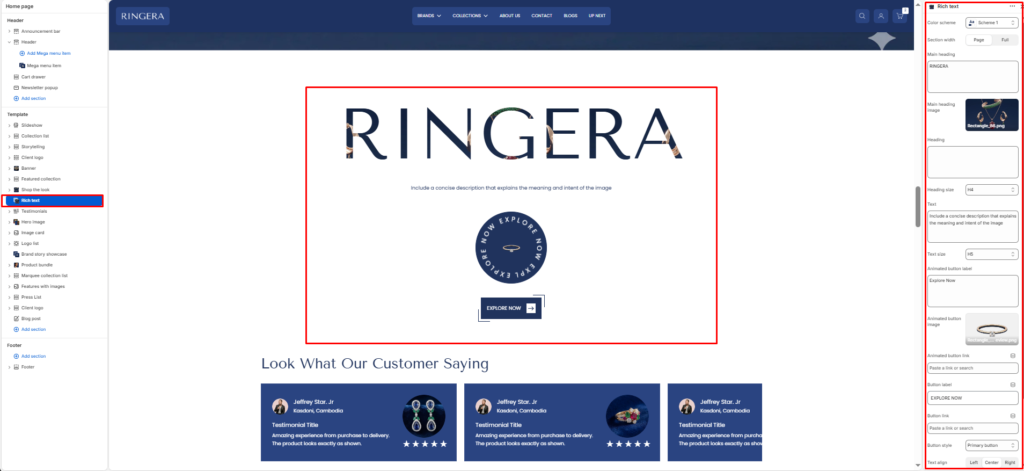
The Rich Text section is a versatile component ideal for storytelling, brand statements, or introducing a collection. It goes beyond standard text blocks by allowing you to mask images inside large typography and add engaging animated elements.
Color scheme #
Choose a predefined color palette to match your store’s overall design.
Section width #
- Page: Constrains the content to the theme’s maximum layout width.
- Full: Stretches the section horizontally to the very edges of the browser window.
Main heading #
Enter the primary, oversized focal title.
Main heading Image #
Upload an image layer that will serve as the background pattern or texture for your Main heading. The text acts as a transparent cut-out, allowing the image to show through the letters.
Heading #
Enter an optional secondary title to appear above or below the main heading.
Heading size #
Choose the size for the secondary heading H1 To H6.
Text #
Enter a concise description or narrative paragraph to support the headings.
Text size #
Control the font size of the description paragraph H1 To H6 for better readability.
Animated Circular Button #
This unique feature creates a rotating, seal-like circular button.
- Animated button label: Enter the text that will wrap around the circle’s edge (e.g., “Explore Now”). This text typically rotates for a dynamic effect.
- Animated button image: Upload the central icon or image that will sit inside the circular text (e.g., a jewelry ring icon).
- Animated button link: Search for or paste the URL (page, product, or collection) you want this animated badge to link to.
Button label #
Input text for a traditional call-to-action button (e.g., “EXPLORE NOW”).
Button link #
Select the destination page you want to direct users to when they click the button.
Button style #
Choose the design of the button.
- Primary Button
- Secondary Button
Button icon enable #
Enable to display an icon inside the button.
Text align #
Align all the content in this section (headings, text, and buttons) to the Left, Center, or Right.
Top padding #
Adjust the vertical spacing above the section (in pixels).
Bottom padding #
Adjust the vertical spacing below the section (in pixels).