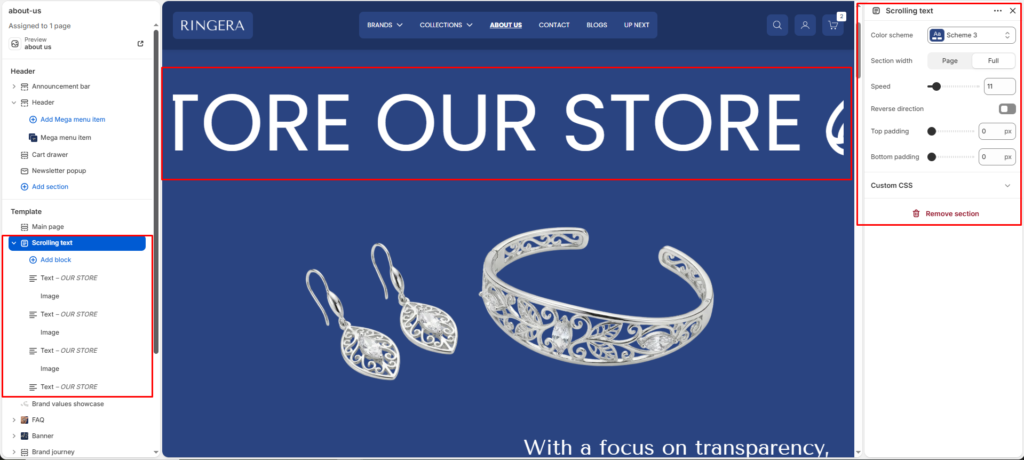
The Scrolling text section (also known as a marquee ticker) creates a continuous, horizontally moving band of text and/or images. This is an excellent way to grab customer attention for important announcements, brand slogans, or promotional messaging without taking up too much vertical screen space.
Color scheme #
Select a predefined color palette to control the background and font colors of the scrolling banner.
Section width #
- Page: Constrains the marquee within the theme’s maximum layout width.
- Full: Stretches the scrolling band completely across the browser window edge-to-edge.
Speed #
Use the slider to increase or decrease how fast the text/images move across the screen. Higher numbers mean faster scrolling.
Reverse direction #
Toggle this on to make the content scroll from left to right instead of the default right to left.
Top padding #
Adjust the vertical space above the scrolling band (in pixels).
Bottom padding #
Adjust the vertical space below the scrolling band (in pixels).
Block Settings #
1. Text Block #
The text block displays a standard, solid-color typography element. It’s best used for repeating promotional phrases (e.g., “FREE SHIPPING”, “OUR STORE”).
Settings:
Text Stroke: Toggle this checkbox ON to apply a hollow, outlined effect to your text. Instead of a solid fill color, the text will only show the stroke/outline, offering a very modern design aesthetic.
Link: Optionally add a URL to make this specific text block clickable. It can point to a product, collection, or any store page.
Text: Enter the word, phrase, or sentence you want to display in the marquee.
2. Image Block #
The image block allows you to insert graphic elements into the scrolling sequence. This is frequently used for brand logos, small separator icons (like a star or diamond), or product thumbnail previews.
Settings:
Image width: Use this slider (ranging from 1vw to 100vw) to scale the size of the image relative to the viewport. This gives you exact control over how large the image appears within the scrolling band.
Link: Add an optional URL to make the image a clickable link.
Image: Upload or select the image/icon you want to display.
3. Background Clip Text Block #
The background clip text block is a highly stylized element that fills your typography with an image pattern instead of a solid color. It acts as a transparent window revealing the uploaded image behind the letters.
Settings:
Link: Add an optional URL to make this text block a clickable link.
Text: Enter the word or phrase. (Tip: This effect is usually much more legible when using short phrases and thicker/bolder fonts).
Background Clip: Upload the image pattern, texture, or photograph you want to be visible inside the text letters. The theme automatically scales this image to cover the text background and clips it perfectly to the letterforms.