

Collection List
On this page
The Collection List section allows you to highlight a curated showcase of your top footwear categories anywhere across your store (such as the Homepage, Brand Story page, or Campaign landing pages).
It serves as a primary discovery gateway—guiding sneakerheads directly to your most popular shoe silhouettes (Running, Basketball, Retro High-Tops, Skate, Sliders, and Shoe Care).
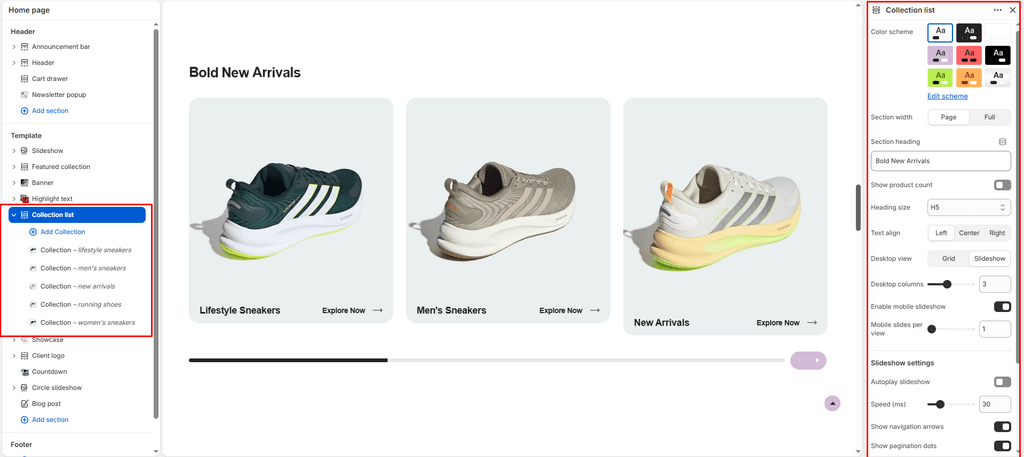
Sneax supports both a structured Static Grid and a Touch-Enabled Swiper Carousel with smooth autoplay, live product counts, and individual block overrides.
How to Access Collection List Settings
- From your Shopify Admin, navigate to Online Store > Themes.
- Click Customize on the Sneax theme.
- Open the page template where you want to add the section (e.g., Home page).
- In the left sidebar, click Add section and choose Collection list.
- Configure your layout, slideshow settings, and add your collection blocks.
- Click Save.
Layout & Heading Settings
| Setting Name | Type | Options / Range | Default | Description |
|---|---|---|---|---|
| Color scheme | Color Scheme Picker | Any configured color scheme | Scheme 1 | Sets the background and typography color palette for the entire section. |
| Section width | Dropdown | Page width, Full width | Page width | Determines whether the section aligns with the page container or spans edge-to-edge. |
| Section heading | Text | Text | None | Main title for the section (e.g., “Shop by Silhouette”, “Popular Collections”). |
| Heading size | Dropdown | H1 – H6 | H4 | Sets the typography size hierarchy for the section heading. |
| Text align | Dropdown | Left, Center, Right | Left | Sets horizontal alignment for the section title. |
| Show product count | Checkbox | Enabled / Disabled | Enabled (true) | Displays a real-time badge on each card showing total available items (e.g., “24 Shoes”). |
| Top padding | Slider / Range | 0px – 200px (Step: 5px) | 100px | Vertical whitespace above the collection cards (automatically halved on mobile). |
| Bottom padding | Slider / Range | 0px – 100px (Step: 1px) | 100px | Vertical whitespace below the collection cards (automatically halved on mobile). |
Grid & Slideshow Display Controls
| Setting Name | Type | Options / Range | Default | Description |
|---|---|---|---|---|
| Desktop view | Dropdown | Grid, Slideshow | Slideshow | Choose between a multi-column static grid or a smooth horizontal Swiper carousel on desktop. |
| Desktop columns | Slider / Range | 1 – 6 (Step: 1) | 5 | Number of collection cards visible per row or slide view on desktop. |
| Enable mobile swipe | Checkbox | Enabled / Disabled | Enabled (true) | Converts the mobile view into a touch-friendly swipeable carousel to preserve vertical screen space. |
| Mobile slides | Slider / Range | 1 – 3 (Step: 1) | 1 | Number of collection cards visible simultaneously on mobile phone screens. |
Slideshow Behavior Settings (Active in Slideshow Mode)
| Setting Name | Type | Options / Range | Default | Description |
|---|---|---|---|---|
| Autoplay slideshow | Checkbox | Enabled / Disabled | Disabled (false) | Automatically advances the collection carousel continuously. |
| Slideshow speed | Slider / Range | 10 – 100 (Step: 1) | 30 | Controls rotation pacing when autoplay is active. |
| Show navigation | Checkbox | Enabled / Disabled | Disabled (false) | Displays previous/next arrow controls. |
| Show pagination | Checkbox | Enabled / Disabled | Disabled (false) | Displays clickable pagination indicator dots at the bottom of the slider. |
Adding Collections & Custom Overrides (collection Block)
To display footwear categories, add individual Collection blocks inside the section:
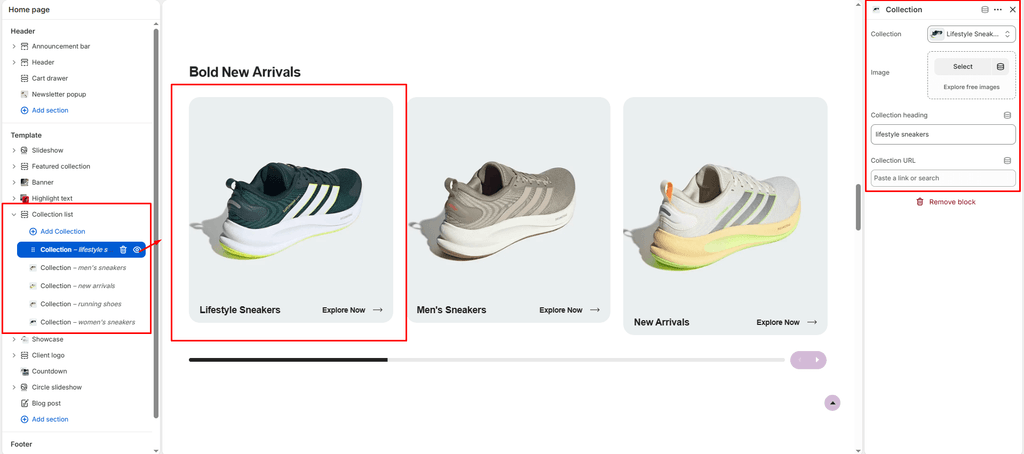
- Click Add Collection under the section in the Theme Editor sidebar.
- Select your target Shopify collection from the Collection picker (e.g., Basketball Kicks).
- Optional Marketing Overrides:
- Image: Upload a custom high-impact campaign photograph to override the collection’s default Shopify cover image.
- Heading: Enter a custom title (e.g., override “Performance Runners” with “Engineered for Speed”).
- Link: Provide a custom destination URL if you want the card to route to a specific promotional landing page or raffle instead of the standard collection URL.
Pro Tips for Sneax Footwear Stores
- High-Velocity Homepage Browsing: Setting Desktop view to
Slideshowwith Desktop columns at5allows visitors to see your major footwear categories without pushing down the rest of your homepage. - Mobile Thumb Optimization: Keep Mobile slides set to
1or2with Enable mobile swipe turned on. This lets mobile shoppers swipe through shoe categories naturally using their thumb.
Was this article helpful?
Thanks for the feedback.
Still need help?
Can't find what you're looking for? Send us a message and we'll help you out.