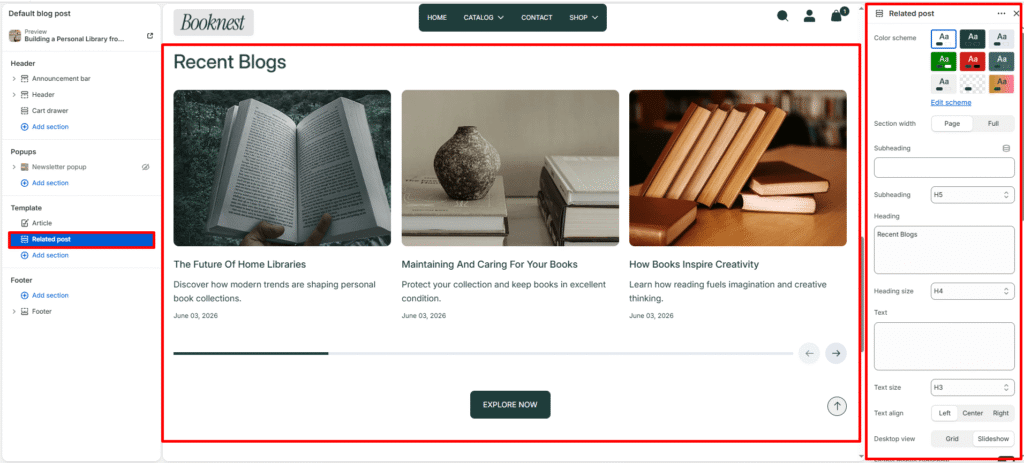
- Related Post
- Color scheme
- Section width
- Subheading
- Subheading size
- Heading
- Heading size
- Text
- Text size
- Button label
- Button link
- Button style
- Text alignment
- Desktop layout
- Enable mobile slider
- Show navigation
- Show pagination
- Posts limit
- Desktop posts per row
- Mobile posts per row
- Show view all button
- View all button label
- Button style
- Top padding
- Bottom padding
- Post options
Related Post #
The Related Post section is used on the Article (Blog Post) template to display recently published or related blog articles. This section helps users discover more content and improves engagement and time spent on the site.
Color scheme #
Select a predefined color palette to ensure the blog section blends seamlessly with your store’s theme.
Section width #
Choose how wide the section spans on the page.
Full: Stretches the section edge-to-edge across the browser window.
Page: Aligns section content with the page container.
Subheading #
Enter a small introductory text displayed above the heading.
Subheading size #
Choose the size of the subheading text (H1 to H6).
Heading #
Enter the main heading for the section.
Heading size #
Select the size of the heading text (H1 to H6).
Text #
Add descriptive rich text content for storytelling or brand messaging.
Text size #
Choose the size of the text content (H1 to H6).
Button label #
Enter the call-to-action button text.
Button link #
Select the destination page or URL for the button.
Button style #
Choose between available button styles. The styles depend on your theme’s design system.
- Primary button
- Secondary button
Text alignment #
Select the alignment of section content.
- Right
- Left
- Center
Desktop layout #
Select between Grid or Slider layout for desktop view.
Enable mobile slider #
Enable or disable the slider for mobile devices to optimize small-screen navigation.
Show navigation #
Enable left and right arrows for manual slide navigation.
Show pagination #
Enable pagination dots at the bottom of the slider for quick slide position feedback.
Posts limit #
Set how many articles to show (between 2 and 20).
Desktop posts per row #
Choose how many posts appear per row on desktop (2–6 columns).
Mobile posts per row #
Choose how many posts appear per row on mobile (1–3 columns).
Show view all button #
Toggle ON to display a “View All” or “See All” button linking to the full blog page.
View all button label #
Customize the button text (e.g., SEE ALL).
Button style #
Choose between available button styles. The styles depend on your theme’s design system.
- Primary button
- Secondary button
Top padding #
Adds vertical space above the section content (value in pixels).
Bottom padding #
Adds vertical space below the section content (value in pixels).
Post options #
Show featured image #
Display the main image from each post.
Show tag #
Show blog tags above the title if available.
Show title #
Display the blog post’s title.
Show author #
Include the author’s name for credibility.
Show excerpt #
Display a short preview of the post content.
Show description #
Show the full or partial post description if needed.