Rich Text #
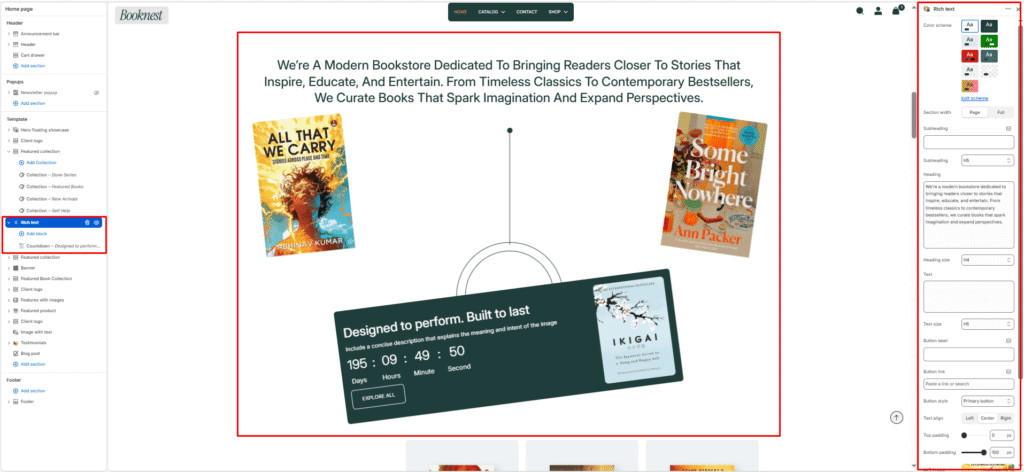
The Rich Text section is a content-focused layout for headings, descriptions, and a call-to-action button. It also supports a two-image collage (left + right) and optional Countdown and Image blocks for promotional campaigns.
Color scheme #
Select a predefined color palette so the section blends seamlessly with your store’s theme.
Section width #
Choose Page width or Full width to control the horizontal span of the section.
Subheading #
Add a small label above the main heading.
Subheading size #
Choose the visual size of the subheading (H1–H6 style).
Heading #
Add the main title for the section.
Heading size #
Control how large the heading appears (H1–H6 style).
Text #
Add supporting content below the heading (short paragraph or multi-line message).
Text size #
Control the visual size of the text.
Button label #
Add button text (e.g., Explore all, Shop now). If left blank, the button is hidden.
Button link #
Choose where the button should go (collection, product, page, or any URL).
Button style #
Choose Primary or Secondary button style.
Text alignment #
Align content to Left, Center, or Right.
Top padding #
Add spacing above the section (0–100px).
Bottom padding #
Add spacing below the section (0–100px).
Left image #
Upload the left collage image shown beneath the text content.
Right image #
Upload the right collage image shown beneath the text content.
Blocks (Option → Description) #
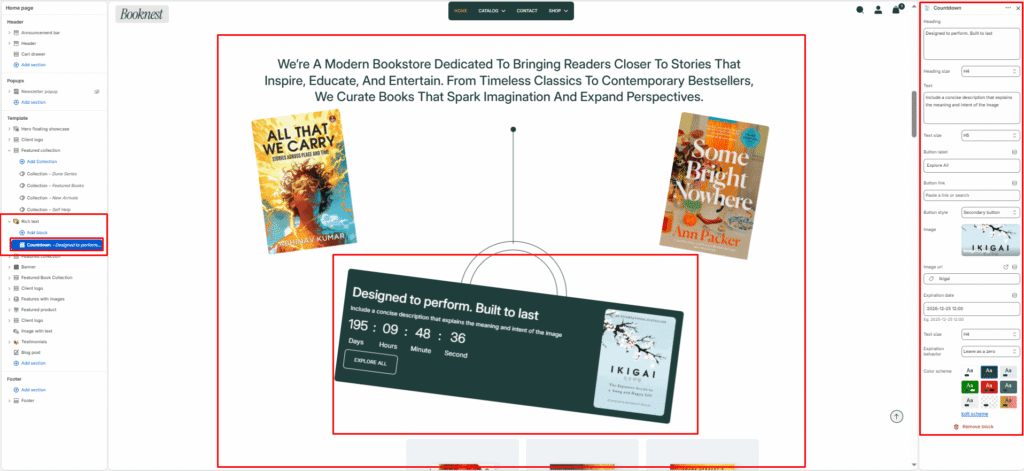
Countdown block (limit: 1) #
Heading #
Countdown title (e.g., Sale ends soon).
Heading size #
Control the countdown heading size.
Text #
Short supporting message for the countdown.
Text size #
Control the countdown text size.
Button label #
Optional button text shown under the timer.
Button link #
Button destination URL.
Button style #
Choose Primary or Secondary button style for the countdown button.
Image #
Optional image shown beside the countdown content.
Image link #
Optional link for the countdown image.
Expiration date #
Set the countdown end date/time (format example: 2026-12-25 12:00).
Countdown text size #
Controls the size of the timer numbers/labels (H1–H6 style).
Expiration behavior
- Hide: hides the timer when it expires
- Leave: keeps the timer visible (stops at 00)
Color scheme #
Choose a separate color scheme for the countdown panel.
Image block #
Image #
Add extra images displayed in the Rich Text image area (useful for collage-style layouts or additional visuals).