Table of Contents
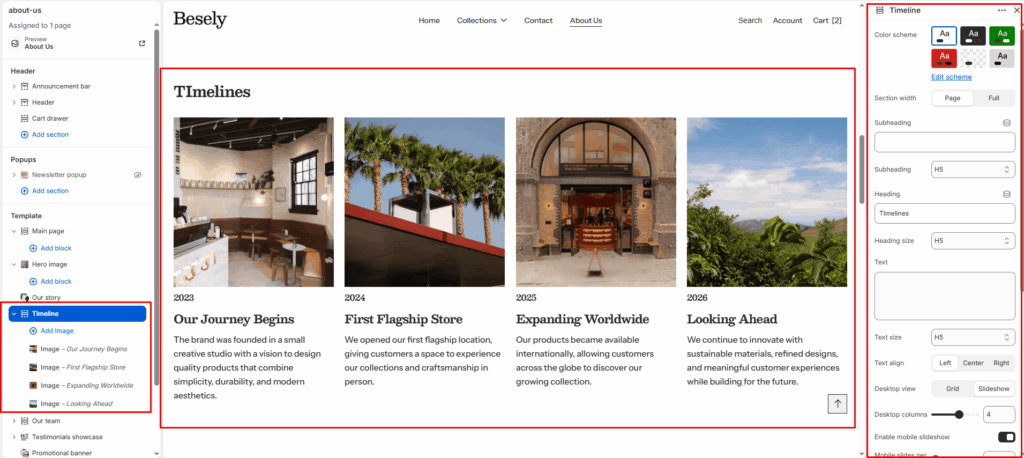
Presents milestones, history, or a step-by-step process in a vertical or horizontal timeline layout.
Section settings #
- Color scheme: Choose which color scheme (defined in Theme settings → Colors) this element uses.
- Section width: Choose from: “Page”, “Full”.
- Subheading: Enter the text you want to display.
- Subheading: Choose from: “H1”, “H2”, “H3”, “H4”, “H5”, “H6”.
- Heading: Enter the text you want to display.
- Heading size: Choose from: “H1”, “H2”, “H3”, “H4”, “H5”, “H6”.
- Text: Enter a longer block of plain text.
- Text size: Choose from: “H1”, “H2”, “H3”, “H4”, “H5”, “H6”.
- Text align: Choose from: “Left”, “Center”, “Right”.
- Desktop view: Choose from: “Grid”, “Slideshow”.
- Desktop columns: Fine-tune this value with the slider (from 1 to 6).
- Enable mobile slideshow: Switch this on to activate mobile slideshow.
- Mobile slides per view: Fine-tune this value with the slider (from 1 to 3).
- Top padding: Fine-tune this value with the slider (from 0 to 100px).
- Bottom padding: Fine-tune this value with the slider (from 0 to 100px).
Slideshow settings #
- Autoplay slideshow: Turns the “Autoplay slideshow” option on or off.
- Speed (ms): Fine-tune this value with the slider (from 10 to 100).
- Show navigation: Displays navigation when this is switched on.
- Show scrollbar: Displays scrollbar when this is switched on.
- Pagination style: Choose from: “Dots”, “Progress bar”, “Numbers line”, “Circle progress”.
Image block #
- Image: Upload or select an image to display.
- Subheading: Enter the text you want to display.
- Heading: Enter the text you want to display.
- Text: Enter the text you want to display.