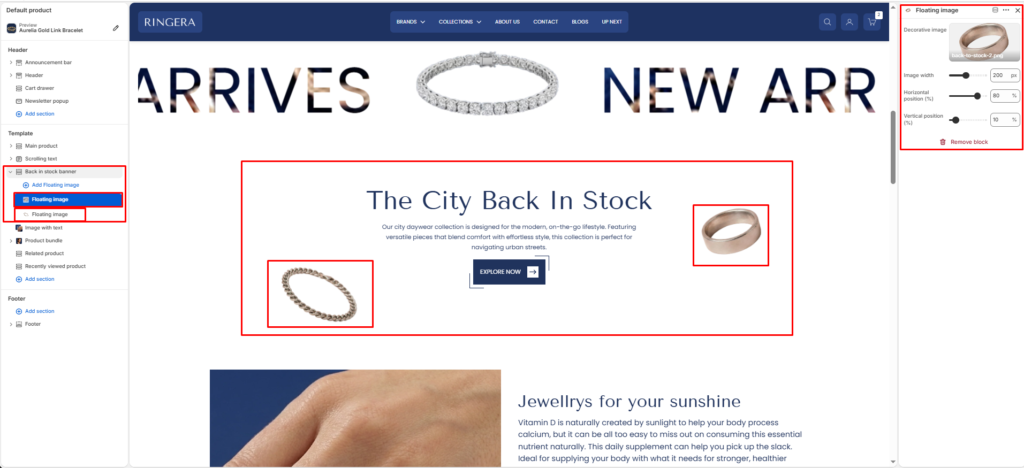
The Back in Stock Banner section is designed to highlight restocked or featured products with a strong visual presentation. It allows you to combine text content, call-to-action, and decorative floating images to attract customer attention.
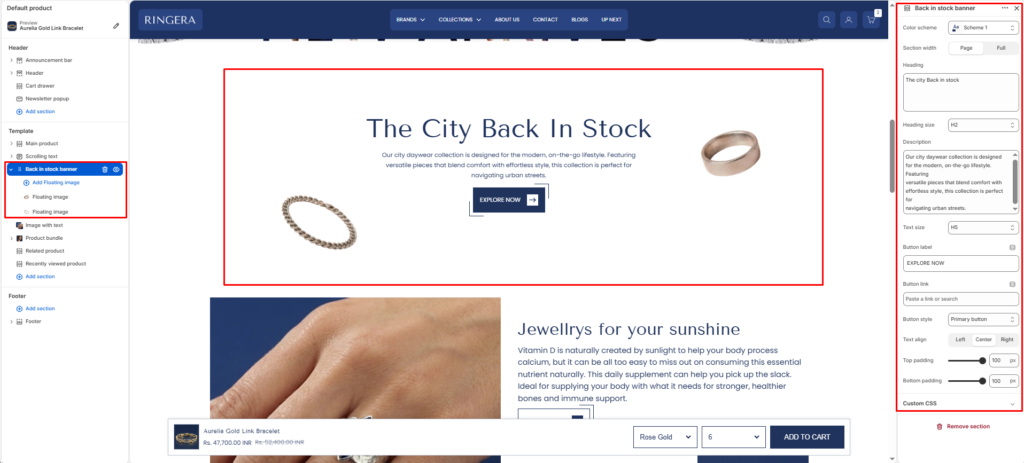
Color scheme #
Choose the desired color palette for this section from the available theme schemes.
Section width #
Choose how wide the section spans on the page:
- Page: Aligns section content with the page container.
- Full: Stretches the section edge-to-edge across the browser window.
Heading #
Enter a heading to highlight the banner content.
Heading size #
Select the size of the heading text H1 To H6.
Description #
Add a short description to support the heading.
Text size #
Choose the size of the description text H1 To H6.
Button label #
Enter text for the call-to-action button.
Button link #
Select or paste a link for the button.
Button icon enable #
Enable button icon.
Button style #
Choose a style for the button appearance.
- Primary Button
- Secondary Button
Text alignment #
Select the alignment of the content.
- Left
- Center
- Right
Top padding #
Adjust the space above the section.
Bottom padding #
Adjust the space below the section.
Floating Image Block #
Decorative image #
Upload an image to display as a floating decorative element.
Image width #
Adjust the width of the image.
Horizontal position (%) #
Set the horizontal position of the image.
Vertical position (%) #
Set the vertical position of the image.