Table of Contents
Search #
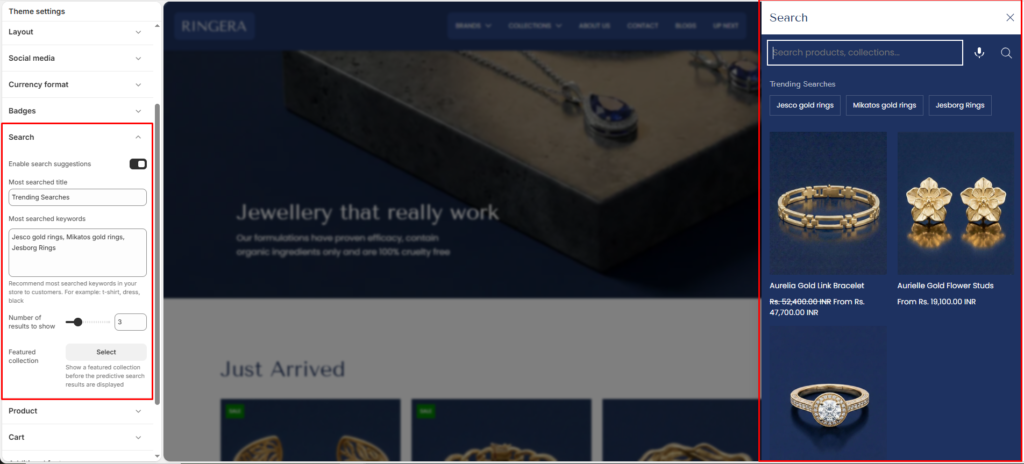
This setting allows you to customize the search functionality on your website to provide users with a more precise and convenient search experience.
Enable Search Suggestions #
When this option is enabled, the system will automatically provide relevant search suggestions as users type keywords into the search bar, helping them quickly find content or products they may be interested in.
Most Searched Title #
Set the heading text displayed above popular or suggested search terms.
Example:
“Trending Searches”
Most Searched Keywords #
Add a list of popular search terms that will be shown to users as quick suggestions.
- Enter keywords separated by commas
- These act as shortcuts for users to explore common searches
Example:Gold rings, Diamond earrings, Bridal jewellery
Number of Results to Show #
Control how many product suggestions are displayed in the search dropdown.
- Use a lower number for a minimal layout
- Use a higher number to showcase more products
Featured Collection #
Select a collection to highlight within the search panel.
- Displays curated products before or alongside search results
- Useful for promoting bestsellers or new arrivals
Best Practice Tips #
- Use clear and popular keywords to improve usability
- Keep the number of results balanced for performance and design
- Enable suggestions for a smoother and faster user experience