

Visual story
On this page
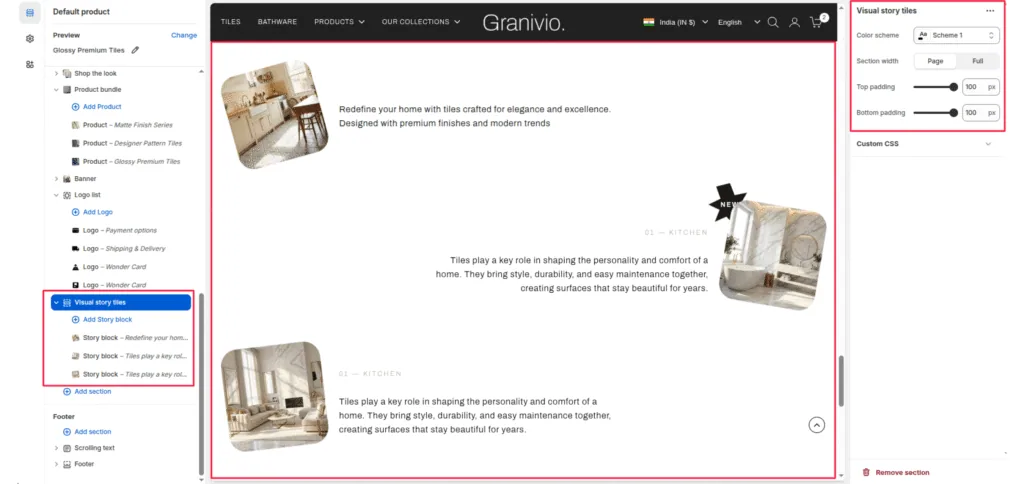
The Visual Story section allows you to present multiple “stories” or features in a unique zigzag layout. This is ideal for showcasing room inspirations, historical timelines, or key design philosophies.
Section Settings
Color scheme
Select a predefined color palette to match your theme’s aesthetic.
Section Width
- Full: Stretches the section to the edges of the browser window.
- Page: Constrains the content to the theme’s maximum site width.
Top padding / Bottom padding
Adjust vertical spacing above and below the section for consistent layout spacing.
Blocks (Story block)
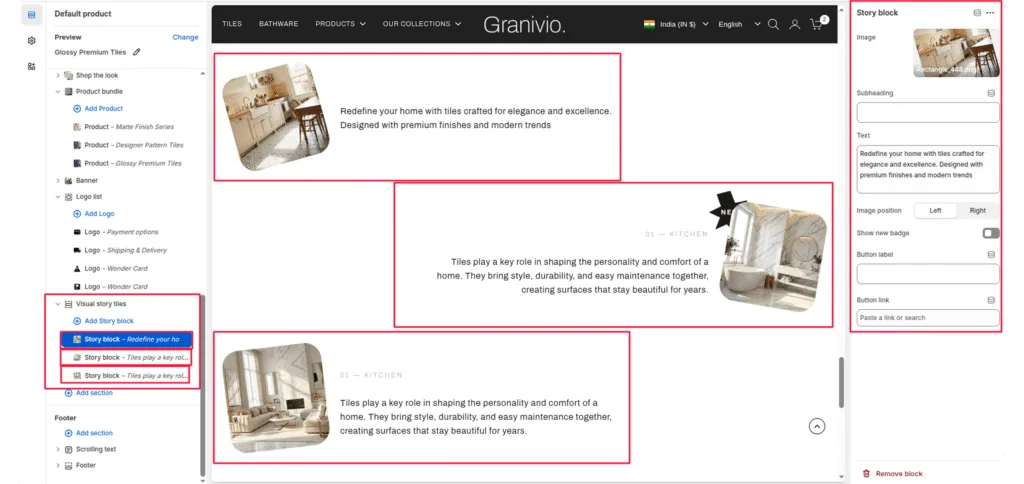
Each story is added as an individual block that can be configured with its own media and text.
Image
Upload a photo representing the story (e.g., a kitchen or living room interior).
Heading
Enter a small tag or category name (e.g., “01—KITCHEN”).
Text
Add the main body content for the story.
Image position
Toggle between left and right to control which side of the text the image appears on.
Show new badge
Enable this toggle to add a “NEW” call-out badge to the top corner of the image.
Button label & Link
Add an optional call-to-action button to direct users to a specific page or collection.
Was this article helpful?
Thanks for the feedback.
Still need help?
Can't find what you're looking for? Send us a message and we'll help you out.