

Client Logo
On this page
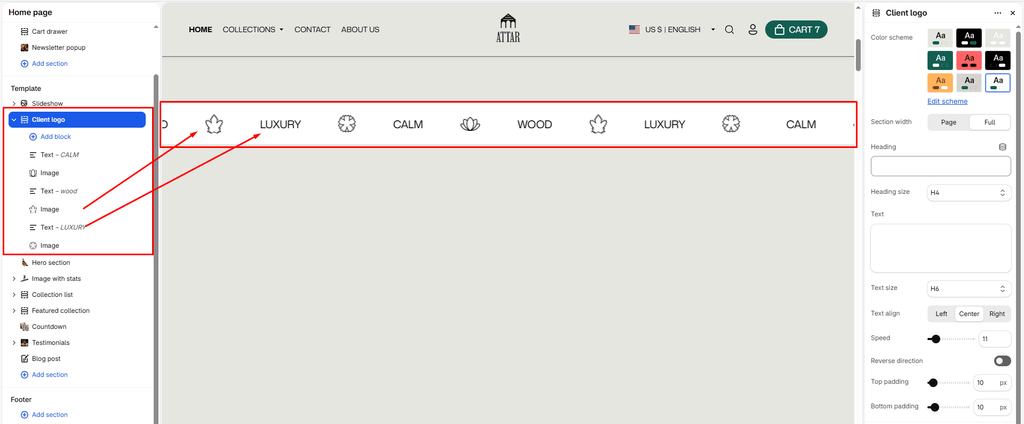
The Client Logo section in Alembiq is an animated horizontal marquee ribbon designed to continuously scroll luxury stockists, editorial press features, organic harvest seals, and brand mantras across your storefront. Unlike static grids, this section delivers an infinite marquee ticker that glides across the screen and automatically pauses when hovered.
How to Access Client Logo Settings
- From your Shopify Admin, navigate to Online Store > Themes.
- Click Customize next to the active Alembiq theme.
- In the top template selector dropdown, select Home page (or any other page template).
- In the left sidebar, click (+) Add section and select Client logo.
- Configure ticker speed, direction, and header text, then click (+) Add block under the section to insert Image or Text blocks.
- Click Save.
1. Section Header & Typography Settings
| Setting Name | Type | Options / Range | Default | Description |
|---|---|---|---|---|
| Color scheme | Color Scheme Picker | Any configured color scheme | Scheme 1 | Controls the master background fill and text contrast colors for the section. |
| Section width | Dropdown | Page width, Full width | Page width | Choose between a centered bounded container (Page width) or an edge-to-edge ticker ribbon (Full width). |
| Heading | Text | Any text | Logo list | Section title displayed above the marquee (e.g., “AS FEATURED IN”, “OUR GLOBAL ATELIERS”). |
| Heading size | Dropdown | H1 to H6 | H4 | Typographic scale of the section heading. |
| Text | Multiline Textarea | Any text | At Your Favorite Stores | Supporting subtitle or brand context displayed beneath the heading. |
| Text size | Dropdown | H1 to H6 | H6 | Typographic scale of the descriptive subtitle. |
| Text alignment | Dropdown | Left, Center, Right | Center | Horizontal alignment for the heading and subtitle. |
2. Marquee Motion Controls
| Setting Name | Type | Options / Range | Default | Description |
|---|---|---|---|---|
| Marquee speed | Slider | 0s to 100s (1s increments) | 11s | Controls the cycle speed of the continuous sliding animation (lower values scroll faster; higher values create a slow, stately glide). |
| Reverse direction | Checkbox | Checked / Unchecked | Unchecked | By default, items scroll from right to left. Checking this reverses the animation to scroll from left to right. |
Interactive Pause on Hover: Alembiq automatically pauses the marquee animation whenever a visitor hovers their cursor over any logo or text card, allowing them to read and click links without rushing.
3. Content Blocks
You can add and combine two distinct block types within the scrolling stream:
A. Image Block (Brand Logo)
Displays a transparent partner, press, or certification emblem:
- Image: Transparent PNG or SVG logo graphic.
- Link: Optional destination URL (e.g., linking directly to a press feature or curated partner collection).
B. Text Block (Brand Mantra / Slogan)
Displays an editorial text statement or quality assurance pill within the marquee flow:
- Text: Statement or brand mantra (e.g., “100% PURE DISTILLATION”, “WILD HARVESTED AGARWOOD”).
- Highlight word: Enter any specific word from your text to highlight it in your theme’s primary accent color.
- Link: Optional destination URL.
4. Section Spacing
| Setting Name | Type | Options / Range | Default | Description |
|---|---|---|---|---|
| Top padding | Slider | 0px to 200px (5px increments) | 100px | Vertical breathing room above the ticker ribbon. |
| Bottom padding | Slider | 0px to 100px (1px increments) | 100px | Vertical breathing room below the ticker ribbon. |
Best Practices
- Interweave Logos with Highlighted Text Badges:
Alternate between partner logos and highlighted text statements (e.g., Logo → “Pure Organic Distillation” → Logo → “Zero Synthetic Carriers”). This keeps the ribbon engaging and reinforces brand values as it scrolls. - Curate an Editorial Press Ribbon:
Upload monochrome logos of magazines or journals that have reviewed your fragrances (e.g., Vogue, GQ, Fragrantica, Elle). Setting Marquee speed to a stately 15s – 20s creates a sophisticated, understated ticker. - Dual Counter-Scrolling Tickers:
Place two Client Logo sections one after the other. Keep the first scrolling in the default direction (Right to Left) and check Reverse direction on the second (Left to Right). This creates an eye-catching, high-fashion runway effect on your homepage.
Was this article helpful?
Thanks for the feedback.
Still need help?
Can't find what you're looking for? Send us a message and we'll help you out.