

Hero Section
On this page
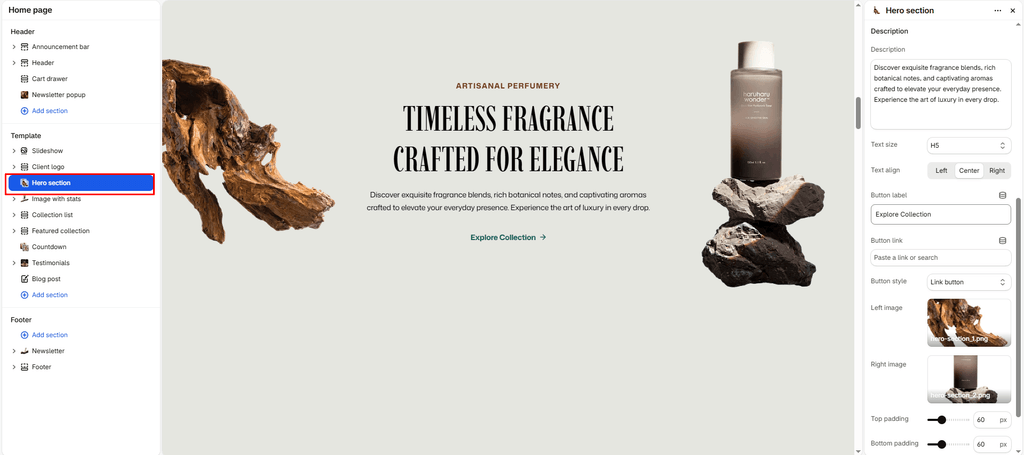
The Hero Section in Alembiq delivers an editorial, split-visual presentation that commands attention. Featuring a distinctive flanking-media architecture, it frames your central brand story, signature perfume title, and call-to-action button between two dedicated visual columns (Left Image and Right Image).
Whether contrasting raw botanical ingredients against finished crystal flacons, showcasing two complementary fragrance editions, or presenting an elegant standalone editorial statement, the Hero Section provides effortless luxury storytelling.
How to Access Hero Section Settings
- From your Shopify Admin, navigate to Online Store > Themes.
- Click Customize next to the Alembiq theme.
- In the top template selector dropdown, select Home page (or any other page template).
- In the left sidebar, click (+) Add section and choose Hero section.
- Configure your typography, button, and flanking media in the right-hand panel.
- Click Save.
1. Dynamic Layout & Grid Adaptation
The Hero Section automatically detects your uploaded media and adapts its grid layout seamlessly:
- Dual-Image Flanking (Default): Uploading both Left image and Right image creates a balanced 3-column layout with your headline and narrative framed in the center.
- Single-Image Asymmetric: Uploading only one image automatically creates an elegant 2-column split (Image on one side, storytelling content on the other).
- Centered Typographic Statement: If no images are uploaded, the section automatically centers your typography and action button into a focused brand statement.
2. Layout & Styling Settings
| Setting Name | Type | Options / Range | Default | Description |
|---|---|---|---|---|
| Color scheme | Color Scheme Picker | Any configured color scheme | Scheme 1 | Sets the background and typography color palette for the section. |
| Section width | Dropdown | Page width, Full width | Page width | Choose between a centered bounded container (Page width) or an edge-to-edge layout (Full width). |
3. Typography & Content Settings
| Setting Name | Type | Options / Range | Default | Description |
|---|---|---|---|---|
| Subheading | Text | Any text | Subheading | Eyebrow kicker tag displayed above the main heading (e.g., “ARTISANAL DISTILLATION”). |
| Subheading size | Dropdown | H1 to H6 | H5 | Typographic scale of the subheading. |
| Heading | Multiline Textarea | Any text | Hero section title | Primary headline in display serif (Imbue). Supports line breaks for stacked titles. |
| Heading size | Dropdown | H1 to H6 | H2 | Typographic scale of the main headline. |
| Description | Multiline Textarea | Any text | Default description | Narrative paragraph describing the fragrance concept, olfactory notes, or heritage. |
| Text size | Dropdown | H1 to H6 | H5 | Typographic scale of the description text. |
| Text alignment | Dropdown | Left, Center, Right | Center | Horizontal alignment of the central content column. |
4. Call-to-Action Button Settings
| Setting Name | Type | Options / Range | Default | Description |
|---|---|---|---|---|
| Button label | Text | Any text | Button label | Call-to-action text (e.g., “Explore The Reserve” or “Order Discovery Sample”). |
| Button link | URL Picker | Any store link | Empty | Target destination URL where clients are directed. |
| Button style | Dropdown | Primary button, Secondary button, Link button | Primary button | Sets button aesthetic (solid high-contrast, elegant outline, or text link with arrow). |
5. Flanking Media Imagery
| Setting Name | Type | Options / Range | Default | Description |
|---|---|---|---|---|
| Left image | Image Picker | Media Upload | Empty | Left-flanking photograph (e.g., close-up macro of raw botanical ingredients or distillation alembics). |
| Right image | Image Picker | Media Upload | Empty | Right-flanking photograph (e.g., high-resolution crystal flacon shot or packaging presentation). |
- Focal Point Support: Respects Shopify’s media focal point settings, keeping essential details centered on all screen sizes.
- Priority Loading: Media in the Hero Section automatically loads with high priority to preserve fast page loading speeds.
6. Section Spacing
| Setting Name | Type | Options / Range | Default | Description |
|---|---|---|---|---|
| Top padding | Slider | 0px to 200px (5px increments) | 60px | Vertical breathing room above the hero section. |
| Bottom padding | Slider | 0px to 200px (5px increments) | 60px | Vertical breathing room below the hero section. |
Best Practices
- “Botanical to Flacon” Storytelling:
Upload a photograph of raw harvested botanicals (such as Taif rose petals or aged agarwood chips) in the Left image field, and your finished crystal flacon in the Right image field. This visually conveys authenticity and distillation craftsmanship around your central headline. - Harmonize Flanking Proportions:
Ensure both the left and right images share identical aspect ratios (e.g., both 4:5 Portrait or both 1:1 Square) for balanced symmetry on desktop monitors. - Stacked Luxury Headlines:
Press Enter in the Heading field to split your fragrance title across two lines (e.g., Line 1: Dehn Al Oud, Line 2: Royal Cambodian Vintage) to create a dramatic editorial centerpiece.
Was this article helpful?
Thanks for the feedback.
Still need help?
Can't find what you're looking for? Send us a message and we'll help you out.