

Video
On this page
- Accessing the Video Section Settings
- 1. Section Layout & Color Scheme Settings
- 2. Desktop Settings (Media Sourcing & Media Shape)
- 3. Mobile Settings
- 4. Video Playback & Overlay Settings
- Floating Playback & Audio Controls
- 5. Content Positioning & Direction
- 6. Section Spacing
- 7. Layering Modular Theme Blocks
- Best Practices
The Video section in Alembiq is a cinematic media showcase designed to immerse customers in your brand’s world. Perfect for featuring botanical harvest films (such as rose distillation or agarwood extraction), flacon glassblowing craftsmanship, atelier behind-the-scenes, and fragrance campaign lookbooks, it delivers broadcast-quality motion without compromising page performance.
The section features dual-device video sourcing (landscape for desktop and vertical reels for mobile), a signature organic hand-torn paper silhouette mask, floating play/pause and mute/unmute audio controls, and full support for layering theme blocks (titles, subtitles, narrative text, countdown clocks, and buttons) directly over playing footage.
Accessing the Video Section Settings
- From your Shopify Admin, navigate to Online Store > Themes.
- Click Customize next to your active Alembiq theme.
- In the top template selector, choose the template where you want the video (e.g., Home page or About us).
- In the left-hand sidebar, click (+) Add section and select Video.
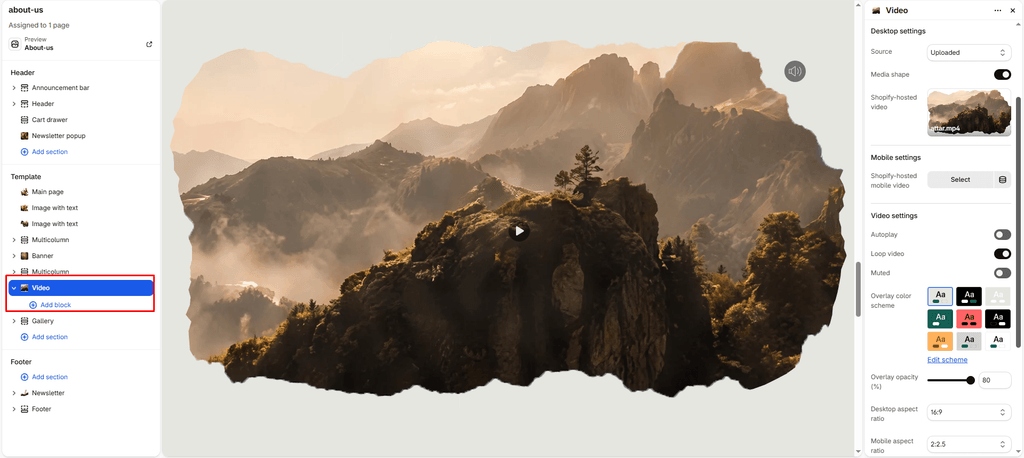
- Click directly on Video to configure playback and media sources, or click (+) Add block under the section to layer text, buttons, or countdown blocks over the video.
1. Section Layout & Color Scheme Settings
Configure container width and base canvas colors:
| Setting | Type | Default | Options / Range | Description |
|---|---|---|---|---|
| Color scheme | Color Scheme | Scheme 1 | Theme Schemes | Sets the background canvas color behind the video container. |
| Section width | Select | Page width | Page width, Full width | Choose between a centered bounded container (Page width) or an expansive edge-to-edge cinematic banner (Full width). |
2. Desktop Settings (Media Sourcing & Media Shape)
Choose your desktop video delivery method and aesthetic framing:
| Setting | Type | Default | Options / Range | Description |
|---|---|---|---|---|
| Source | Select | Uploaded | Uploaded, URL, Image | Determines video delivery: Uploaded uses Shopify-hosted MP4/WebM files for fastest load times; URL embeds YouTube or Vimeo streams; Image displays a static fallback photo. |
| Media shape | Checkbox | Enabled | Checked / Unchecked | Applies Attar’s signature organic hand-torn paper silhouette mask to the video edges, evoking an artisanal apothecary manuscript aesthetic. |
| Shopify-hosted video | Video Picker | Blank | MP4 / WebM file | Upload a landscape (16:9) video file directly to Shopify Files for high-performance, ad-free streaming on desktop screens. |
| Video URL | Video URL | Default link | YouTube or Vimeo URL | External streaming link used when Source is set to URL. |
| Fallback image | Image Picker | Blank | Image upload | Static photograph displayed when Source is set to Image or while video footage is loading. |
3. Mobile Settings
Provide dedicated vertical media tailored specifically for smartphone viewports:
| Setting | Type | Default | Options / Range | Description |
|---|---|---|---|---|
| Shopify-hosted mobile video | Video Picker | Blank | MP4 / WebM file | Upload a dedicated vertical video (e.g., 9:16 portrait reel) optimized for mobile handheld screens. |
| Mobile video URL | Video URL | Default link | YouTube or Vimeo URL | Mobile-specific YouTube or Vimeo streaming link. |
| Mobile fallback image | Image Picker | Blank | Image upload | Dedicated portrait photograph for mobile displays when using static imagery. |
4. Video Playback & Overlay Settings
Control how your video plays, loops, and sounds across desktop and mobile browsers:
| Setting | Type | Default | Options / Range | Description |
|---|---|---|---|---|
| Autoplay | Checkbox | Disabled | Checked / Unchecked | Automatically begins video playback as soon as the page loads. |
| Loop video | Checkbox | Enabled | Checked / Unchecked | Automatically restarts playback from the beginning once finished for an infinite, seamless loop. |
| Muted | Checkbox | Disabled | Checked / Unchecked | Mutes audio by default. (Note: Web browser security standards require videos to be muted for Autoplay to function). |
| Overlay color scheme | Color Scheme | Scheme 1 | Theme Schemes | Controls the color palette used for the text card and protective color tint placed over the video. |
| Overlay opacity (%) | Range | 80% | 0% to 80% (5% steps) | Sets the darkness of the protective overlay tint. Values between 20% and 40% preserve video clarity while ensuring overlaid text remains effortless to read. |
| Desktop aspect ratio | Select | 16:9 | 1:1, 3:2, 16:9, 4:3, Unset | Proportional container ratio on desktop screens. |
| Mobile aspect ratio | Select | 2:2.5 | 1:1, 2:2.5, 2:3, 2:4.5, 2:5, 3:2, 16:9, 4:3, Unset | Proportional container ratio on mobile devices. 2:4.5 (9:16) provides an immersive full-screen vertical reel experience. |
Floating Playback & Audio Controls
Alembiq provides sleek, semi-transparent floating control buttons directly on the video:
- Play / Pause Button: Positioned in the top-left corner, allowing visitors to pause or resume playback at any time.
- Mute / Unmute Button: Positioned in the top-right corner, allowing visitors to enable or disable audio with a single tap.
5. Content Positioning & Direction
Configure the layout and alignment of overlaid blocks:
| Setting | Type | Default | Options / Range | Description |
|---|---|---|---|---|
| Direction | Select | Horizontal | Vertical, Horizontal | Determines whether child blocks arrange in a side-by-side row (Horizontal) or stack vertically (Vertical). |
| Desktop content position | Select | Middle-center | 9 Anchor Points | Anchors overlaid text and buttons to any of 9 screen zones: Top-left, Top-center, Top-right, Middle-left, Middle-center, Middle-right, Bottom-left, Bottom-center, or Bottom-right. |
6. Section Spacing
Fine-tune vertical padding above and below the video container:
| Setting | Type | Default | Options / Range | Description |
|---|---|---|---|---|
| Top padding | Range | 0 px | 0 px to 200 px (5 px steps) | Spacing above the video container. Set to 0 px for an edge-to-edge hero presentation. |
| Bottom padding | Range | 0 px | 0 px to 100 px (1 px steps) | Spacing below the video container. |
Note: On mobile viewports under 767px, top and bottom padding values automatically scale down by 50%.
7. Layering Modular Theme Blocks
Click (+) Add block under the Video section to layer interactive elements over your footage:
- Subtitle: Add an uppercase eyebrow tag (e.g., “THE ART OF DISTILLATION” or “LIMITED HARVEST”).
- Title: Add prominent campaign headlines (e.g., “SACRED OUD DE MAJESTY”), with typographic scaling from H1 to H6.
- Text: Add poetic fragrance descriptions or origin storytelling.
- Button: Add call-to-action buttons (e.g., “Explore the Collection” or “Reserve a Flacon”).
- Countdown: Display an active countdown clock over the video to build anticipation for upcoming limited distillation drops.
- Group: Bundle multiple buttons together to display side-by-side actions (e.g., “Shop Attars” and “Order Discovery Set”).
Best Practices
- Highlight the Artisanal Process: Short, high-resolution clips showcasing hand-poured oils, swirling botanicals, or the mist of a spray flacon communicate craftsmanship more effectively than static imagery alone.
- Pair Desktop (16:9) with Mobile (9:16): Always upload a dedicated portrait video into Shopify-hosted mobile video and set Mobile aspect ratio to 2:4.5 for a full-bleed mobile reel experience.
- Enable Media Shape for Heritage Charm: Keeping Media shape enabled adds Alembiq’s signature deckled/torn paper edge, framing your cinematic footage in an artisanal aesthetic reminiscent of vintage botanical compendiums.
- Optimize File Size: Keep video clips between 8 and 15 seconds long, compressed under 10MB in MP4 format, to ensure instant, buffer-free playback across all cellular networks.
Was this article helpful?
Thanks for the feedback.
Still need help?
Can't find what you're looking for? Send us a message and we'll help you out.