

Main Search
On this page
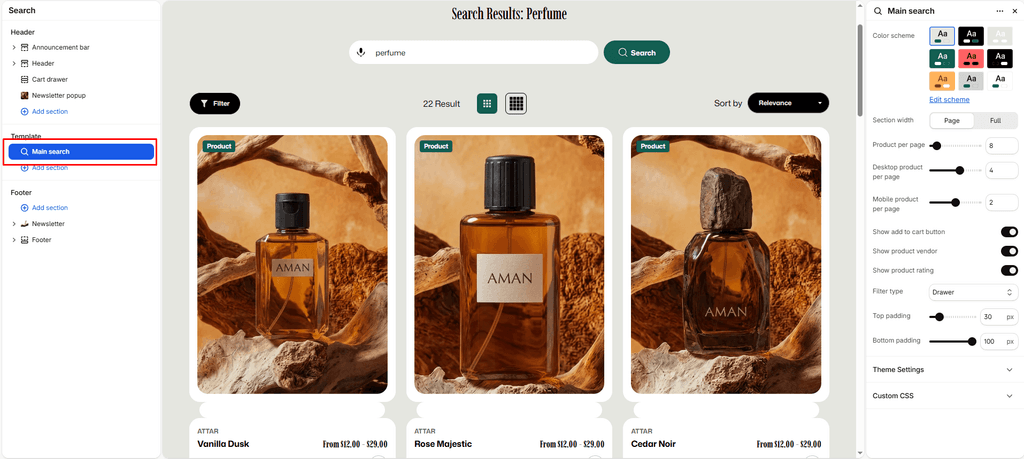
The Main Search section powers your store’s dedicated Search Results Page (/search). When fragrance enthusiasts search for a specific scent, olfactory note, or artisanal flacon (such as “Cambodian Oud”, “Taif Rose”, “Royal Amber”, or “Sandalwood Attar”), this section presents a responsive, fast-loading grid of results equipped with live facet filtering and voice search.
Alembiq’s search engine intelligently categorizes and presents Fragrance Products, Editorial Journal Articles, Store Pages, and Scent Collections—each rendered with custom visual cards and clear badge identifiers.
How to Access Main Search Settings
- From your Shopify Admin, navigate to Online Store > Themes.
- Click Customize next to the Alembiq theme.
- In the top template selector dropdown, switch to Others > Search (or perform a search in the preview window).
- In the left sidebar, click the Main search section.
- Customize your search layout, grid density, product card settings, and filters.
- Click Save.
Layout & Appearance Settings
| Setting Name | Type | Options / Range | Default | Description |
|---|---|---|---|---|
| Color scheme | Color Scheme Picker | Any configured color scheme | Scheme 1 | Sets the background and typography color palette for the search page. |
| Section width | Dropdown | Page width, Full width | Page width | Sets whether search results are contained within standard margins or span edge-to-edge. |
Grid Density Settings
| Setting Name | Type | Options / Range | Default | Description |
|---|---|---|---|---|
| Product per page | Slider | 1 to 100 | 9 | Sets the maximum number of search results displayed per page before pagination links appear. |
| Desktop product per page | Slider | 1 to 6 | 4 | Controls the number of product columns displayed in each row on desktop displays. |
| Mobile product per page | Slider | 1 to 3 | 2 | Controls the number of product columns displayed in each row on mobile screens. |
Product Card Settings
| Setting Name | Type | Options / Range | Default | Description |
|---|---|---|---|---|
| Show add to cart button | Checkbox | Checked / Unchecked | Checked | Displays a quick Add to Cart button on fragrance product cards for immediate purchasing. |
| Show product vendor | Checkbox | Checked / Unchecked | Checked | Displays the perfume house or artisan brand name above the fragrance title. |
| Show product rating | Checkbox | Checked / Unchecked | Checked | Shows star ratings and customer review counts on product cards when a compatible reviews app is connected. |
Filter Layout Settings
Faceted filtering allows customers to narrow search results by scent family, notes, price, concentration, bottle volume, and availability.
| Setting Name | Type | Options / Range | Default | Description |
|---|---|---|---|---|
| Filter type | Dropdown | Vertical, Horizontal, Drawer | Drawer | Chooses how search filters are presented on desktop screens. |
- Drawer (Recommended): Keeps search results clean by housing filters in an off-canvas slide-out panel accessible via a filter toggle button.
- Vertical: Displays filter groups in a dedicated left-hand sidebar alongside the search results grid.
- Horizontal: Places filter dropdown menus in a compact bar directly above the search results.
Section Spacing Settings
| Setting Name | Type | Options / Range | Default | Description |
|---|---|---|---|---|
| Top padding | Slider | 0px to 200px (5px increments) | 35px | Adjusts vertical spacing above the search results section. |
| Bottom padding | Slider | 0px to 100px (1px increments) | 35px | Adjusts vertical spacing below the search results section. |
Search Features & Multi-Type Results
1. Integrated Search Bar & Voice Search
The top of the search page includes an active search form allowing customers to refine or submit new search queries. If supported by the visitor’s browser, a Voice Search microphone icon allows shoppers to search your fragrance catalog hands-free using speech recognition.
2. Multi-Type Result Cards
Alembiq displays clear, dedicated card formats according to the type of search result:
- Fragrance Products: Feature high-resolution flacon photography, second image hover effects, pricing, review ratings, quick add to cart, and quick view access.
- Journal Articles: Feature featured imagery, publication date, title, and a direct “Read More” link.
- Collections: Feature cover photography, collection title, and an “Explore now” prompt.
- Store Pages: Feature the page title and preview text for information queries like shipping policies or bespoke consultations.
Was this article helpful?
Thanks for the feedback.
Still need help?
Can't find what you're looking for? Send us a message and we'll help you out.