

Image With Stats
On this page
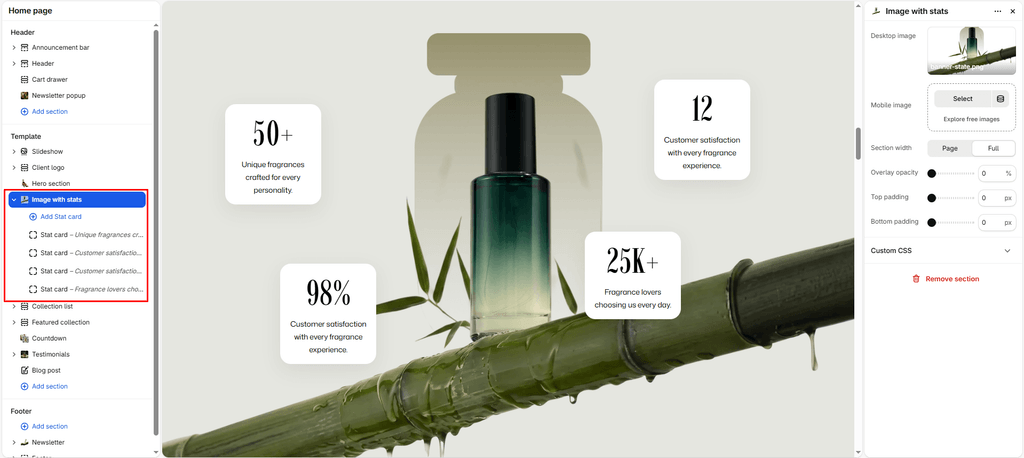
The Image with Stats section in Alembiq is an atmospheric visual showcase designed to reinforce brand authority and social proof. It pairs an immersive, full-bleed campaign photograph (or video still) with up to six interactive floating Stat Cards pinned across the image.
Whether highlighting distillation milestones (such as “50+ Unique Artisanal Blends”), customer loyalty metrics (“98% Reorder Rate”), longevity benchmarks (“16+ Hours of Sillage”), or ingredient purity (“100% Botanical Oils”), this section presents key brand achievements with luxury elegance.
How to Access Image with Stats Settings
- From your Shopify Admin, navigate to Online Store > Themes.
- Click Customize next to the active Alembiq theme.
- In the top template selector dropdown, choose Home page (or any other page template).
- In the left sidebar, click (+) Add section and select Image with stats.
- Configure your background imagery and overlay opacity, then click (+) Add block under the section to add or position individual Stat cards (up to 6 cards).
- Click Save.
1. Section Settings
| Setting Name | Type | Options / Range | Default | Description |
|---|---|---|---|---|
| Desktop image | Image Picker | Media Upload | Empty | Wide high-resolution photograph displayed on desktop screens (supports up to 2500px). |
| Mobile image | Image Picker | Media Upload | Empty | Dedicated vertical portrait photo displayed on mobile viewports (< 767px). |
| Section width | Dropdown | Page width, Full width | Full width | Choose between a centered bounded container (Page width) or a full edge-to-edge canvas (Full width). |
| Overlay opacity | Slider | 0% to 100% (5% increments) | 0% | Adds a darkened translucent tint over the background image to ensure maximum legibility for floating stat cards. |
| Top padding | Slider | 0px to 200px (5px increments) | 0px | Vertical padding above the section. |
| Bottom padding | Slider | 0px to 200px (5px increments) | 0px | Vertical padding below the section. |
2. Stat Card Block Settings
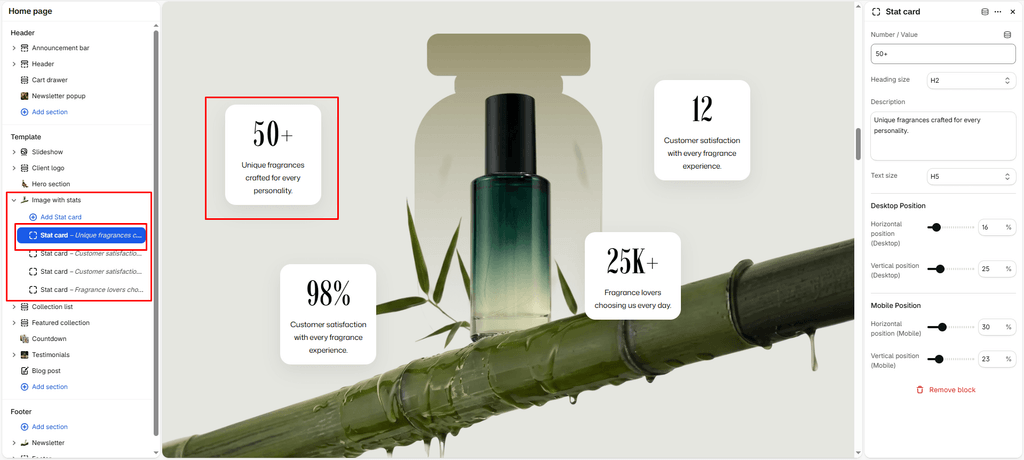
Each statistical highlight is added as an individual Stat card block (up to 6 blocks total):
| Setting Name | Type | Options / Range | Default | Description |
|---|---|---|---|---|
| Number / Value | Text | Any string | 50+ | The prominent statistic, percentage, or milestone (e.g., “50+”, “98%”, “16h+”, “100%”). |
| Heading size | Dropdown | H1 to H6 | H4 | Typographic scale of the prominent number. |
| Description | Multiline Textarea | Any text | “Unique Scents of Perfumes Shades” | Accompanying label or explanatory subtitle placed directly beneath the value. |
| Text size | Dropdown | H1 to H6 | H5 | Typographic scale of the description text. |
3. Precision Coordinate Positioning
Alembiq gives you individual coordinate sliders for both desktop monitors and mobile screens, allowing you to position each card precisely within the open space of your photography:
Desktop Coordinates
- Horizontal position (Desktop): Slider from 5% to 95% (Default: 20%). Controls left-to-right placement across the desktop image.
- Vertical position (Desktop): Slider from 5% to 95% (Default: 30%). Controls top-to-bottom placement across the desktop image.
Mobile Coordinates
- Horizontal position (Mobile): Slider from 5% to 95% (Default: 20%). Controls left-to-right placement on smartphone screens.
- Vertical position (Mobile): Slider from 5% to 95% (Default: 30%). Controls top-to-bottom placement on smartphone screens.
Best Practices
- Highlight Quality & Purity Metrics:
Select numbers that answer primary client hesitations regarding artisanal perfumery:- Card 1:
100%→ Natural Botanical Pure Attars - Card 2:
16hr+→ Enduring Sillage & Longevity - Card 3:
50+→ Artisanal Fragrance Blends - Card 4:
98%→ Verified Client Satisfaction
- Card 1:
- Position Cards in Visual Negative Space:
If your background photograph features a model holding a flacon in the center, position your stat cards around the perimeter (e.g., two cards on the left at 15% and 25%, and two cards on the right at 75% and 80%) to keep your flacon unobstructed. - Use Subtle Overlay Opacity for Contrast:
If your background photo has bright highlights or varied lighting, set Overlay opacity to 15% – 30%. This softens high-contrast areas and makes the floating stat cards pop effortlessly.
Was this article helpful?
Thanks for the feedback.
Still need help?
Can't find what you're looking for? Send us a message and we'll help you out.