

Contact Form
On this page
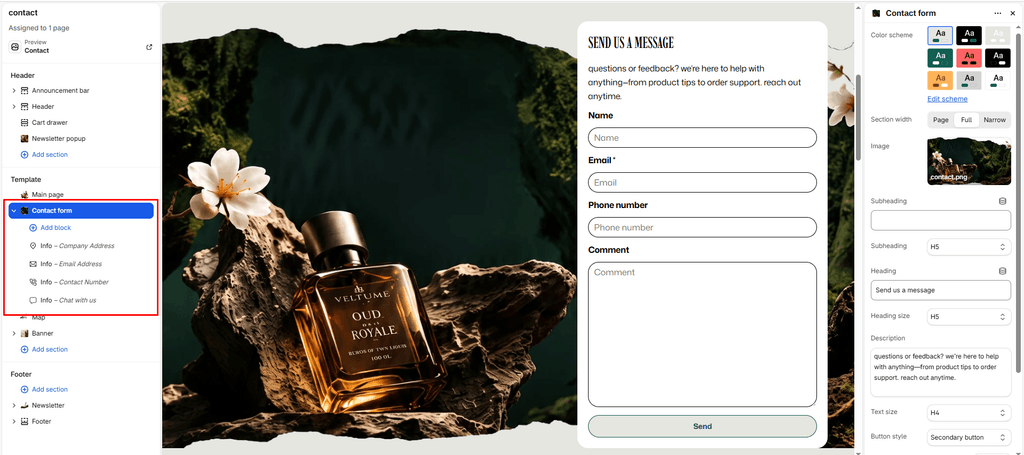
The Contact Form section in Alembiq provides an elegant, dedicated communication channel between fragrance connoisseurs and your boutique. Designed with a luxury atelier aesthetic, it pairs an interactive message submission form alongside optional editorial imagery (such as perfume flacons, raw botanicals, or distillation stills) and structured contact cards for your boutique address, concierge hotline, email support, and private consultation hours.
When a customer submits an inquiry, Shopify automatically routes the message directly to the customer support email address configured in your Shopify Admin > Settings > Store details.
Accessing the Contact Form Section Settings
- From your Shopify Admin, navigate to Online Store > Themes.
- Click Customize next to your active Alembiq theme.
- In the top dropdown template selector, switch to Pages > Contact (or add this section to any other page or landing template).
- In the left-hand sidebar, click on Contact form to configure layout, background media, and typography.
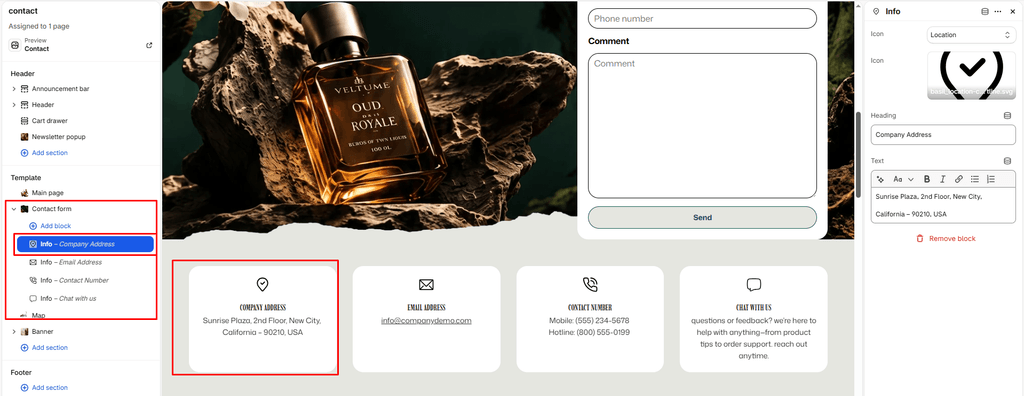
- Click (+) Add block under the section to insert Info cards (for store address, phone, email, and live chat) or Title blocks.
1. Section Layout & Typography Settings
Configure container width, background visuals, introductory copy, and header sizing:
| Setting | Type | Default | Options / Range | Description |
|---|---|---|---|---|
| Color scheme | Color Scheme | Scheme 1 | Theme Schemes | Controls the background canvas color and text contrast scheme for the section. |
| Section width | Select | Narrow | Page, Full, Narrow | Sets container boundaries. Narrow centers the form card for balanced, focused readability. |
| Image | Image Picker | Blank | Image upload | Editorial background or side visual displayed alongside the form (e.g., an artisanal perfume flacon on natural stone). If left blank, the form automatically centers itself. |
| Subheading | Text | Get in Touch | Text string | Small highlight kicker text placed above the main headline (e.g., “CONCIERGE DESK” or “ATELIER INQUIRIES”). |
| Subheading size | Select | H2 | H1 to H6 | Controls the font size scale for the subheading. |
| Heading | Text | Let’s chat. Reach out to us. | Text string | Primary title for the inquiry card (e.g., “SEND US A MESSAGE” or “BESPOKE FRAGRANCE CONSULTATIONS”). |
| Heading size | Select | H5 | H1 to H6 | Sets the typographic hierarchy and visual weight of the section headline. |
| Description | Textarea | Have questions or feedback?… | Multi-line text | Reassuring supporting copy detailing response times and customer care commitments. |
| Text size | Select | H5 | H1 to H6 | Sets the font size scale for the description copy. |
2. Submit Button Styling
Customize the visual appearance of the primary submission trigger:
| Setting | Type | Default | Options / Range | Description |
|---|---|---|---|---|
| Button style | Select | Primary button | Primary button, Secondary button, Button link | Choose between a solid filled button (Primary button), an elegant outlined pill (Secondary button), or a minimalist underlined text link (Button link). |
3. Section Spacing
Fine-tune vertical padding above and below the section:
| Setting | Type | Default | Options / Range | Description |
|---|---|---|---|---|
| Top padding | Range | 0 px | 0 px to 200 px (5 px steps) | Adjusts vertical spacing above the contact container on desktop screens. |
| Bottom padding | Range | 0 px | 0 px to 100 px (1 px steps) | Adjusts vertical spacing below the contact container on desktop screens. |
4. Contact Information Content Blocks
Display secondary customer support channels and boutique details directly below the form using specialized blocks:
Title Block
Displays a prominent heading above or between contact information cards:
| Setting | Type | Default | Options / Range | Description |
|---|---|---|---|---|
| Heading | Textarea | Let’s Connect | Multi-line text | Headline introducing your boutique channels (e.g., “OUR ATELIER CHANNELS”). |
| Heading size | Select | H4 | H1 to H6 | Sets the font scale for the title block. |
Info Block
Displays a structured information card featuring an icon, title, and rich text details:
| Setting | Type | Default | Options / Range | Description |
|---|---|---|---|---|
| Icon | Select | None | Vector Icon Library | Choose from built-in minimalist vector icons: None, Avatar, Chat, Comment, Customer support, Envelope, Mobile phone, Operator, Phone, Send, User, Email, or Location. |
| Icon image | Image Picker | Blank | Image upload (PNG / SVG) | Upload a custom brand monogram or tailored SVG icon to replace the built-in vector icon. |
| Heading | Text | Heading | Text string | Channel title (e.g., “Company Address”, “Email Address”, “Contact Number”, or “Chat With Us”). |
| Text | Rich Text | Blank | Rich text editor | Formatted channel details such as street address, telephone hotlines, support email addresses, or concierge operating hours. Links entered here are fully clickable. |
5. Form Fields & Customer Flow
The built-in contact form contains all essential fields for luxury customer service:
- Name: Captures the customer’s full name. Pre-populates automatically if the customer is logged in.
- Email (Required): Validated email input field ensuring inquiries include a return address. Highlights errors if improperly formatted.
- Phone number: Optional telephone contact field allowing telephone follow-ups for bespoke requests or order questions.
- Comment: Generous multi-line message field where customers can specify bespoke scent requests, ingredient inquiries, or order numbers.
- Instant Confirmation: Displays an accessible, clear success message immediately after submission without refreshing the page.
Best Practices
- Showcase Editorial Atmosphere: Upload a high-resolution photograph of your flagship perfume flacon or artisanal still into the Image setting to give the inquiry page a distinguished boutique feel.
- Highlight Multiple Touchpoints: Use four Info blocks side-by-side to clearly present:
- Flagship Atelier / Boutique Address (with walk-in or appointment hours)
- Direct Email Concierge (e.g.,
[email protected]) - Telephone Hotline (for VIP orders and urgent dispatch questions)
- Live Chat / Consultation (guidance on private sampling or fragrance layering)
- Reassure Response Times: In the Description field, set clear expectations (e.g., “Our olfactory specialists respond to all inquiries within 24 business hours”).
Was this article helpful?
Thanks for the feedback.
Still need help?
Can't find what you're looking for? Send us a message and we'll help you out.