Table of Contents
Configure how footwear cards, variant pickers, colorway swatches, and interactive merchandising animations behave globally across your store.
For sneaker brands and footwear retailers, clear size selection, visual colorway previews, and instant quick-views directly from the collection grid are essential for maximizing conversions and keeping shoppers engaged.
How to Access Product Settings #
- From your Shopify Admin, navigate to Online Store > Themes.
- Click Customize on the Sneax theme.
- Click the Theme settings (⚙️ gear icon) in the left sidebar.
- Select the Product tab.
- Configure your settings and click Save.
Available Settings & Configuration #
| Setting Name | Type | Options / Range | Default | Description |
|---|---|---|---|---|
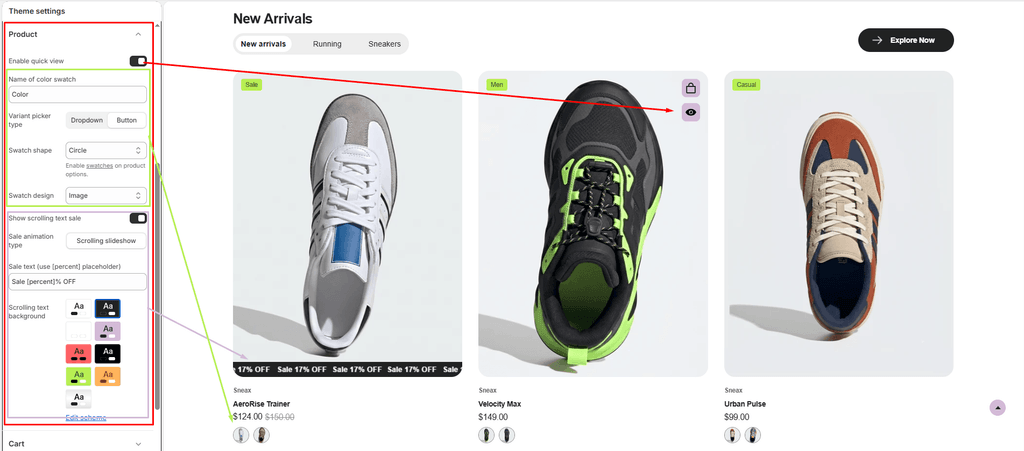
| Enable quick view | Checkbox | Enabled / Disabled | Enabled (true) | Adds a quick-view action button to product cards so customers can preview shoe specs and choose sizes in a popup without leaving the catalog. |
| Name of color swatch | Text | e.g., Color, Colour, Colorway | Color | Specifies which product option in your Shopify catalog should be recognized and displayed as visual swatches. |
| Variant picker type | Dropdown | Button, Dropdown | Button | Determines whether variant options (like shoe sizes and widths) display as clickable pill buttons or traditional dropdown selects. |
| Swatch shape | Dropdown | Circle, Square, Default | Default | Defines the geometric shape of visual swatches on both product cards and single product detail pages. |
| Swatch design | Dropdown | Color, Image, Default | Color | Sets how swatches render: solid color fills, variant shoe image thumbnails, or standard text pills. |
| Show scrolling text sale | Checkbox | Enabled / Disabled | Enabled (true) | Displays an animated horizontal scrolling marquee banner over product cards that have an active discount. |
| Sale animation type | Dropdown | Scrolling slideshow (slider) | Slider | Animation style for the discount announcement bar on product cards. |
| Sale text | Text | Text with [percent] tag | Hot Sale [percent]% OFF | The text displayed in the scrolling ribbon. The [percent] placeholder is automatically replaced with the exact calculated savings. |
| Scrolling text background | Color Scheme Picker | Any configured color scheme | Scheme 4 | Sets the color scheme (background and text color) for the animated sale marquee ribbon. |
Detailed Settings Breakdown #
1. Quick View (enable_quick_view) #
When enabled, an eye/quick-view icon appears over footwear cards on collection grids and search results. Clicking it opens a fast AJAX modal with the full product gallery, size selector, and “Add to Cart” button, allowing sneakerheads to quickly secure their pair without page reloads.
2. Variant Pickers & Shoe Sizing (variant_picker_type) #
- Button (Recommended for Footwear): Renders sizes (e.g.,
US 8,US 9,US 10.5,EU 42) as individual clickable blocks. Shoppers can immediately see which shoe sizes are in stock or sold out with a single glance. - Dropdown: Renders sizes inside a standard pull-down menu for a more compact footprint.
3. Colorway Swatches (color_label, swatch_shape, swatch_design) #
- Name of color swatch (
color_label): Must match your Shopify product option title exactly (case-insensitive). If your sneaker listings useColorwayinstead ofColor, enterColorwayhere. - Swatch Design:
- Image (Highly Recommended for Sneakers): Automatically displays a miniature thumbnail of the actual sneaker in that specific colorway.
- Color: Displays a clean solid hex color swatch.
- Default: Displays clean typography text pills.
- Swatch Shape: Choose between modern rounded
Circle, sleek industrialSquare, or themeDefault.
4. Animated Sale Marquee (show_card_scrolling_text) #
Sneax includes a built-in scrolling ticker specifically engineered for discounted footwear:
- Automatically calculates the discount percentage between
compare_at_priceandprice. - Replaces
[percent]in your custom text (e.g., if a sneaker is reduced from $200 to $140, it dynamically displays “Hot Sale 30% OFF”). - Continuously scrolls across the bottom of the footwear image in an attention-grabbing ribbon.
Pro Tips for Sneax Footwear Stores #
- Use Image Swatches for Multi-Tone Sneakers: Most sneakers have multiple colors on the sole, laces, and upper (e.g., “White / Obsidian / Gym Red”). Setting Swatch design to Image lets buyers see the real colorway photo rather than trying to guess from a single solid color dot.
- Keep “Button” for Sizes: On mobile devices, selecting a sneaker size via one-tap pill buttons converts significantly better than fiddly dropdown menus.