

The FAQ section in Sneax is an essential pre-purchase reassurance tool designed to resolve customer hesitation before checkout. High-value footwear purchases naturally trigger questions regarding deadstock condition, sizing discrepancies (e.g., true-to-size vs. half size up), drop raffle rules, return policies, and international shipping timelines.
Accessing the FAQ Section Settings #
- From your Shopify Admin, navigate to Online Store > Themes.
- Click Customize next to your active Sneax theme.
- In the top dropdown template selector, select Pages > FAQ (or add this section to your Home page, Product template, or Delivery Information page).
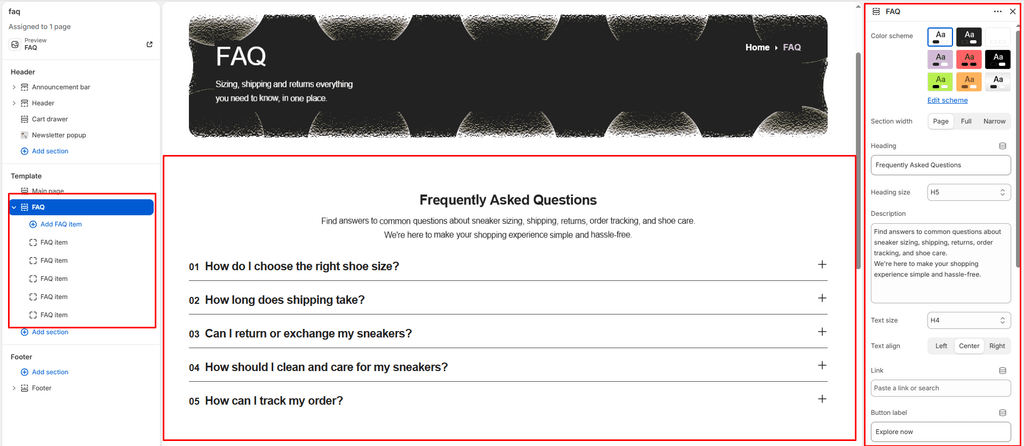
- In the left-hand sidebar, click (+) Add section and select FAQ.
- Click (+) Add block under the section to add individual FAQ item blocks.
1. Section Header & Typography Settings #
Configure container width, background color palettes, and header text:
| Setting | Type | Default | Options / Range | Description |
|---|---|---|---|---|
| Color scheme | Color Scheme | scheme-1 | Theme Schemes | Controls the master background fill and text contrast colors for the section. |
| Section width | Select | page-width | page-width, full-width, narrow-width | Choose between standard container boundaries (page-width), edge-to-edge full width (full-width), or a centered reading column (narrow-width). |
| Heading | Text | Frequently Asked Questions | Text string | Main title displayed above the FAQ accordion (e.g., “AUTHENTICITY & SIZING FAQ”, “SNEAX SUPPORT”). |
| Heading size | Select | h4 | h1 to h6 | Sets the visual typography scale and font hierarchy of the section heading. |
| Description | Text Area | Blank | Multi-line text | Subtitle copy providing context or direct concierge assistance guidance. |
| Text size | Select | h5 | h1 to h6 | Sets the font size of the descriptive text paragraph. |
| Text alignment | Select | left | left, center, right | Sets horizontal alignment for the heading and description. |
2. Editorial Split Image & Action Button Controls #
Pair your question accordion with brand lookbook photography and a dedicated support button:
| Setting | Type | Default | Options / Range | Description |
|---|---|---|---|---|
| Show image | Checkbox | true | Checked / Unchecked | Toggles the 55/45 split layout. When enabled, your FAQ questions appear alongside a high-resolution campaign image. |
| Image | Image Picker | Blank | Image upload | Editorial footwear photo featured on the visual half of the split section. |
| Image position | Select | left | left, right | Sets image placement: left places the image on the left; right places the image on the right. |
| Button label | Text | Blank | Text string | Actionable button copy placed in the header (e.g., “Contact Concierge”, “Read Sizing Guide”). |
| Button link | URL | Blank | Page / External URL | Destination web link for the header button. |
| Button style | Select | button-primary | button-primary, button-secondary, button-link | Controls button aesthetics (solid primary, outlined secondary, or minimalist link). |
| Button icon | Select | phone | cart, quickview, location, phone, arrow, email, account, search, heart | Displays a clean vector icon alongside the button text. |
3. Accordion Structure & Display Options #
Customize column layouts, number styling, and accordion expand behavior:
| Setting | Type | Default | Options / Range | Description |
|---|---|---|---|---|
| Columns | Range | 1 | 1 to 3 (step: 1) | Determines how many columns the accordion spans across when the split image is disabled (2 or 3 columns are ideal for dedicated FAQ pages). |
| Show numbers | Checkbox | false | Checked / Unchecked | Prefixes each question with an elegant two-digit numerical index (e.g., “01”, “02”, “03”). |
| Allow multiple open | Checkbox | false | Checked / Unchecked | When unchecked, expanding an item automatically collapses any other open question. When checked, shoppers can open multiple answers simultaneously. |
4. FAQ Content Blocks #
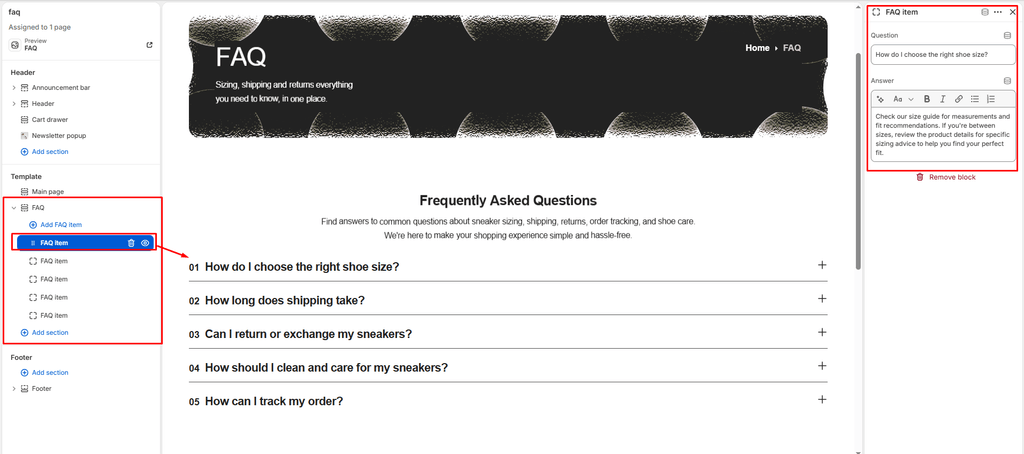
Each question and answer pair is added as an FAQ item block:
| Setting | Type | Default | Options / Range | Description |
|---|---|---|---|---|
| Question | Text | Add a frequently asked question... | Text string | The question title displayed on the clickable accordion bar (e.g., “How do I know the sneakers are 100% authentic?”, “What is your return policy on deadstock pairs?”). |
| Answer | Rich Text | <p>Provide a clear and concise answer...</p> | Rich text editor | Detailed answer supporting bullet points, bold text, links to size charts, or customer care emails. |
5. Spacing & Mobile Optimization #
Manage vertical layout breathing room:
| Setting | Type | Default | Options / Range | Description |
|---|---|---|---|---|
| Top padding | Range | 35px | 0px to 200px (step: 5px) | Vertical padding above the FAQ section on desktop monitors. |
| Bottom padding | Range | 36px | 0px to 100px (step: 1px) | Vertical padding below the FAQ section on desktop monitors. |
Responsive Behavior: On screens narrower than 767px, top and bottom padding values are automatically scaled down by 50%. The split image and question column stack vertically, ensuring smooth readability and thumb-accessible accordion toggling on mobile devices.
Sneaker Store Best Practices #
- Answer the Top 3 Buyer Objections Upfront: Structure your first three FAQ items around the primary friction points in sneaker shopping.
- Enable “Show Numbers” for Editorial Elegance: Checking the Show numbers setting adds sleek “01”, “02”, “03” counters next to each question. This typographic accent reinforces a luxury streetwear lookbook feel.
- Use Single-Column with Split Image on Homepages: When embedding the FAQ section on your homepage, enable Show image with
columns: 1. An eye-catching sneaker shot keeps the layout visually balanced, while 4–5 concise questions prevent the page from feeling text-heavy.