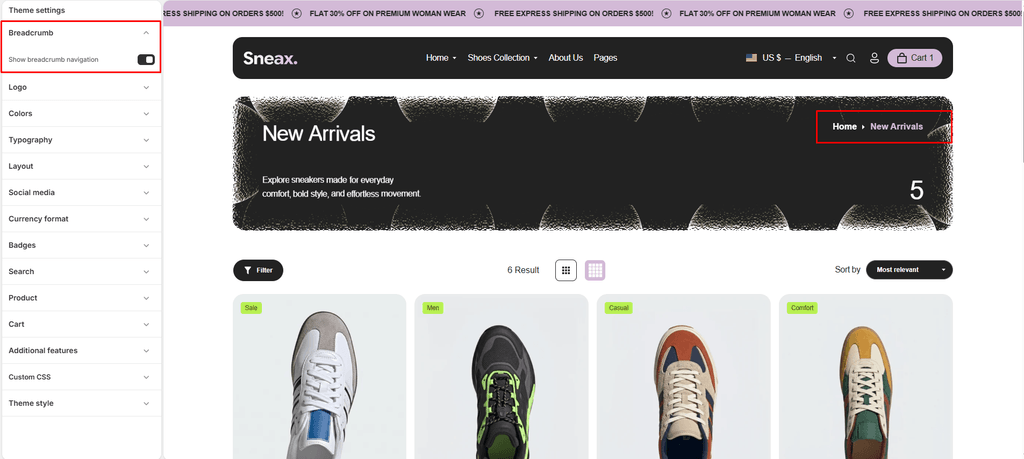
The Breadcrumbs navigation feature displays a structured hierarchical path (e.g., Home > Footwear > Running Shoes > Air Zoom Pegasus) across your storefront. In a sneaker store with extensive brands, silhouettes, and categories, breadcrumbs are essential for orienting collectors, reducing bounce rates, and making catalog backtracking effortless.
In Sneax’s modular architecture, Breadcrumbs is provided in two convenient ways:
- As a Standalone Section: Place a dedicated full-width or page-width breadcrumb strip anywhere on your page templates.
- As a Modular Theme Block: Drag and drop breadcrumbs directly into supported sections (such as headers, article templates, or custom block wrappers).
SEO & Accessibility:
Sneax renders breadcrumbs using semantic <nav role="navigation"> and <ol> ordered lists paired with SVG arrow separators (icon-arrow-right). This provides clear structured navigation for screen readers and assists search engines in generating rich snippet breadcrumbs in Google Search results.
Homepage Auto-Suppression:
Breadcrumbs automatically remain hidden on your store’s homepage (index), ensuring clean hero imagery.
1. Global Master Switch #
Before configuring breadcrumbs in specific sections or blocks, ensure the feature is active globally:
- In the Shopify Theme Editor, click on the Theme settings icon (gear icon in the left toolbar).
- Open the Breadcrumbs tab.
- Check the Show breadcrumb navigation (
show_breadcrumb_nav) box to enable breadcrumbs across your entire store.- If unchecked, breadcrumbs are suppressed sitewide, even if sections or blocks are placed on a page.
2. Breadcrumbs as a Standalone Section #
You can add a dedicated Breadcrumbs section to any template (e.g., Collection pages, Product pages, or Blog pages):
- Navigate to the desired template in the Theme Editor.
- Click (+) Add section and select Breadcrumbs.
- Customize the section-level settings:
| Setting | Type | Default | Options / Range | Description |
|---|---|---|---|---|
| Color scheme | Color Scheme | scheme-1 | Theme Schemes | Sets the background and text color of the breadcrumb container. |
| Section width | Select | Page-width | Page-width, Full-width | Controls horizontal margins across desktop screens. |
| Top padding | Range Slider | 0px | 0px – 100px (step 1px) | Spacing above the breadcrumb bar. |
| Bottom padding | Range Slider | 0px | 0px – 100px (step 1px) | Spacing below the breadcrumb bar. |
Mobile Padding Scale:
On mobile devices (< 767px), Sneax automatically halves your configured padding values (padding * 0.5) to keep vertical spacing compact.
3. Breadcrumbs as a Theme Block (@theme) #
When editing sections that support theme blocks (such as the standalone Breadcrumbs section, headers, or article banners):
- Click (+) Add block within the parent section and choose Breadcrumbs.
- Settings: The Breadcrumbs block functions as an intelligent placeholder with zero configuration required in the block sidebar—it automatically inherits its typography, link styling, and colors from your global Theme Settings and active section color scheme.
- The active/current page item automatically highlights using the Highlight text (
--highlight-text) color defined in your chosen color scheme.
4. Dynamic Breadcrumb Paths by Template #
Sneax automatically computes the exact navigation trail depending on which page the customer is viewing:
- Product Page:
- If navigated from a specific collection:
Home > [Collection Name] > [Sneaker Title] - If navigated directly:
Home > [Sneaker Title]
- If navigated from a specific collection:
- Collection Page:
Home > [Collection Name](e.g.,Home > High-Tops & Retro Drops)
- Collections Directory (
/collections):Home > Collections
- Single Article (Blog Post):
Home > [Blog Name] > [Article Title](e.g.,Home > Sneaker Journal > How to Clean Suede Kicks)
- Blog Archive:
- Without tag:
Home > [Blog Name] - With tag filter:
Home > [Blog Name] > [Active Tag]
- Without tag:
- Standard Pages (About, Sizing Chart, Shipping FAQ):
Home > [Page Title]
- Search & Other Pages:
Home > [Page Title]
Sneaker Store Best Practices #
- Keep Enabled on Footwear Details Pages:
- Sneaker shoppers often browse between multiple categories (e.g., Men’s Footwear -> Skate Shoes -> Nike SB Dunk). Keeping breadcrumbs active makes it effortless for them to hop back up to the category level with a single click.
- Align Color Scheme with Neighboring Sections:
- If your main collection banner or product gallery uses a dark colorway (
scheme-2orscheme-4), match the Breadcrumbs section to the same color scheme to create a seamless, unified header transition.
- If your main collection banner or product gallery uses a dark colorway (
- Use with Multi-Tier Collections:
- Ensure your navigation menus and product tags reflect clear hierarchy so your collection breadcrumbs feel natural and intuitive for shoppers exploring your catalog.