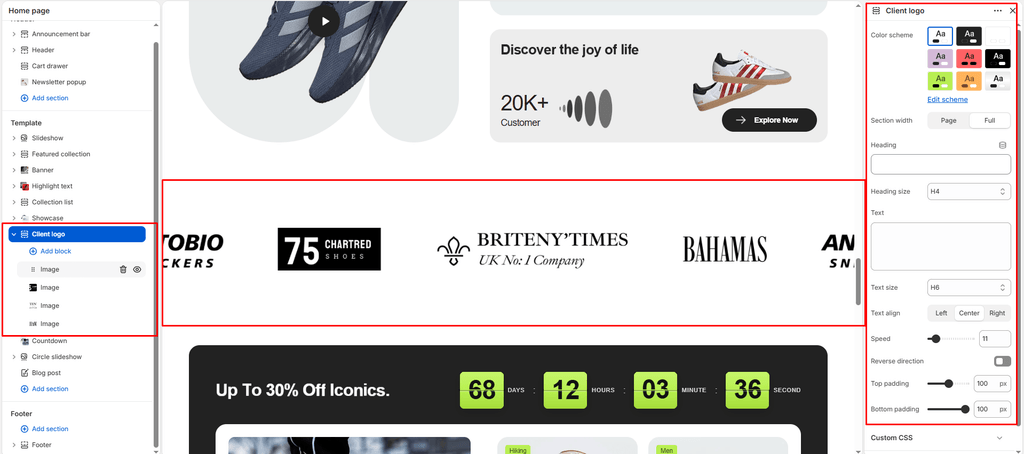
The Client Logo section in Sneax is an animated, high-energy marquee ribbon engineered to continuously scroll partner logos, retail stockists, and streetwear brand slogans horizontally across your storefront. Unlike static grids or manual carousels, this section delivers an effortless infinite marquee ticker that moves seamlessly without pausing or stuttering.
Accessing the Client Logo Section Settings #
- From your Shopify Admin, navigate to Online Store > Themes.
- Click Customize next to your active Sneax theme.
- In the top dropdown template selector, select Home page (or any other page template).
- In the left-hand sidebar, click (+) Add section and select Client logo.
- Click (+) Add block under the section to add Image logo blocks or Text marquee blocks.
1. Section Header & Typography Settings #
Configure container width, background color palettes, and introductory text:
| Setting | Type | Default | Options / Range | Description |
|---|---|---|---|---|
| Color scheme | Color Scheme | scheme-1 | Theme Schemes | Controls master background fill and text contrast colors for the section canvas. |
| Section width | Select | page-width | page-width, full-width | Choose between a bounded container (page-width) or an edge-to-edge ticker ribbon (full-width). full-width is recommended for high-impact brand marquees. |
| Heading | Text | Logo list | Text string | Section title displayed above the marquee (e.g., “AUTHORIZED STOCKISTS”, “AS FEATURED IN”, “OUR BRAND PARTNERS”). |
| Heading size | Select | h4 | h1 to h6 | Sets the visual typography scale and font hierarchy of the section heading. |
| Text | Text Area | At Your Favorite Stores | Multi-line text | Supporting subtitle or brand context displayed beneath the heading. |
| Text size | Select | h6 | h1 to h6 | Sets the font size of the descriptive subtitle. |
| Text alignment | Select | center | left, center, right | Sets horizontal alignment for the heading and description. |
2. Marquee Ticker Motion Controls #
Fine-tune the continuous sliding speed and horizontal scroll flow:
| Setting | Type | Default | Options / Range | Description |
|---|---|---|---|---|
| Marquee speed | Range | 11s | 0s to 100s (step: 1s) | Controls the cycle speed of the continuous animation (lower values scroll faster, higher values create a slow, elegant glide). |
| Reverse direction | Checkbox | false | Checked / Unchecked | By default, items scroll from right to left. Checking this reverses the animation to scroll from left to right. |
3. Content Blocks: Logos & Text Badges #
You can add two distinct block types to build your ticker stream:
Image Block #
Displays a partner brand or press logo:
| Setting | Type | Default | Options / Range | Description |
|---|---|---|---|---|
| Image | Image Picker | Blank | Image upload | Transparent brand logo (PNG or SVG). Automatically scales up to a clean maximum height of 80px on desktop and 40px on mobile. |
| Link | URL | Blank | Page / Collection URL | Clickable destination web link (e.g., linking directly to /collections/nike or an external press article). |
Text Block #
Displays a stylized text statement or brand badge within the marquee flow:
| Setting | Type | Default | Options / Range | Description |
|---|---|---|---|---|
| Text | Text Area | Text | Multi-line text | Slogan or brand name (e.g., “VERIFIED DEADSTOCK”, “AUTHENTICATED BY SNEAX”). |
| Highlight word | Text | Blank | Text string | Enter any specific word from your text to highlight it in your theme’s primary accent color. |
| Tabular styling | Checkbox | true | Checked / Unchecked | Wraps the text block in a rounded pill badge with an accent background fill (border-radius: 50px). |
| Link | URL | Blank | Page / Collection URL | Clickable destination web link for the text badge. |
4. Spacing & Mobile Optimization #
Manage vertical layout breathing room:
| Setting | Type | Default | Options / Range | Description |
|---|---|---|---|---|
| Top padding | Range | 100px | 0px to 200px (step: 5px) | Vertical padding above the ticker section on desktop monitors. |
| Bottom padding | Range | 100px | 0px to 100px (step: 1px) | Vertical padding below the ticker section on desktop monitors. |
Responsive Behavior: On screens narrower than 767px, top and bottom padding values are automatically scaled down by 50%. Logo heights automatically adapt from 80px down to 40px to ensure a neat, proportional mobile ribbon without vertical screen bloat.
Sneaker Store Best Practices #
- Create an Authorized Brand Ribbon: Upload transparent monochrome vector logos of your core sneaker manufacturers (Nike, Air Jordan, adidas, New Balance, ASICS, Puma). Link each logo to its respective collection page to act as a dynamic, moving catalog menu.
- Interweave Logos with Highlighted Pill Badges: Break up continuous brand logos by inserting a Text block every 3 logos. This keeps the ticker visually engaging and continuously communicates store value propositions.
- Stack Dual Marquees with Opposing Directions: Place two Client Logo sections consecutively on your homepage. Set the first section to default scroll (Right to Left) and check Reverse direction on the second section (Left to Right). This contrasting motion creates an energetic, cutting-edge streetwear lookbook aesthetic.