Table of Contents
In the footwear and sneaker industry, search is a high-intent conversion tool. Shoppers frequently look for specific sneaker models, silhouettes (e.g., Retro High, Runner, Low-Top), colorways, or limited collaboration drops.
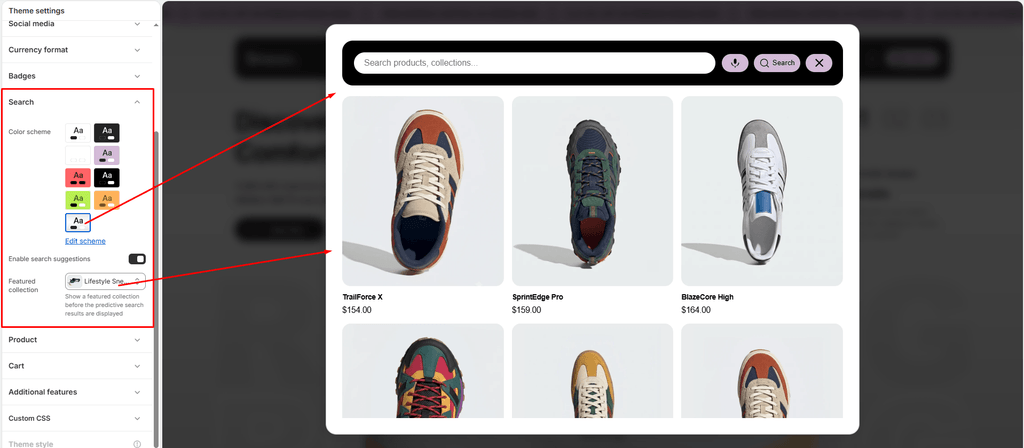
Sneax features an interactive Search Modal & Predictive Search Drawer that includes instant live suggestions, pre-search curated footwear recommendations, and built-in voice search.
How to Access Search Settings #
- From your Shopify Admin, navigate to Online Store > Themes.
- Click Customize on the Sneax theme.
- Click the Theme settings (⚙️ gear icon) in the left sidebar.
- Select the Search tab.
- Configure your search settings and click Save.
Available Settings & Configuration #
| Setting Name | Type | Options / State | Default | Description |
|---|---|---|---|---|
| Color scheme | Color Scheme Picker | Any configured color scheme | Scheme 1 | Sets the background, text, borders, and input styling for the full search overlay and results panel. |
| Enable search suggestions | Checkbox | Enabled (Checked) / Disabled (Unchecked) | Enabled (true) | Activates dynamic predictive search. As customers type, instant product matching, prices, and thumbnails appear in real time. |
| Featured collection | Collection Picker | Any collection in your store | None (Defaults to All) | Selects a curated collection to showcase as recommended footwear when the search drawer first opens (before the shopper types anything). |
Detailed Settings Breakdown #
1. Color Scheme (search_color_scheme) #
Allows you to match the search overlay to your store’s aesthetic. You can give the search modal a sleek dark look (e.g., Scheme 2) for an urban streetwear feel or a clean, bright white look (Scheme 1) for high readability.
2. Enable Search Suggestions (show_search_suggestion) #
- When Enabled: As soon as a customer types the first few letters of a shoe model (e.g., “Air” or “Retro”), Sneax performs a high-speed background lookup and populates matched sneakers with their photos, titles, and live prices. It also supports search across articles, pages, and collections.
- When Disabled: Renders a standard search submission bar that only takes users to the search results page upon pressing Enter.
3. Featured Collection (collection) #
Sneax utilizes the search modal as an active merchandising space:
- When a customer clicks the magnifying glass icon in the header, the search drawer opens.
- Before they even type a single character, Sneax displays up to 12 featured footwear cards under the default suggestions grid.
- Recommended Usage: Assign your “Trending Drops”, “Best Sellers”, or “New Footwear Arrivals” collection here to inspire immediate clicks.
Pro Tips for Sneax Footwear Stores #
- Curate a “Trending Sneakers” Search Collection: Don’t leave the pre-search empty. Selecting a curated collection filled with high-demand silhouettes or trending restocks turns an empty search bar into an instant shopping gallery.
- Tag Silhouette Names in Product Titles: To make predictive search ultra-effective, include recognizable keywords in your product titles or tags (e.g., “Sneax Runner V2 – Triple Black – Waterproof”). Shoppers searching for “Black” or “Waterproof” will see the shoe pop up instantly.