

The Highlight Text section is a high-fashion, interactive brand statement and social proof powerhouse in the Sneax theme. Designed to communicate brand pedigree, sneaker craftsmanship, and retail milestones, it pairs an animated scroll-triggered headline with inline expanding sneaker images and GSAP-powered counting statistics.
Accessing the Highlight Text Section Settings #
- Open your Shopify Admin and navigate to Online Store > Themes.
- Click Customize next to your active Sneax theme.
- Use the top template selector to navigate to the page where you wish to place the section (e.g., Home page, About us, or a Brand Heritage landing page).
- In the left-hand sidebar, click Add section and select Highlight text (or select an existing Highlight text section).
- The right sidebar will display the section’s layout, badge, typography, inline image slots, and nested Stat counter blocks.
1. General & Layout Settings #
Configure the visual canvas, container boundary, and upper pill badge.
| Setting | Type | Default | Options / Range | Description |
|---|---|---|---|---|
| Color scheme | Color Scheme | scheme-1 | Theme Color Schemes | Sets the background and text color palette for the entire highlight section. |
| Section width | Select | Page width | Page width, Full width | Controls whether the section content is contained within the standard site grid (page-width) or stretches edge-to-edge (full-width). |
| Badge text | Text | Discover Our Exstique Best Selection | Text input | Displays a rounded uppercase pill badge directly above the main statement headline to introduce the section theme (e.g., OUR PHILOSOPHY, VERIFIED AUTHENTIC, COMMUNITY FIRST). Leave blank to hide. |
2. Kinetic Headline & Inline Shortcode Syntax #
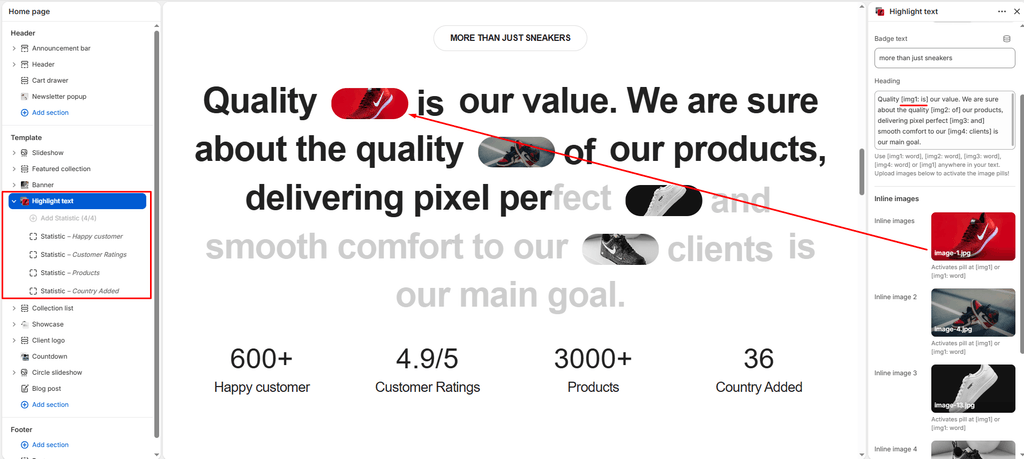
The Heading field supports rich multiline storytelling, <br> tags, and intelligent image embed shortcodes.
| Setting | Type | Default | Options / Range | Description |
|---|---|---|---|---|
| Heading | Textarea | Quality [img1: is] OUR VALUE. <br> We are sure about the quality [img2: of] our products, <br> delivering pixel perfect [img3: AND] smooth comfort to our [img4: clients] <br> is our main goal. | Multiline text | The central brand manifesto. Text letters automatically start in a muted shade and light up smoothly as the customer scrolls down. |
How Inline Image Shortcodes Work #
You can embed up to 4 inline images directly into the sentence alongside specific words using shortcode tags:
- Shortcode Format:
[img1: Word],[img2: Word],[img3: Word],[img4: Word] - Alternative Formats:
[image_1: Word],[1: Word], or simply standalone[img1]
3. Inline Image Media Pickers #
Upload the corresponding visuals referenced by your [img1], [img2], [img3], and [img4] shortcodes.
| Setting | Type | Default | Options / Range | Description |
|---|---|---|---|---|
| Image 1 | Image Picker | None | Image file (.png, .webp, .jpg) | Media assigned to the [img1: ...] shortcode in your headline. |
| Image 2 | Image Picker | None | Image file (.png, .webp, .jpg) | Media assigned to the [img2: ...] shortcode in your headline. |
| Image 3 | Image Picker | None | Image file (.png, .webp, .jpg) | Media assigned to the [img3: ...] shortcode in your headline. |
| Image 4 | Image Picker | None | Image file (.png, .webp, .jpg) | Media assigned to the [img4: ...] shortcode in your headline. |
4. Stat Counter Blocks #
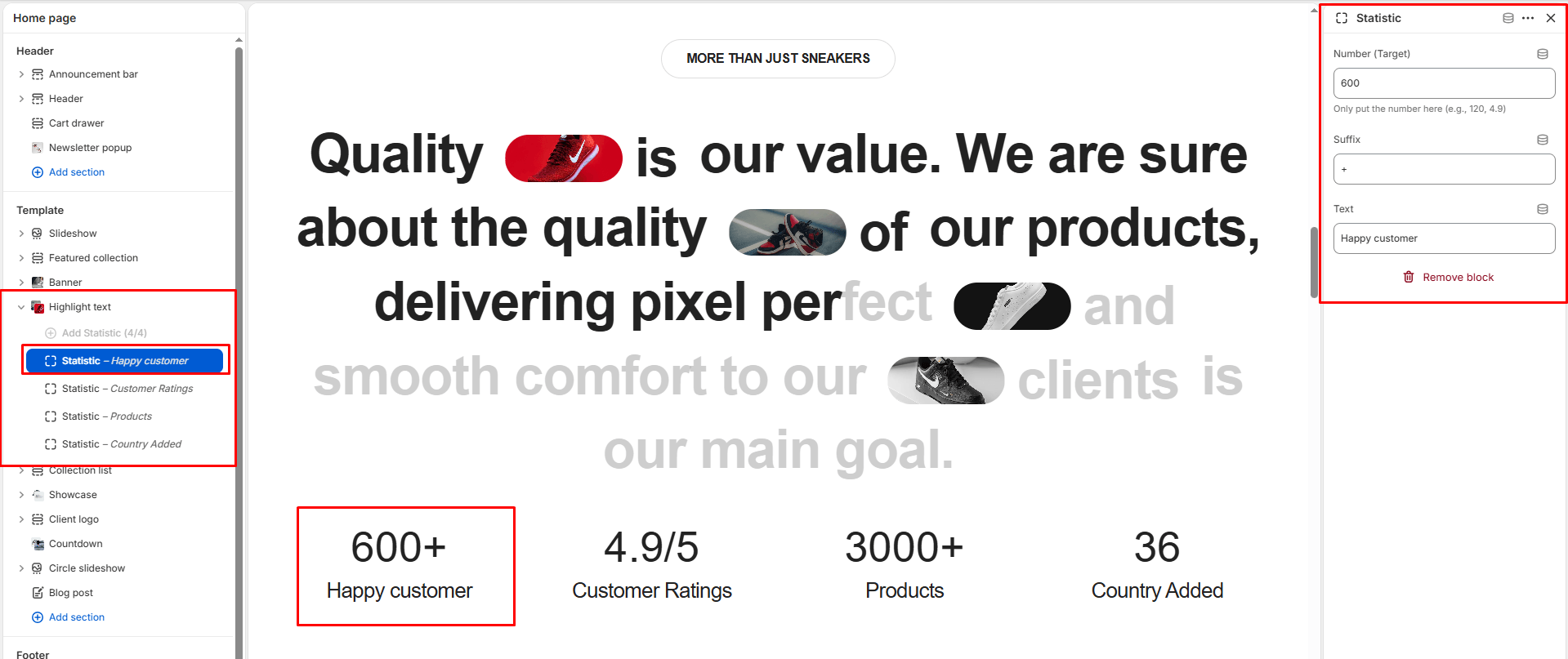
Positioned directly beneath the headline, the statistics grid provides immediate social proof and authority. Each block triggers a high-precision GSAP counting animation when scrolled into view.
- Block Name: Stat
- Block Limit: Up to 4 blocks
| Setting | Type | Default | Options / Range | Description |
|---|---|---|---|---|
| Number | Text | 120 | Numeric string (Integer or Decimal) | The target number to count up to (e.g., 120, 4.9, 50000, 36). The script automatically detects decimal points (e.g., 4.9) and formats the final value with precise decimal places. |
| Suffix | Text | + | Text input (e.g., +, /5, %, K, M) | Symbol or abbreviation attached immediately to the right of the animated number. |
| Text | Text | Happy customer | Text input | The descriptive label displayed directly below the counter (e.g., Pairs Authenticated, Customer Rating, Global Drops Sold, Countries Served). |
Responsive Layout of Stat Items #
- Desktop: Displayed horizontally in a 4-column row (
calc(25% - 40px)each). - Tablet / Small Screen (
< 768px): Automatically reflows into a 2×2 grid (calc(50% - 40px)each). - Mobile Phone (
< 480px): Stacks cleanly in a centered vertical column (100%width each).
Spacing & Mobile Optimization #
Fine-tune vertical rhythm between preceding and succeeding storefront sections.
| Setting | Type | Default | Options / Range | Description |
|---|---|---|---|---|
| Top padding | Range | 80px | 0px to 200px (step: 5px) | Top vertical spacing on desktop. Automatically reduced by 50% on mobile screens (< 768px). |
| Bottom padding | Range | 80px | 0px to 100px (step: 1px) | Bottom vertical spacing on desktop. Automatically reduced by 50% on mobile screens (< 768px). |
Sneaker Store Best Practices #
- Use High-Contrast Sole or Silhouette Close-ups for Inline Images: Because inline image pills are rendered in an elongated stadium shape, upload close-up photos of sneaker outsole treads, stitch detailing, or iconic lateral profiles so the imagery remains instantly recognizable even at compact pill dimensions.
- Anchor Key Value Propositions: Use the inline reveals strategically on your brand’s core pillars.
- Highlight Credible Milestone Numbers: Populate your 4 stat blocks with meaningful sneaker industry stats.