

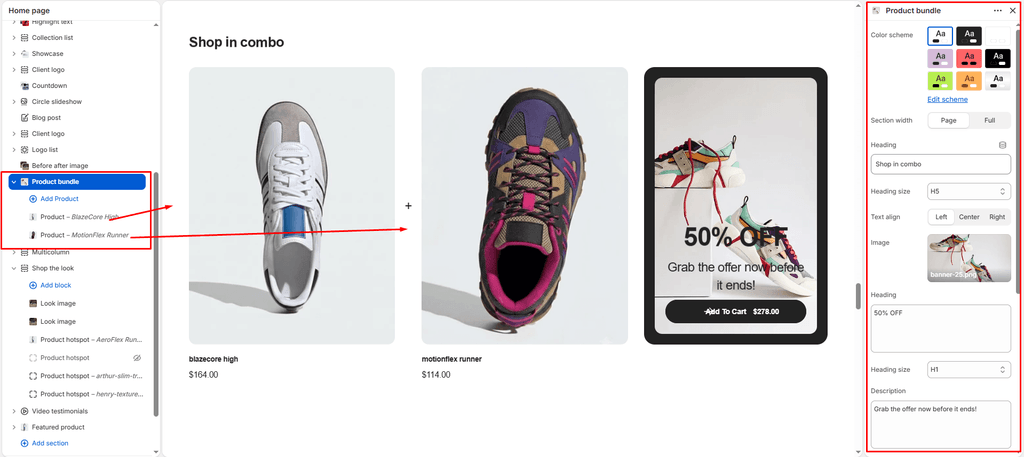
The Product Bundle section in Sneax is an indispensable conversion and Average Order Value (AOV) driver. Designed around the proven “Frequently Bought Together” merchandising strategy, it pairs multiple complimentary footwear, apparel, and sneaker care products side-by-side using dynamic “+” connector symbols, alongside a sticky promotional call-to-action card.
The section features an intelligent live pricing engine: it automatically aggregates the prices of every item included in the bundle and injects the live total directly inside the Add to Cart button. When clicked, all items in the bundle are simultaneously added to the shopper’s cart via AJAX, instantly triggering the Sneax Cart Drawer without navigating away from the page.
Accessing the Product Bundle Section Settings #
- From your Shopify Admin, navigate to Online Store > Themes.
- Click Customize next to your active Sneax theme.
- In the top dropdown template selector, select Home page (or any custom landing / product page template).
- In the left-hand sidebar, click (+) Add section and select Product bundle.
- Click (+) Add block under the section to add individual Product blocks to the combo.
1. Section Header & Layout Controls #
Configure the section container width, color palette, and primary header:
| Setting | Type | Default | Options / Range | Description |
|---|---|---|---|---|
| Color scheme | Color Scheme | scheme-1 | Theme Schemes | Controls the master background and text color scheme for the entire section. |
| Section width | Select | page-width | page-width, full-width | Choose between a centered bounded container (page-width) or an edge-to-edge canvas (full-width). |
| Main heading | Text | Frequently bought together | Text string | Prominent title displayed on the left above the bundle items (e.g., “FREQUENTLY BOUGHT TOGETHER”, “THE COMPLETE SNEAKER PACK”). |
| Main heading size | Select | h4 | h1 to h6 | Sets the visual typography scale and font size for the main section title. |
| Text alignment | Select | left | left, center, right | Sets horizontal alignment for the section title (Left, Center, or Right). |
2. Promotional Bundle Card Settings (Right Column) #
The right side of the section features a high-impact, sticky promotional card with an image background and the master “Add to Cart” checkout button:
| Setting | Type | Default | Options / Range | Description |
|---|---|---|---|---|
| Image | Image Picker | Blank | Image upload | Lifestyle or promotional campaign photo featured inside the sticky combo card (e.g., model wearing the complete outfit or a special sale graphic). |
| Heading | Text Area | Time to buy something at a low cost | Multi-line text | Bold promotional callout overlaying the image (e.g., “SAVE 15% ON THIS PACK”, “COMPLETE THE LOOK”). |
| Heading size | Select | h4 | h1 to h6 | Controls font hierarchy of the promotional card heading. |
| Description | Text Area | Blank | Multi-line text | Supporting promotional text, discount code reminders, or combo benefits. |
| Text size | Select | h5 | h1 to h6 | Sets the font size for the promotional description text. |
| Button label | Text | Button label | Text string | Button copy preceding the live price tag (e.g., “Add Bundle To Cart”, “Buy This Combo”). |
| Button style | Select | button-secondary | button-primary, button-secondary, button-link | Visual button styling (solid primary, outlined secondary, or minimalist link). |
| Button icon | Select | arrow | cart, quickview, location, phone, arrow, email, account, search, heart | Renders a clean vector icon next to the button text and live price total. |
3. Bundle Product Blocks #
Each individual product displayed in the bundle is added as a block on the left-hand side of the section:
| Block Type | Setting | Type | Default | Description |
|---|---|---|---|---|
| Product | Product | Product Picker | Blank | Select a specific shoe, apparel piece, or accessory from your Shopify catalog. Sneax automatically pulls the item’s featured image, title, and first available variant price. |
Layout Behavior:
- 2 Products: Displays side-by-side with an automatic “+” connector symbol centered between them.
- 3 Products: Arranges products in an asymmetrical grid (one prominent hero card spanning two rows alongside two stacked companion items).
- 4+ Products: Renders a clean 2×2 grid layout.
4. Spacing & Mobile Optimization #
Control section vertical padding across desktop and mobile screens:
| Setting | Type | Default | Options / Range | Description |
|---|---|---|---|---|
| Top padding | Range | 100px | 0px to 200px (step: 5px) | Vertical padding above the section on desktop screens. |
| Bottom padding | Range | 100px | 0px to 100px (step: 1px) | Vertical padding below the section on desktop screens. |
Responsive Behavior:
- Below 1024px (tablets and mobile), the promotional card reorders to the top (
order: 1), ensuring customers immediately see the combo offer before scrolling through individual product cards (order: 2). - On screens under 400px, product cards stack vertically, and the “+” connector repositioned between the cards automatically.
- Padding values are automatically reduced by 50% on mobile devices below 767px.
Sneaker Store Best Practices #
- Create the “Sneaker + Care Kit + Socks” Triple Pack: The most profitable bundle in footwear retail is pairing a high-heat sneaker (e.g., Air Jordan 1 Retro High) with a premium sneaker cleaning kit (e.g., Crep Protect / Jason Markk) and heavy-knit ribbed streetwear socks. Shoppers buying shoes are already in purchase mode and will happily add protective care to their order.
- Highlight Immediate Savings in the Card Heading: Set the promotional heading to “BUY TOGETHER & SAVE 10%”. You can configure an automatic Shopify discount or discount code in your store settings so that purchasing the full bundle applies a bundle deal at checkout.
- Keep Bundle Size to 2 or 3 Items Max: While Sneax supports 4+ items, 2-item and 3-item combos convert significantly higher. 2 items create a focused “Sneaker + Matching Hoodie” combo, while 3 items allow for a complete “Head-to-Toe Streetwear Outfit” without overwhelming the customer’s cart total.