

Table of Contents
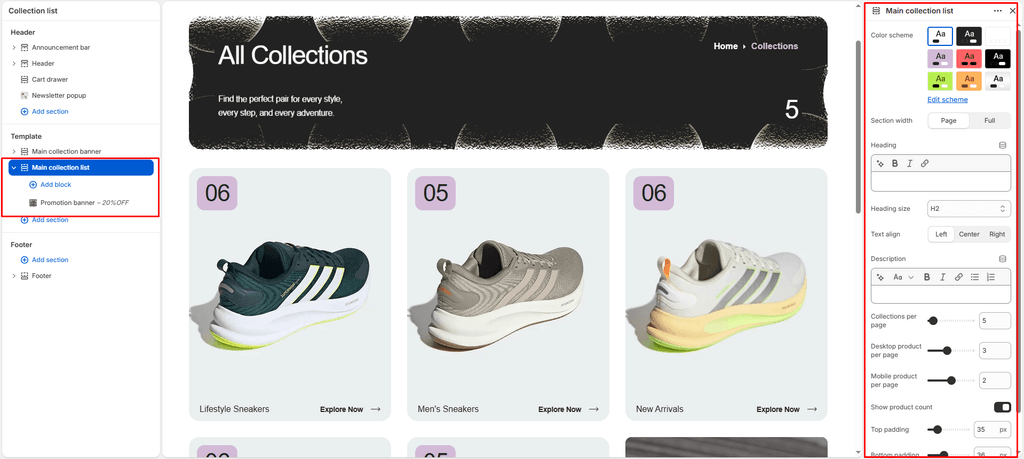
The Main Collection List section powers your store’s primary collection directory (the /collections catalog index).
This page serves as a master visual roadmap for footwear shoppers—allowing customers to browse through your complete range of shoe silhouettes, sport categories (Running, Basketball, Skate, Training), limited drop archives, and sneaker care accessories.
Sneax equips this directory with responsive column grids, live product count badges, and the ability to inject Promotional Campaign Banners directly into the collection grid.
How to Access Main Collection List Settings #
- From your Shopify Admin, navigate to Online Store > Themes.
- Click Customize on the Sneax theme.
- In the top template selector, navigate to Collections list > Default collections list.
- In the left sidebar, click the Main collection list section.
- Configure your grid density, typography, and card options.
- Click Save.
Layout & Appearance Settings #
| Setting Name | Type | Options / Range | Default | Description |
|---|---|---|---|---|
| Color scheme | Color Scheme Picker | Any configured color scheme | Scheme 1 | Sets the master background and text color scheme for the entire collections index. |
| Section width | Dropdown | Page width, Full width | Full width | Controls whether the collection grid is bounded by standard margins or spans edge-to-edge across the screen. |
| Heading | Inline Rich Text | Text | Collections | Main page title displayed above the directory (e.g., “Browse All Footwear”, “Explore Categories”). |
| Heading size | Dropdown | H1 – H6 | H2 | Typography size scale for the main page headline. |
| Text align | Dropdown | Left, Center, Right | Left | Horizontal alignment for the page title. |
| Description | Rich Text | HTML / Formatted text | None | Optional introductory paragraph welcoming shoppers to your footwear directory. |
| Top padding | Slider / Range | 0px – 200px (Step: 5px) | 35px | Vertical whitespace above the collection grid (automatically halved on mobile). |
| Bottom padding | Slider / Range | 0px – 100px (Step: 1px) | 35px | Vertical whitespace below the collection grid. |
Grid Density & Pagination #
| Setting Name | Type | Options / Range | Default | Description |
|---|---|---|---|---|
| Collections per page | Slider / Range | 1 – 100 (Step: 1) | 9 | Number of collection tiles displayed on a single page before pagination triggers. |
| Desktop columns | Slider / Range | 1 – 6 (Step: 1) | 4 | Number of collection cards displayed per row on desktop monitors and laptops. |
| Mobile columns | Slider / Range | 1 – 3 (Step: 1) | 2 | Number of collection cards displayed per row on smartphones and tablets. |
Collection Card Merchandising #
| Setting Name | Type | Default | Description |
|---|---|---|---|
| Show product count | Checkbox | Enabled (true) | Displays a live numerical badge showing the total number of sneaker models inside each collection (e.g., “18 Items”). |
In-Grid Promotional Banners (promotion_banner Block) #
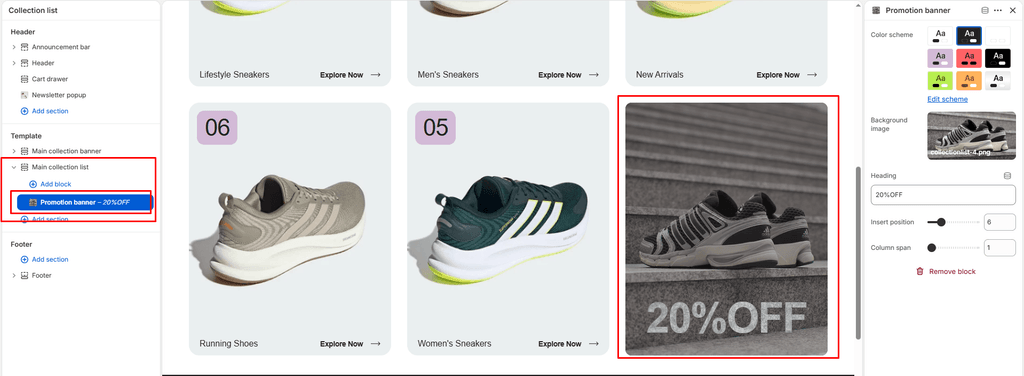
Just like the product grid, Sneax allows you to break up the collection directory by injecting promotional visual banners:
- Under the Main collection list section in the Theme Editor, click Add Promotion banner.
- Configure the block settings:
- Color scheme: Select an accent color scheme for the banner card.
- Background image: Upload a high-impact footwear campaign photo or drop teaser.
- Title: Banner headline (default: “GRAB IT BEFORE ENDS!”).
- Insert position (
1to24): Controls exactly where the promo card appears (e.g., setting to3injects it right after the 3rd collection card on page 1). - Column span (
1to6): Controls how many grid columns wide the banner stretches on desktop screens (automatically expands to full width on mobile).
Pro Tips for Sneax Footwear Stores #
- Curate Flagship Collection Imagery: Make sure every collection in your Shopify Admin (Products > Collections) has a clean, high-resolution featured image. Sneax pulls this photo as the collection cover tile.
- Highlight Drops with In-Grid Banners: Place a 2-column Promotion banner at position
3linking to your upcoming sneaker drop calendar or VIP membership signup. It immediately captures shoppers exploring your general categories.