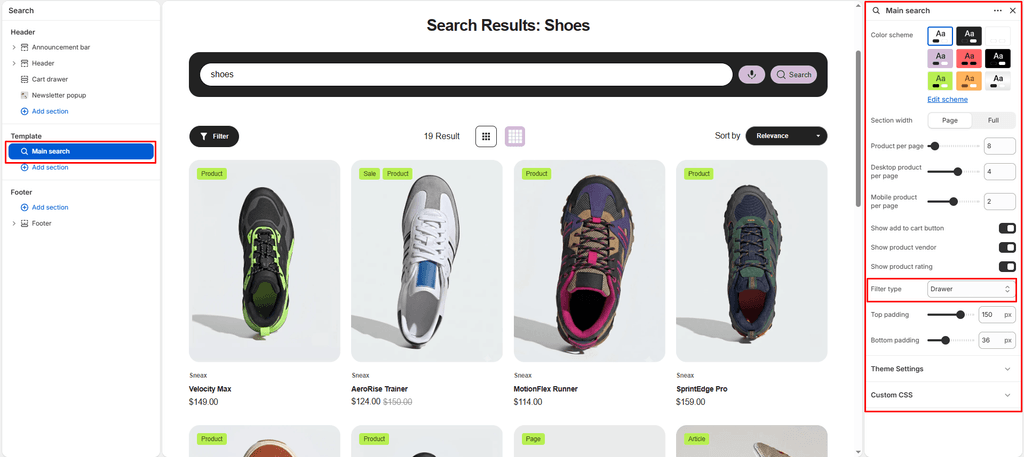
The Main Search section controls the dedicated Search Results Page (/search). When a sneaker collector or shopper searches for a specific silhouette (e.g., “Retro High”, “Jordan 4”, or “Suede Cleaner”), this section presents a responsive, fast-loading grid of results equipped with facet filtering, interactive column toggles, and voice search.
Unlike basic themes that only display products, Sneax’s search engine intelligently categorizes and presents Footwear, Editorial Articles, Information Pages, and Collections, each with dedicated visual card layouts and badge tags.
Accessing the Main Search Settings #
- From your Shopify Admin, go to Online Store > Themes.
- Click Customize next to Sneax.
- In the top template selector, switch to Others > Search (or type any query into your storefront search bar while in theme preview).
- In the left sidebar, click on Main search to customize the settings below.
1. Integrated Search Bar & Voice Search #
At the top of the search results page, Sneax displays a persistent query bar that allows shoppers to instantly refine or initiate a new search without returning to the header:
- Query Term Title: Automatically echoes the search query:
Search: [query]. - Search Input Field: Retains the active keyword with auto-suggest support.
- Voice Search Microphone: Built-in Web Speech API integration. Shoppers on compatible browsers (Chrome, Edge, Android) can tap the microphone icon to speak sneaker model names or colorways aloud, and Sneax will automatically transcribe and submit the search query.
2. Layout & Color Styling #
Maintain brand consistency and visual balance across your search interface:
| Setting | Type | Default | Options / Range | Description |
|---|---|---|---|---|
| Color scheme | Color Scheme | scheme-1 | Theme Schemes | Controls the background, text, and border colors of the entire search results page. |
| Section width | Select | Page-width | Page-width, Full-width | Choose Page-width to keep results neatly constrained or Full-width for an expansive, edge-to-edge layout. |
| Top padding | Range Slider | 35px | 0px – 200px (step 5px) | Sets vertical spacing above the search query bar. |
| Bottom padding | Range Slider | 35px | 0px – 100px (step 1px) | Sets vertical spacing below the search results and pagination. |
Responsive Mobile Optimization:
On screens narrower than767px, Sneax automatically reduces your configured top and bottom padding by 50% to avoid excessive scrolling on smartphones.
3. Results Grid & Responsive Columns #
Fine-tune how many items appear per page and adjust column density for desktop and mobile devices:
- Products per page (
product_per_page):- Default:
9(Range:1to100) - Controls how many items display before pagination controls appear at the bottom.
- Default:
- Desktop products per row (
desktop_product_per_row):- Default:
4(Range:1to6) - Defines the standard grid column count on screens
≥ 768px. - When set to
5or6, Sneax automatically scales down card typography to maintain proportion and legibility.
- Default:
- Mobile products per row (
mobile_product_per_row):- Default:
2(Range:1to3) - Defines the column count on mobile screens. On ultra-compact screens (
< 450px), the layout gracefully collapses to a single column for maximum photo clarity.
- Default:
- Interactive Grid Switcher:
- On desktop screens, shoppers can click the built-in 3-Column or 4-Column grid switcher buttons in the top filter bar to instantly adjust card size based on whether they want to inspect sneaker details or scan more options quickly.
4. Advanced Facet Filtering & Sorting #
Sneax seamlessly integrates Shopify’s Storefront Filtering so customers can drill down through search results by price, availability, shoe size, brand, or color:
- Filter type (
filter_type):- Drawer (Recommended – Default): Keeps the results clean and minimalist. Clicking “Filter and sort” slides out a sleek drawer from the side of the screen.
- Vertical: Displays a permanent sidebar on the left side of the results with collapsible accordions.
- Horizontal: Renders a horizontal bar above the products with drop-down menus for each facet category.
- Instant Sorting: Provides a dropdown menu for sorting results by Relevance, Price: Low to High, Price: High to Low, Best Selling, or Date: New to Old.
5. Product Card Customization #
Configure what product information appears on search result cards to drive immediate purchasing decisions:
- Show ‘Add to cart’ (
show_add_to_cart):- Default: Enabled
- Renders a direct Quick Add / Select Size button on each shoe card, allowing customers to add pairs straight to their cart without leaving search.
- Show vendor (
product_card_show_vendor):- Default: Enabled
- Displays the sneaker brand (e.g., Jordan, Nike, adidas, Salomon) above the silhouette name.
- Show rating (
product_card_show_rating):- Default: Enabled
- Shows star review ratings and review counts from your connected Shopify review app.
- Secondary Image on Hover:
- Automatically flips to the secondary photo (e.g., heel angle or on-foot view) when a shopper hovers over the card.
- Status & Type Badges:
- Automatically displays Sale, Sold Out, and Product tags in your configured theme badge color schemes.
6. Multi-Content Result Handling #
When a customer’s query matches content beyond footwear, Sneax organizes and styles them clearly:
- Sneaker Articles & Editorial Guides (
article):- Displays article featured imagery, an Article category badge, publication date, title, and excerpt.
- Pages (
page):- Displays a clean card with a Page badge, page title, and content summary (ideal for sizing guides, shipping FAQs, or store policy searches).
- Collections (
collection):- Displays collection hero imagery, a Collection badge, and a direct link to the category.
7. Zero-Results State #
If a search query yields no matches, Sneax renders a clean, user-friendly message:
- Displays “No results found for ‘[query]'”.
- Shoppers can immediately edit their query or use the microphone button to try another search.
Sneaker Store Best Practices #
- Use Drawer Filtering for Streetwear Aesthetic:
- The Drawer filter layout keeps the page uncluttered, giving maximum visual real estate to high-resolution sneaker photography.
- Keep Quick Add Enabled:
- Shoppers using the search bar possess high purchase intent—they already know the silhouette or shoe size they want. Keeping Show ‘Add to cart’ active minimizes friction and shortens the checkout path.
- Set Desktop Columns to 4:
- Four columns on desktop provides an optimal balance between showcasing shoe silhouettes clearly and displaying an extensive variety of colorways on a single screen.