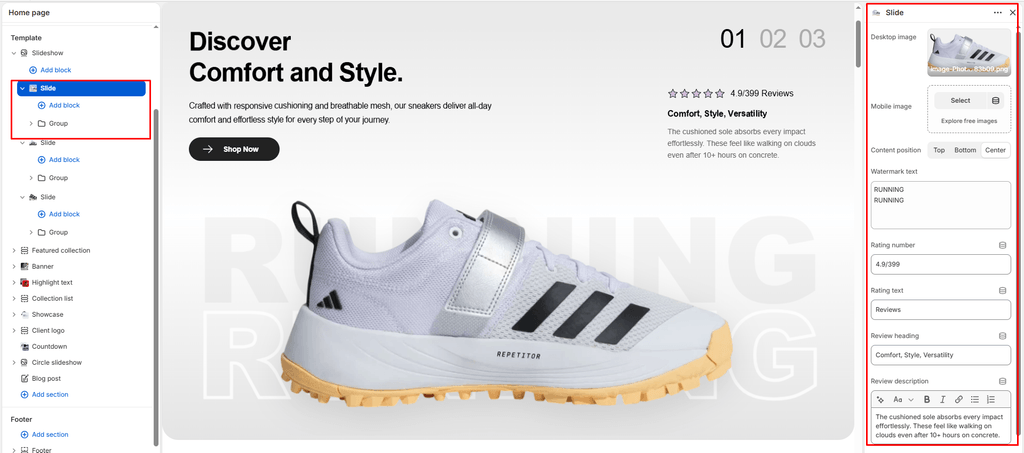
The Slide block represents an individual campaign slide within the Slideshow section in Sneax. Rather than being a basic, static photo with fixed caption fields, Sneax’s Slide block functions as an advanced modular container powered by Shopify OS 2.0 nested blocks.
Each slide supports independent desktop and mobile imagery, a stylized background typographic watermark, an integrated customer review and star rating card, and full drag-and-drop support for child blocks (including Subtitles, Titles, Descriptions, Live Drop Countdowns, and Animated CTA Buttons).
Accessing the Slide Block Settings #
- In your Shopify Theme Editor, navigate to any page featuring a Slideshow section (e.g., your Homepage).
- In the left-hand sidebar, expand the Slideshow section.
- Click directly on an individual Slide block to configure its imagery, watermark, and review card settings.
- Expand the Slide block in the sidebar to view, reorder, or add nested child blocks inside it.
1. Responsive Media & Performance Settings #
Configure dedicated visual assets tailored for desktop monitors and smartphones:
| Setting | Type | Default | Options / Format | Description |
|---|---|---|---|---|
| Desktop image | Image Picker | Blank | Horizontal (1800px WebP) | High-resolution landscape photograph displayed on desktop screens (≥ 750px). |
| Mobile image | Image Picker | Blank | Vertical (750px WebP) | Portrait-oriented photograph displayed specifically on mobile devices. |
| Content position | Select | Center | Left (flex-start), Center, Right (flex-end) | Controls horizontal alignment of the text/button content container. |
Mobile Framing Optimization #
Footwear photography framed horizontally for desktop often cuts off shoe toe boxes or model stances when cropped automatically on mobile screens. By uploading a dedicated Mobile image, you ensure your footwear silhouette is framed vertically for smartphone screens without awkward auto-cropping.
Shopify Focal Point Support #
Sneax captures the focal point you set in your Shopify Admin media library (presentation.focal_point) on both desktop and mobile assets, keeping the most critical sneaker details perfectly centered.
Automated Core Web Vitals (LCP) Boost #
The first slide in your slideshow automatically receives loading="eager" and fetchpriority="high", ensuring near-instant Largest Contentful Paint (LCP) load times for search engines and shoppers. Subsequent slides automatically utilize loading="lazy" to conserve visitor bandwidth.
2. Editorial Background Watermark (watermark_text) #
Sneax includes a signature streetwear design feature: an oversized, semi-translucent typographic watermark layered behind your sneaker photography.
- Watermark text (
watermark_text):- Enter bold keywords such as
RUNNING,BASKETBALL,RETRO,SNEAX, orLIMITED. - Supports multiline stacked words: pressing
Enterrenders stacked watermark lines for an editorial magazine aesthetic.
- Enter bold keywords such as
3. Built-in Customer Review & Star Rating Card #
Each slide includes an integrated social proof card that floats elegantly over the slide imagery, providing immediate reassurance for high-ticket sneaker purchases:
| Setting | Type | Default | Description |
|---|---|---|---|
| Rating number | Text | 4.9/399 | Displays the star rating score and total customer review count. |
| Rating text | Text | Reviews | Label accompanying the rating score (e.g., “Verified Reviews”). |
| Review title | Text | Comfort, Style, Versatility | Headline highlighting the customer’s sentiment. |
| Review description | Rich Text | Default description | Brief customer testimonial praising fit, cushioning, or durability. |
Visual Elements of the Review Card #
- Automatically renders 5 Star SVG Icons filled with your theme’s highlight accent color.
- Displays a clean, translucent card container that can be toggled or customized to showcase real collector feedback.
4. Content Customization with Nested Blocks #
Because the Slide block is an OS 2.0 container ({% content_for 'blocks' %}), you can build and arrange the exact promotional message you need.
By default, every new Slide comes pre-populated with a balanced nested layout:
- Group Block (
group): Holds all child blocks together in a clean vertical lockup. - Subtitle Block (
subtitle): Kicker tag (e.g., “AUTUMN / WINTER ’26”). - Title Block (
title): Cascade-animated main drop headline (e.g., “RETRO HIGH ’85”). - Text Block (
text): Technical specifications or release copy (e.g., “Constructed with premium tumbled leather and responsive Zoom Air cushioning.”). - Button / Link Block (
link): High-contrast CTA button with animated vector icons (e.g., “Shop Collection”).
Adding More Elements Inside a Slide #
To add additional blocks to a slide, click (+) Add block indented directly under that specific Slide in the sidebar. You can add:
- A live Countdown Timer ticking down to a scheduled footwear release.
- A secondary Button placed inside a horizontal Group block.
- Third-party App Blocks (such as loyalty badges or stock alerts).
Sneaker Store Best Practices #
- Leverage the Typographic Watermark:
- Use bold, single-word watermarks that match your collection theme (e.g.,
RUNNINGfor performance shoes,ARCHIVEfor vintage retros, orVAULTfor limited collaborations).
- Use bold, single-word watermarks that match your collection theme (e.g.,
- Feature Verified Social Proof on Flagship Drops:
- On slides showcasing high-margin sneakers, use the built-in Review Card to highlight verified fit feedback (e.g., “4.9/500 Reviews — Best all-day cushioning I’ve ever worn”). This reduces sizing hesitation.
- Always Upload a Dedicated Mobile Image:
- Upload high-resolution square or 4:5 portrait shots for the Mobile image setting. This guarantees that your hero shoes dominate phone screens from edge to edge without shrinking.