Table of Contents
The Collection List section allows you to highlight a curated showcase of your top footwear categories anywhere across your store (such as the Homepage, Brand Story page, or Campaign landing pages).
It serves as a primary discovery gateway—guiding sneakerheads directly to your most popular shoe silhouettes (Running, Basketball, Retro High-Tops, Skate, Sliders, and Shoe Care).
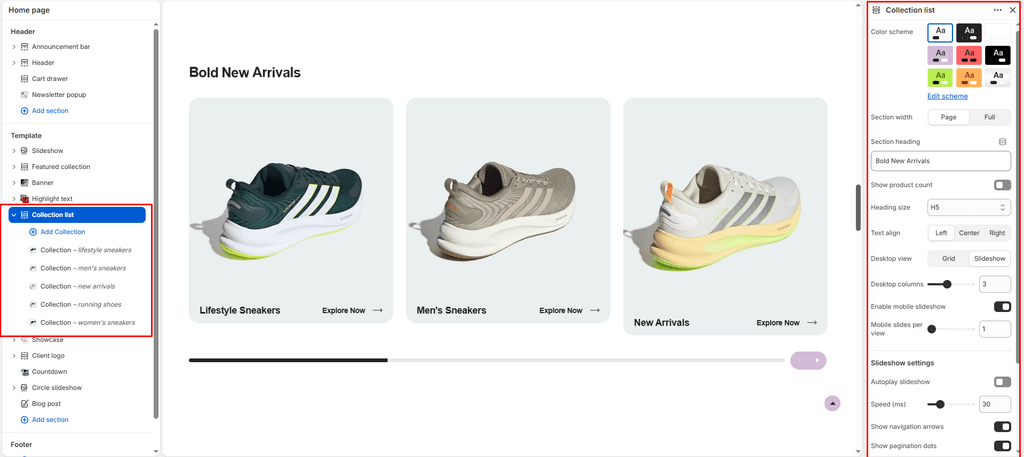
Sneax supports both a structured Static Grid and a Touch-Enabled Swiper Carousel with smooth autoplay, live product counts, and individual block overrides.
How to Access Collection List Settings #
- From your Shopify Admin, navigate to Online Store > Themes.
- Click Customize on the Sneax theme.
- Open the page template where you want to add the section (e.g., Home page).
- In the left sidebar, click Add section and choose Collection list.
- Configure your layout, slideshow settings, and add your collection blocks.
- Click Save.
Layout & Heading Settings #
| Setting Name | Type | Options / Range | Default | Description |
|---|---|---|---|---|
| Color scheme | Color Scheme Picker | Any configured color scheme | Scheme 1 | Sets the background and typography color palette for the entire section. |
| Section width | Dropdown | Page width, Full width | Page width | Determines whether the section aligns with the page container or spans edge-to-edge. |
| Section heading | Text | Text | None | Main title for the section (e.g., “Shop by Silhouette”, “Popular Collections”). |
| Heading size | Dropdown | H1 – H6 | H4 | Sets the typography size hierarchy for the section heading. |
| Text align | Dropdown | Left, Center, Right | Left | Sets horizontal alignment for the section title. |
| Show product count | Checkbox | Enabled / Disabled | Enabled (true) | Displays a real-time badge on each card showing total available items (e.g., “24 Shoes”). |
| Top padding | Slider / Range | 0px – 200px (Step: 5px) | 100px | Vertical whitespace above the collection cards (automatically halved on mobile). |
| Bottom padding | Slider / Range | 0px – 100px (Step: 1px) | 100px | Vertical whitespace below the collection cards (automatically halved on mobile). |
Grid & Slideshow Display Controls #
| Setting Name | Type | Options / Range | Default | Description |
|---|---|---|---|---|
| Desktop view | Dropdown | Grid, Slideshow | Slideshow | Choose between a multi-column static grid or a smooth horizontal Swiper carousel on desktop. |
| Desktop columns | Slider / Range | 1 – 6 (Step: 1) | 5 | Number of collection cards visible per row or slide view on desktop. |
| Enable mobile swipe | Checkbox | Enabled / Disabled | Enabled (true) | Converts the mobile view into a touch-friendly swipeable carousel to preserve vertical screen space. |
| Mobile slides | Slider / Range | 1 – 3 (Step: 1) | 1 | Number of collection cards visible simultaneously on mobile phone screens. |
Slideshow Behavior Settings (Active in Slideshow Mode) #
| Setting Name | Type | Options / Range | Default | Description |
|---|---|---|---|---|
| Autoplay slideshow | Checkbox | Enabled / Disabled | Disabled (false) | Automatically advances the collection carousel continuously. |
| Slideshow speed | Slider / Range | 10 – 100 (Step: 1) | 30 | Controls rotation pacing when autoplay is active. |
| Show navigation | Checkbox | Enabled / Disabled | Disabled (false) | Displays previous/next arrow controls. |
| Show pagination | Checkbox | Enabled / Disabled | Disabled (false) | Displays clickable pagination indicator dots at the bottom of the slider. |
Adding Collections & Custom Overrides (collection Block) #
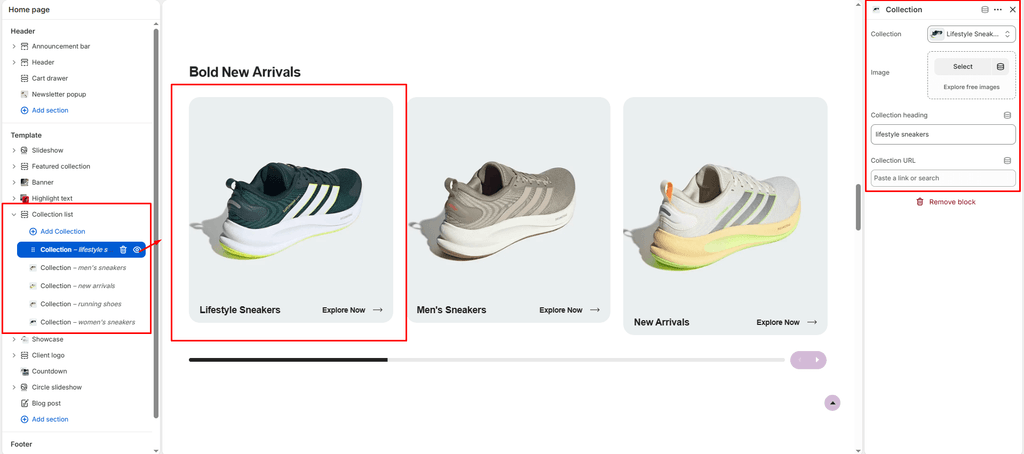
To display footwear categories, add individual Collection blocks inside the section:
- Click Add Collection under the section in the Theme Editor sidebar.
- Select your target Shopify collection from the Collection picker (e.g., Basketball Kicks).
- Optional Marketing Overrides:
- Image: Upload a custom high-impact campaign photograph to override the collection’s default Shopify cover image.
- Heading: Enter a custom title (e.g., override “Performance Runners” with “Engineered for Speed”).
- Link: Provide a custom destination URL if you want the card to route to a specific promotional landing page or raffle instead of the standard collection URL.
Pro Tips for Sneax Footwear Stores #
- High-Velocity Homepage Browsing: Setting Desktop view to
Slideshowwith Desktop columns at5allows visitors to see your major footwear categories without pushing down the rest of your homepage. - Mobile Thumb Optimization: Keep Mobile slides set to
1or2with Enable mobile swipe turned on. This lets mobile shoppers swipe through shoe categories naturally using their thumb.