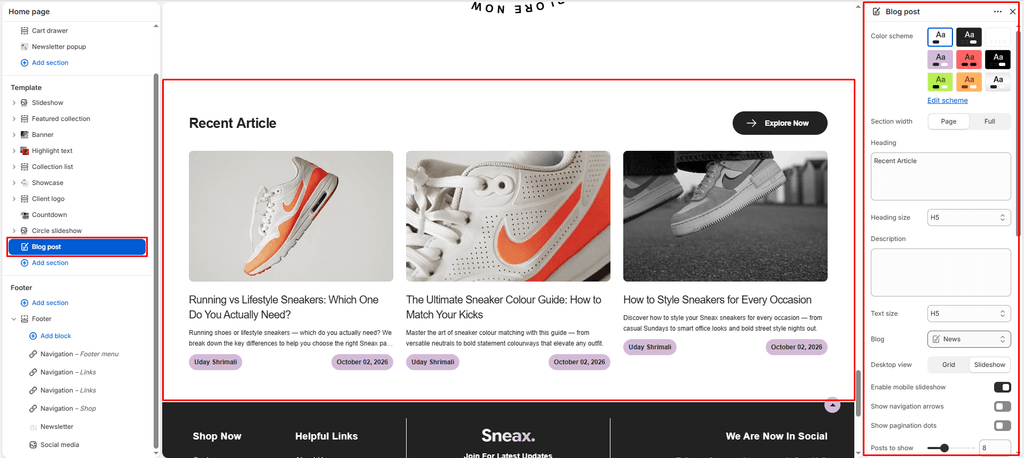
The Blog Post section allows you to feature curated stories, footwear wear-tests, sneaker drop calendars, and care tutorials directly on any page of your store (such as the Homepage, About page, or custom landing pages).
It features a dual-mode display (Static Grid or Interactive Slideshow ), touch swipe optimization on mobile, granular metadata toggles, and customizable call-to-action buttons.
How to Access Blog Post Section #
From your Shopify Admin , navigate to Online Store > Themes .
Click Customize on the Sneax theme.
Open the page template where you want to add the section (e.g., Home page ).
In the left sidebar, click Add section and select Blog posts .
Configure your layout, post limits, and article card options.
Click Save .
Layout & Heading Settings #
Setting Name Type Options / Range Default Description Color scheme Color Scheme Picker Any configured color scheme Scheme 1Sets the background and typography color palette for the section. Section width Dropdown Page width, Full widthPage widthControls whether the section stays within the site container or spans edge-to-edge. Heading Textarea Text Blog postsThe main headline displayed above the article cards (e.g., “The Sneaker Journal” , “Latest Drops & Reviews” ). Heading size Dropdown H1 – H6H4Sets the typography size hierarchy for the section heading. Description Textarea Text None Optional subheading or introductory context below the main headline. Text size Dropdown H1 – H6H3Sets the font size of the description text. Blog Blog Picker Select any active Shopify blog None Chooses which blog to pull articles from (e.g., News , Sneaker Drops , or Shoe Care ).
Grid & Slideshow Display Controls #
Setting Name Type Options / State Default Description Desktop view Dropdown Grid, SlideshowGridChoose between a classic multi-column article grid or a horizontal slider on desktop monitors. Mobile slideshow for grid Checkbox Enabled / Disabled Enabled (true)Enables smooth horizontal swipe gesture scrolling for mobile smartphones. Show navigation Checkbox Enabled / Disabled Enabled (true)Displays previous/next slider arrows (when Slideshow mode is active). Show pagination Checkbox Enabled / Disabled Enabled (true)Displays clickable pagination indicator dots beneath the slider.
Posts Density & “View All” Button #
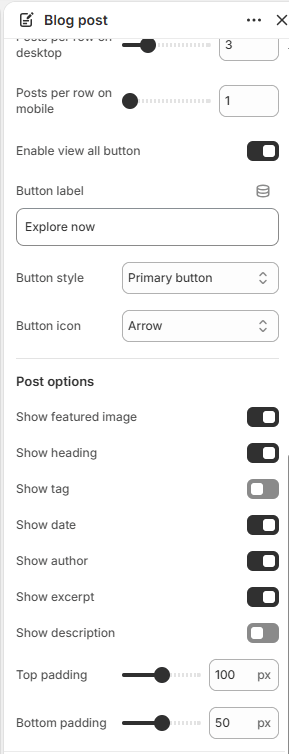
Setting Name Type Options / Range Default Description Posts limit Slider / Range 2 – 20 (Step: 1) 6The maximum number of recent articles pulled into the section. Desktop posts per row Slider / Range 2 – 6 (Step: 1) 3Number of article cards displayed side-by-side on desktop screens. Mobile posts per row Slider / Range 1 – 3 (Step: 1) 1Number of article cards visible on mobile screens before swiping. Show view all Checkbox Enabled / Disabled Enabled (true)Displays a call-to-action button linking directly to the full blog archive page. Button label Text e.g., “Explore All Articles” Button labelThe text displayed on the link button. Button style Dropdown Button primary, Button secondary, Button highlightButton primaryChooses the visual button styling. Button icon Dropdown Arrow, Cart, Quickview, Heart, etc.ArrowVector icon embedded next to the button text. Top padding Slider / Range 0px – 200px (Step: 5px) 100pxTop whitespace spacing (automatically halved on mobile). Bottom padding Slider / Range 0px – 100px (Step: 1px) 100pxBottom whitespace spacing (automatically halved on mobile).
Article Card Content Toggles #
Setting Name Type Default Description Show image Checkbox Enabled (true)Displays the article’s featured hero image. Show title Checkbox Enabled (true)Shows the article title. Show tag Checkbox Disabled (false)Displays the primary category tag pill (e.g., Drop Guide, Collabs ). Show date Checkbox Enabled (true)Displays the date the article was posted. Show author Checkbox Enabled (true)Displays the writer’s byline. Show excerpt Checkbox Enabled (true)Displays a short summary preview of the article copy. Show description Checkbox Disabled (false)Outputs full body copy if an excerpt is not specified.
Pro Tips for Sneax Footwear Stores #
Feature Release Guides on Homepage: Place this section directly below your Featured Sneaker Collection with Desktop view set to Slideshow and Desktop posts per row set to 3. It creates a dynamic editorial feed of upcoming releases and styling tips.Mobile 1-Column Impact: Setting Mobile posts per row to 1 with Mobile slideshow for grid enabled ensures your high-res footwear photography fills the phone screen for a thumb-stopping mobile shopping experience.