

The Image Text Reveal section is one of the most visually stunning, high-impact storytelling components in the Sneax theme. Powered by smooth GSAP ScrollTrigger animation technology, it transforms standard webpage scrolling into an interactive cinematic experience designed to tease and reveal limited-edition sneaker drops, collaborative lookbooks, or brand mission statements.
As the customer scrolls to this section, the screen pins in place while a massive typographic headline commands the background. Centered in front of the text is a floating, rounded footwear image card. As the shopper continues scrolling, the image smoothly expands outward—transitioning from a floating card into a full-bleed, edge-to-edge full-screen display (100vw by 100vh) that fully immerses the viewer before unpinning the page.
Accessing the Image Text Reveal Section Settings #
- From your Shopify Admin, navigate to Online Store > Themes.
- Click Customize next to your active Sneax theme.
- In the top dropdown template selector, select Home page (or any custom product launch / campaign landing page).
- In the left-hand sidebar, click (+) Add section and select Image text reveal.
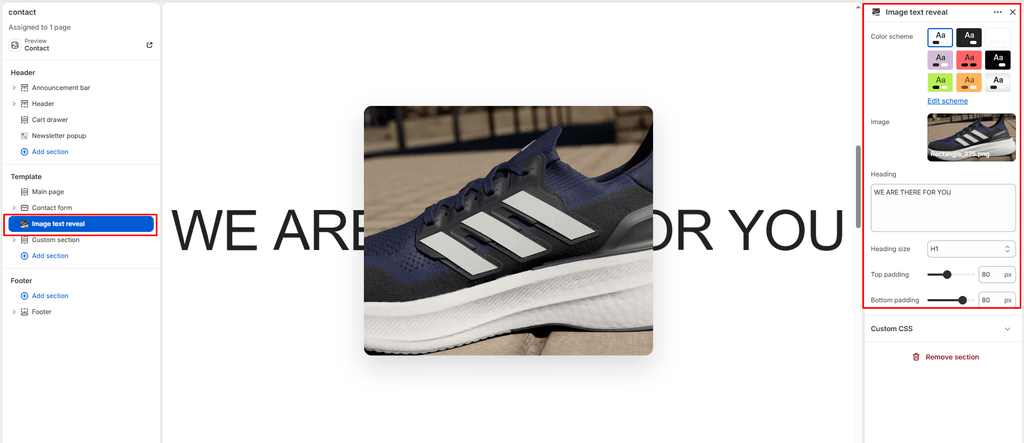
- Click directly on the section in the sidebar to open the configuration panel.
1. Color Palette & Background Typography Settings #
Configure the section color theme and the massive statement headline:
| Setting | Type | Default | Options / Range | Description |
|---|---|---|---|---|
| Color scheme | Color Scheme | scheme-1 | Theme Schemes | Controls the background canvas and the giant typography fill color. |
| Heading | Text Area | WE ARE THE BEST FOR YOU | Multi-line text | Prominent uppercase statement headline positioned behind the expanding image (e.g., “UNCOMPROMISING STREET HEAT”, “THE AIR REVOLUTION”). Supports multiple lines via enter/return. |
| Heading size | Select | h1 | h1 to h6 | Sets the typographic scale of the headline. Heading size automatically uses fluid clamp scaling (clamp(32px, 8vw, 150px)) to guarantee responsive sizing across all device displays. |
2. Featured Reveal Media Settings #
Select the hero photography that will expand dynamically as the customer scrolls:
| Setting | Type | Default | Options / Range | Description |
|---|---|---|---|---|
| Image | Image Picker | Blank | Image upload | High-resolution photography of the featured sneaker or campaign model. On desktop, this begins as a 20vw x 25vw rounded card and smoothly zooms to 100vw x 100vh full-screen. |
3. Section Spacing Controls #
Manage vertical entrance and exit margins:
| Setting | Type | Default | Options / Range | Description |
|---|---|---|---|---|
| Top padding | Range | 80px | 0px to 200px (step: 5px) | Vertical breathing room above the section before the scroll-pin trigger engages. |
| Bottom padding | Range | 80px | 0px to 100px (step: 1px) | Vertical breathing room below the section after the image completes its expansion. |
How the Scroll-Driven Reveal Works #
- Automatic Viewport Pinning: When the section reaches the center of the user’s screen (
center center), the scroll position locks (pins) automatically. - Scrubbed Image Expansion: As the user scrolls through the 150% scroll travel distance, the image’s dimensions smoothly grow from an initial floating card (
20vwdesktop /60vwmobile) with20pxrounded corners into a sharp, unrounded full-screen canvas (100vw x 100vh,0pxborder radius). - Automated Animation Engine: The section automatically checks for and initializes GSAP and ScrollTrigger plugins in the background, ensuring smooth 60fps performance across modern browsers without requiring any manual developer configuration.
Sneaker Store Best Practices #
- Tease a Highly Anticipated Silhouette Drop: Place this section directly before a Featured Collection or Product Launch section. Use a dark, moody studio photo of an unreleased silhouette (e.g., Travis Scott Collab or Retro 4) with a bold background headline like “NOVEMBER 14 // 10:00 AM EST” to build palpable release anticipation.
- Keep the Headline Short & Punchy: Because the headline renders in an ultra-bold, oversized font behind the zooming shoe, restrict your text to 2–4 impactful words (e.g., “BORN FROM CONCRETE”, “AUTHENTIC OR NOTHING”).
- Use a Dark Contrast Color Scheme: Pair
scheme-2or a dark color scheme with a clean white/neon shoe photo. As the image expands, the dark background creates a cinematic spotlight effect that focuses 100% of the customer’s attention on the sneaker.