Table of Contents
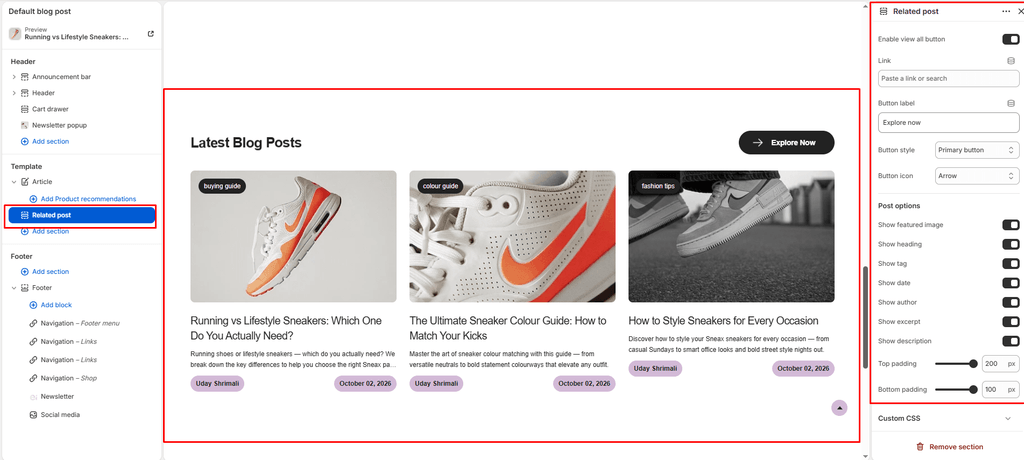
The Related Posts section is designed specifically for individual Blog Post (Article) pages. When a customer finishes reading an article—such as a sneaker wear-test, drop date breakdown, or shoe care tutorial—this section presents other relevant articles to keep them exploring your footwear content.
Sneax features an intelligent tag-matching algorithm that automatically detects the topic of the current article and serves contextually relevant footwear stories.
How to Access Related Posts Settings #
- From your Shopify Admin, navigate to Online Store > Themes.
- Click Customize on the Sneax theme.
- In the top template selector, navigate to Blogs > Default article.
- In the left sidebar, scroll beneath the main article content and click Related posts (or click Add section > Related posts).
- Configure your layout, post limits, and card toggles.
- Click Save.
Layout & Heading Settings #
| Setting Name | Type | Options / Range | Default | Description |
|---|---|---|---|---|
| Color scheme | Color Scheme Picker | Any configured color scheme | Scheme 1 | Sets the background and typography color palette for the section. |
| Section width | Dropdown | Page width, Full width | Page width | Determines whether the section stays within the site container or spans edge-to-edge. |
| Heading | Textarea | Text | Recent Blogs | Section title displayed above related articles (e.g., “More Release Guides”, “Related Footwear Stories”). |
| Heading size | Dropdown | H1 – H6 | H4 | Sets the typography size hierarchy for the section heading. |
| Description | Textarea | Text | None | Optional subheading text positioned beneath the headline. |
| Text size | Dropdown | H1 – H6 | H3 | Sets the font size of the description text. |
| Top padding | Slider / Range | 0px – 200px (Step: 5px) | 100px | Top vertical spacing (automatically halved on mobile). |
| Bottom padding | Slider / Range | 0px – 100px (Step: 1px) | 100px | Bottom vertical spacing (automatically halved on mobile). |
How Sneax Selects Related Articles (Smart Tag-Matching) #
Sneax does not just show random posts; it uses smart contextual matching:
- Primary Tag Match: Sneax checks the first tag of the article the customer is currently reading (e.g.,
RUNNING,BASKETBALL,COLLAB, orMAINTENANCE). If other posts share that same tag, Sneax displays them first. - Chronological Fallback: If no other tagged articles exist, Sneax automatically falls back to the most recent published articles from the same blog.
Grid & Slideshow Controls #
| Setting Name | Type | Options / State | Default | Description |
|---|---|---|---|---|
| Desktop view | Dropdown | Grid, Slideshow | Grid | Toggle between a clean multi-column card grid or a smooth horizontal Swiper slider on desktop. |
| Mobile slideshow for grid | Checkbox | Enabled / Disabled | Enabled (true) | Enables horizontal touch-swipe gestures on smartphones. |
| Show navigation | Checkbox | Enabled / Disabled | Enabled (true) | Displays previous/next navigation arrows for the slider. |
| Show pagination | Checkbox | Enabled / Disabled | Enabled (true) | Displays pagination indicator dots beneath the slider. |
| Posts limit | Slider / Range | 2 – 20 (Step: 1) | 6 | Maximum number of related articles shown. |
| Desktop posts per row | Slider / Range | 2 – 6 (Step: 1) | 3 | Number of article cards displayed side-by-side on desktop. |
| Mobile posts per row | Slider / Range | 1 – 3 (Step: 1) | 1 | Number of article cards shown per view on mobile screens. |
“View All” Button Settings #
| Setting Name | Type | Default | Description |
|---|---|---|---|
| Show view all | Checkbox | Enabled (true) | Displays a call-to-action button linking back to your main blog journal archive. |
| Button label | Text | Button label | The text on the button (e.g., “Read All Stories” or “View Drop Calendar”). |
| Link | URL | None | Destination URL (defaults to your main blog URL if left blank). |
| Button style | Dropdown | Button primary | Chooses between Button primary, Button secondary, or Button link. |
| Button icon | Dropdown | Arrow | Vector icon embedded on the button (Arrow, Cart, Quickview, Heart, etc.). |
Article Card Content Toggles #
| Setting Name | Type | Default | Description |
|---|---|---|---|
| Show image | Checkbox | Enabled (true) | Displays the article’s featured sneaker image. |
| Show title | Checkbox | Enabled (true) | Shows the article headline. |
| Show tag | Checkbox | Disabled (false) | Renders the category tag badge. |
| Show date | Checkbox | Enabled (true) | Shows the publication date. |
| Show author | Checkbox | Enabled (true) | Displays the writer’s byline. |
| Show excerpt | Checkbox | Enabled (true) | Shows the short summary excerpt. |
| Show description | Checkbox | Disabled (false) | Displays body text preview if no excerpt is provided. |
Pro Tips for Sneax Footwear Stores #
- Tag Strategy for Higher Engagement: Tag related articles under matching categories like
AIR MAX,RETRO HIGH,WEAR TEST, orSHOE CARE. When a shopper finishes an article about cleaning white leather sneakers, Sneax will automatically present other sneaker maintenance guides. - Mobile Swipe Experience: Keep Mobile posts per row set to
1with Mobile slideshow for grid enabled. It keeps the bottom of your article pages clean and lets mobile visitors swipe through high-res shoe cards with their thumb.